
Open the return menu in the Key Movements module or with the F6 key.
You can search either by person or by the issued key.
Enter the key holder's name in the NAME - 1 field (the first letters of the surname are enough) and click the magnifier, Search key or Search person.
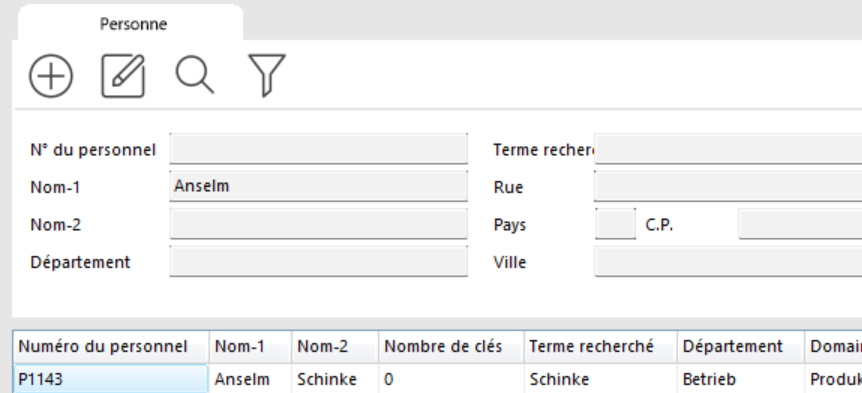
A results list is displayed.
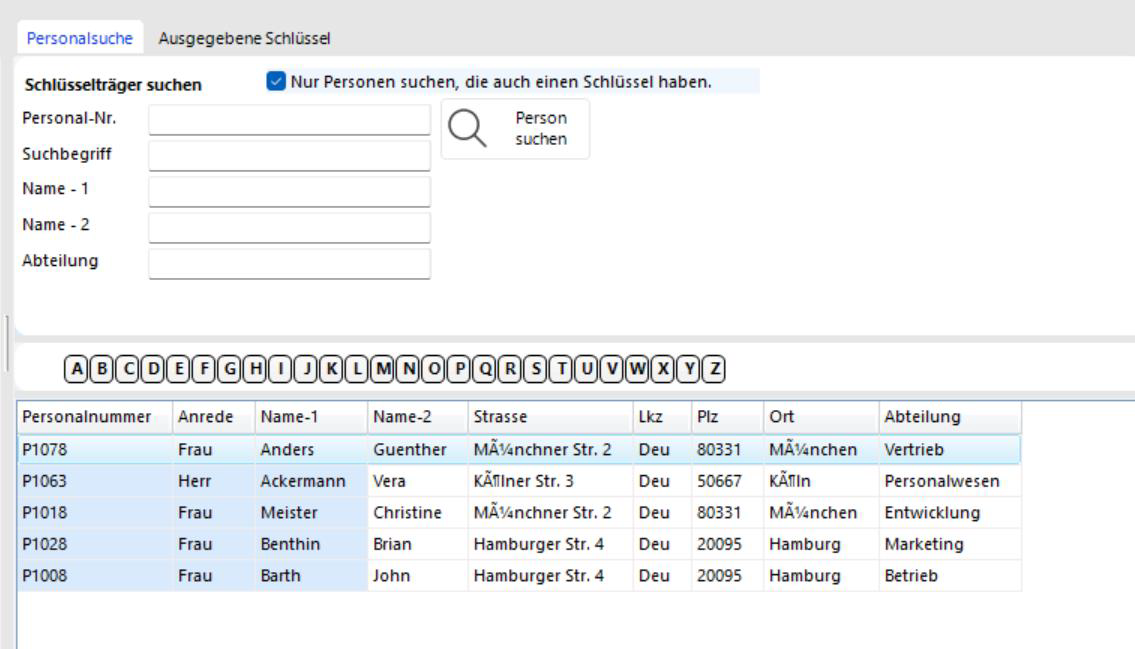

Find the key holder in the list and drag them to the right onto the RETURN button while holding the left mouse button (drag and drop). You can also right-click the person and choose RETURN. The KEY MOVEMENTS window opens.
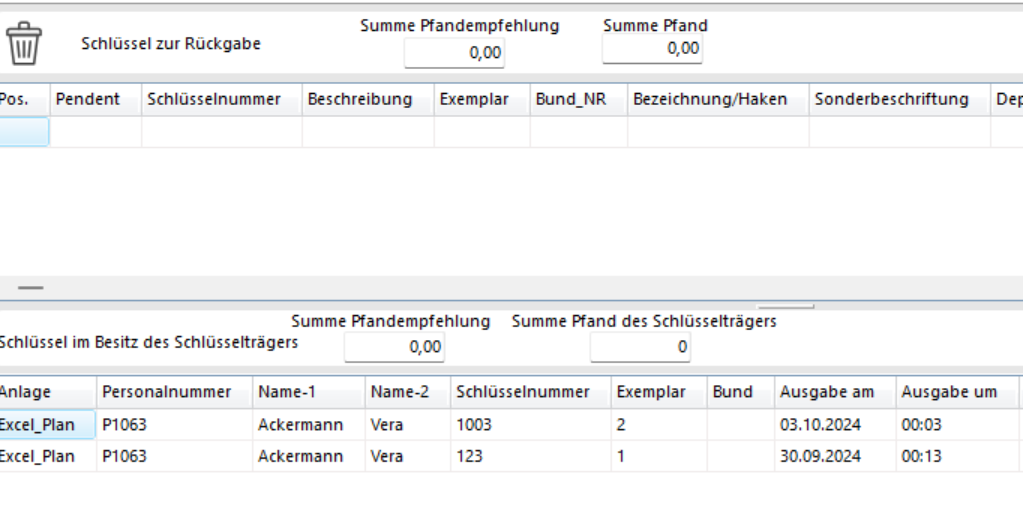
The key holder's data is already filled in.
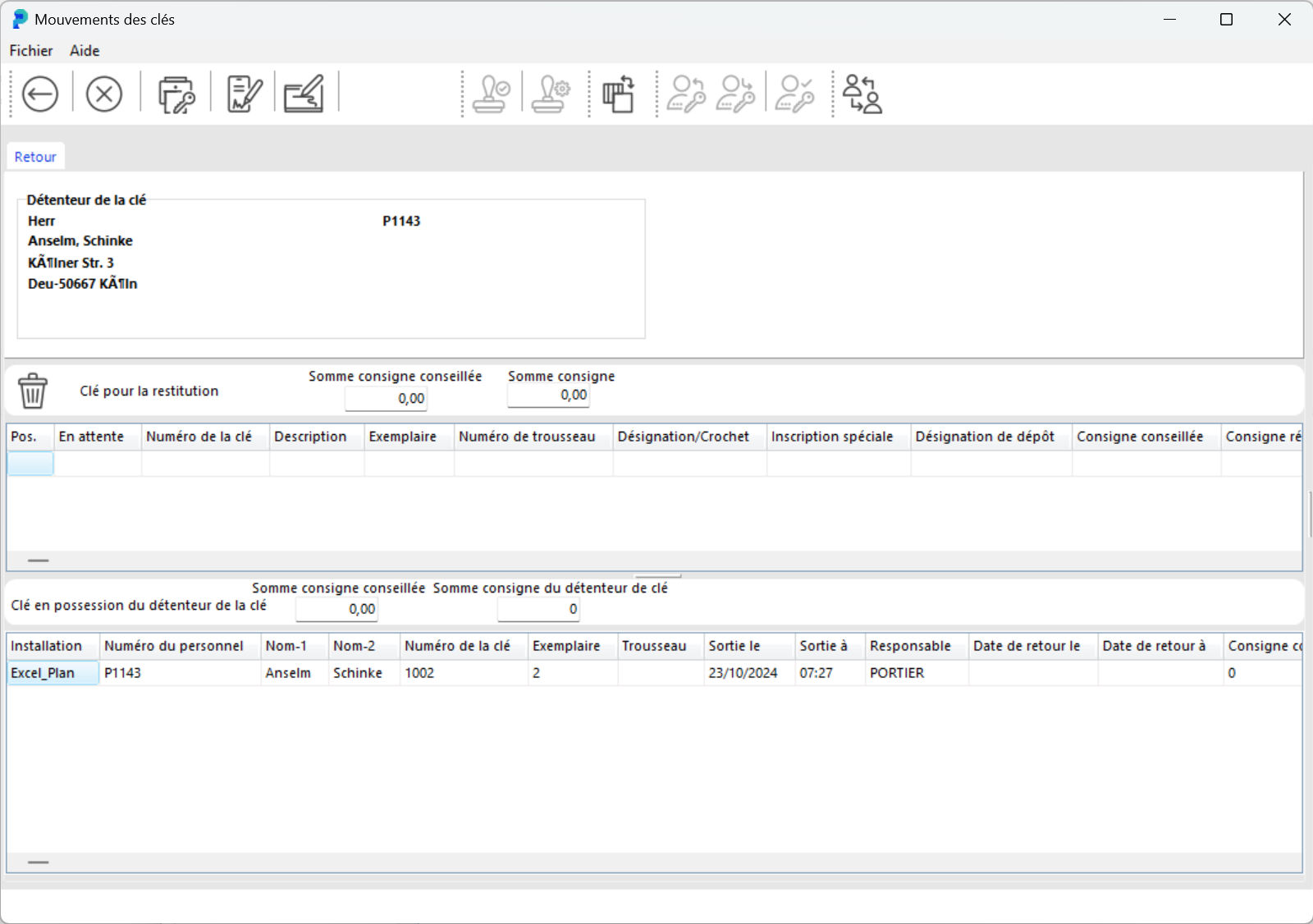
In the lower section of the window you can see which keys they currently hold.
Double-click the key you are taking back. It is then listed in the middle section of the window as a key for return.
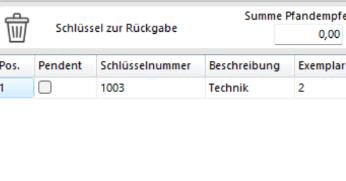
If the key holder has several keys and you picked the wrong one for return, click the bin icon POSITION AUS DER LISTE LÖSCHEN (delete position from list). The key comes off the return list.

Book the key return by clicking the BOOK button.

What is saved on a return
When you save a return, portier Vision records the actual return date and time on the copy (fields HISTRueckgabedatum and HISTRueckgabeUhr). The previously set planned return date is not affected; it was the scheduled date, not the actual one.
Partial return of several keys
If a key holder received several keys in one issue, you do not have to return them all at once. Select only the returned keys and save. The rest stay assigned to the key holder, and the issue document keeps the status “partially returned”. You return the remaining keys later in the same way.
Receipt on return
Whether a receipt is printed or a signature is captured when you save a return depends on the receipt type of the relevant key template. Some keys need no receipt; others allow the return only with a signature. You set this in the key template, in the Receipt type field.
Related articles: Reminder (spot overdue returns), Key Issuing in portier Vision 5 (the counterpart to returns), KeyOnTheGo Mobile App (mobile signature on site).