
The Reminder is a window in portier Vision. It lists keys that are due back and people whose role is ending. It does not send anything. Automatic reminder emails run in the portier Vision Companion, see the last section.
Switch the Reminder on
Open the System menu and then Settings. The Reminder group sits in two tabs.
Basic Settings applies to every user.
User Settings applies to your own account only.
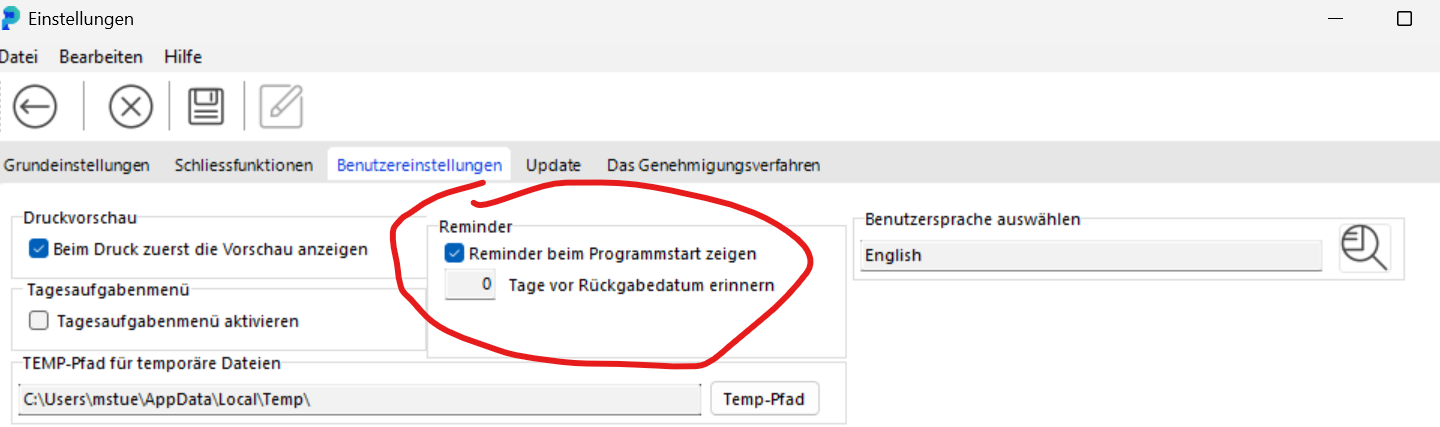
The Settings screen in portier Vision with the Basic Settings and User Settings tabs that carry the Reminder group.
Tick Show Reminder at program start and enter under Remind days before return date how far ahead portier Vision should look.
The program start tick box and next to it the field for the days before the return date.
If the box in Basic Settings is ticked, that day count applies to everyone. It overrides the number in User Settings.
Open the Reminder
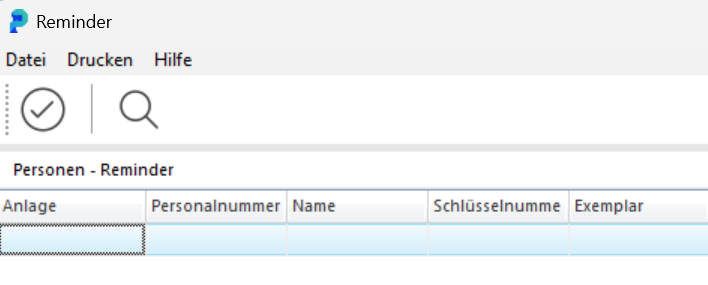
At the next program start the Reminder opens by itself. While you work, you can reach it in three ways.
Key F10
Menu Queries, entry Reminder
Bell icon at the top right, then Reminder in the notification bar
Which period is shown
The Reminder checks two date fields. The return date on the issue and End of role on the person record.
Forward, the window reaches as far as you set it. Backward, it always reaches 100 days, so overdue returns stay in view.
If a person's End of role is more than 100 days in the past, they no longer appear in the Reminder, even if they still hold keys. You can find these cases through Key Movements or through a query.

The Reminder window with the entries coming due and those already overdue, going back up to 100 days.
What you see also depends on your rights. Without the system right, the Reminder only shows issues from your depots and from locking systems you hold a role for. Two colleagues therefore see a different number of rows.
Show the reminder email status in the window
Basic Settings carries the group Reminder email status. Tick Enable reminder email status and the Reminder gains two extra columns.
Earlier reminder
Final reminder
Each cell shows the send date and the stage's configured lead time, for example 12.03.2026 (90 days). Only real sends count. A dry run in the Companion leaves the cell empty.
With the box ticked, anyone who has already been sent a reminder also appears as a row, even when their date falls outside your window.
Automatic reminder emails run in the Companion
The Reminder window shows, it does not chase. Automatic reminders to keyholders are sent by the portier Vision Companion as a scheduled task of type Reminder.
Setup, stages, templates and mail delivery are covered in the article Set up reminder emails.