Please download and install the application from Google Play or the App Store:


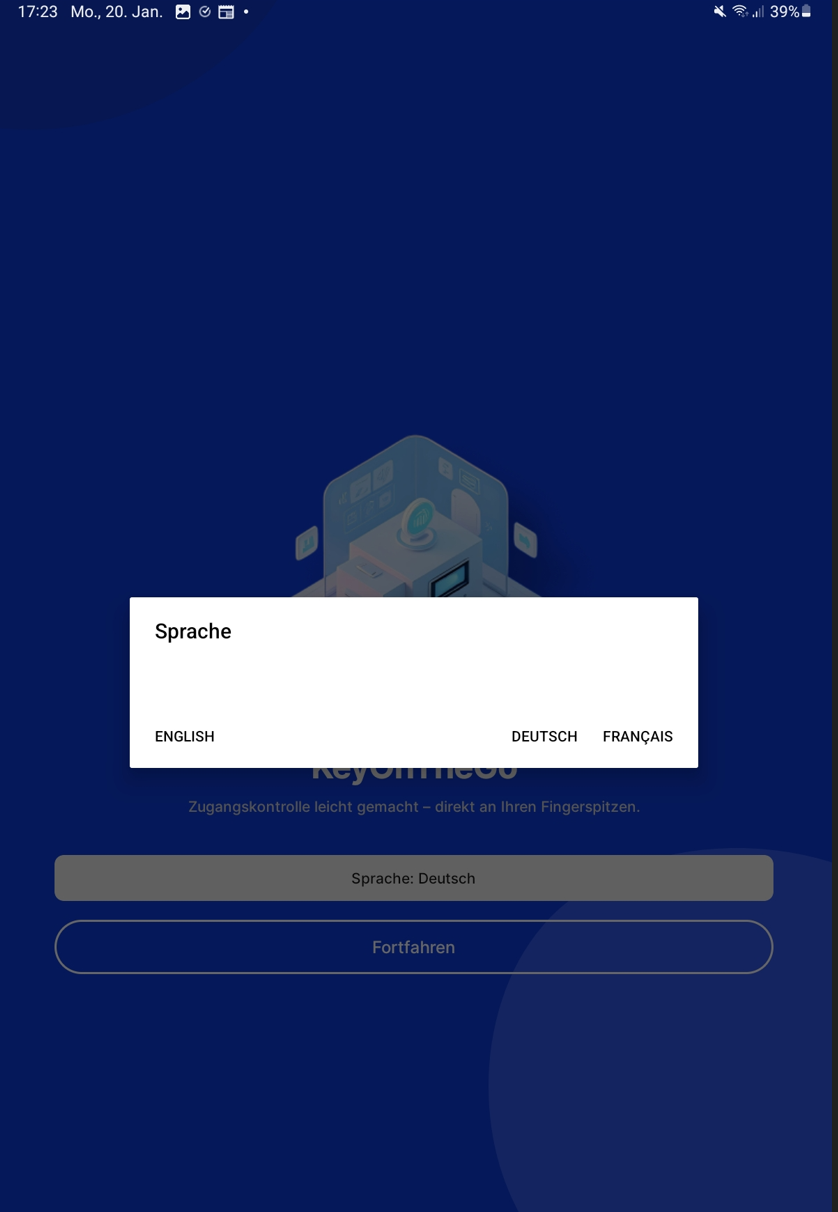
On the start screen you set your preferred language.
You can choose between German, English and French.
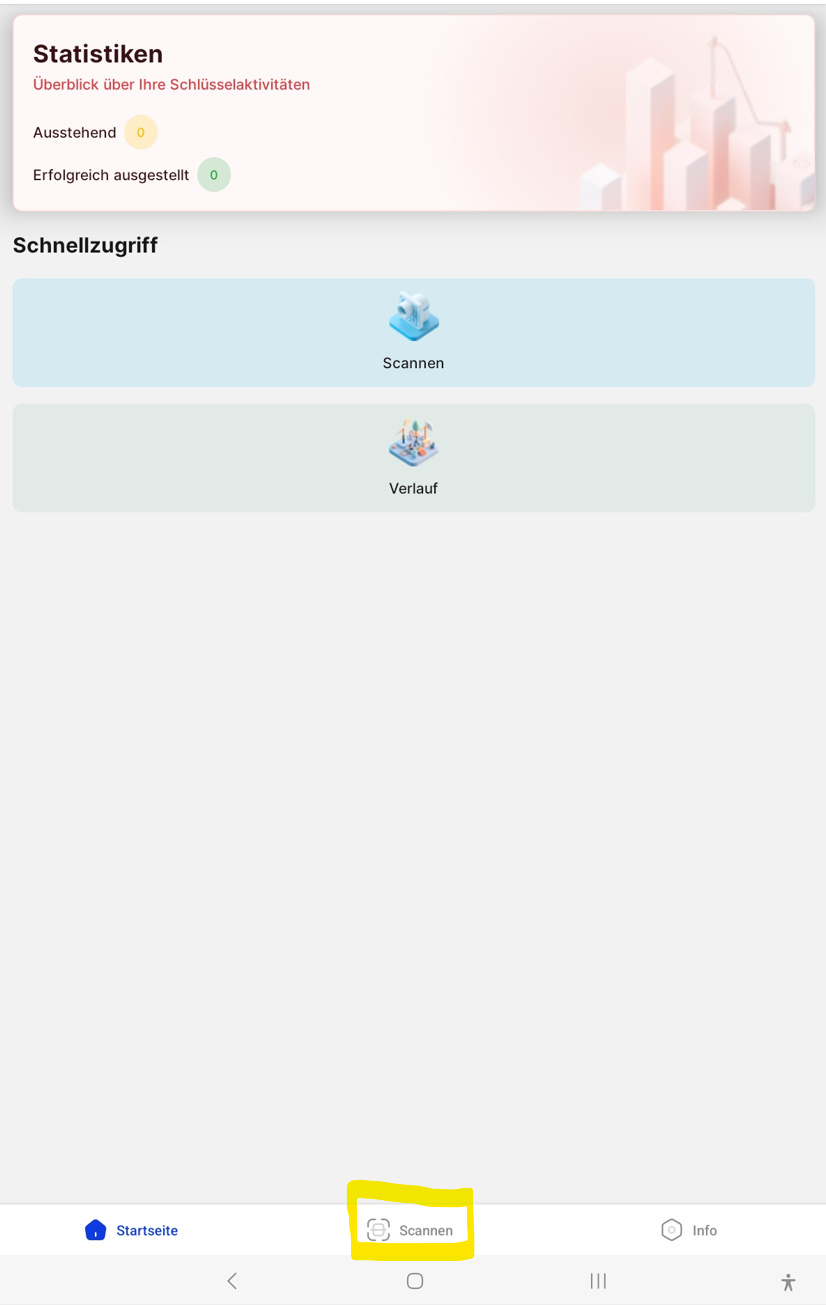
The main menu consists of the upper area, which gives you statistics on how many keys were issued successfully and how many are still awaiting signature.
The quick access below leads straight to the scanner and to the history.
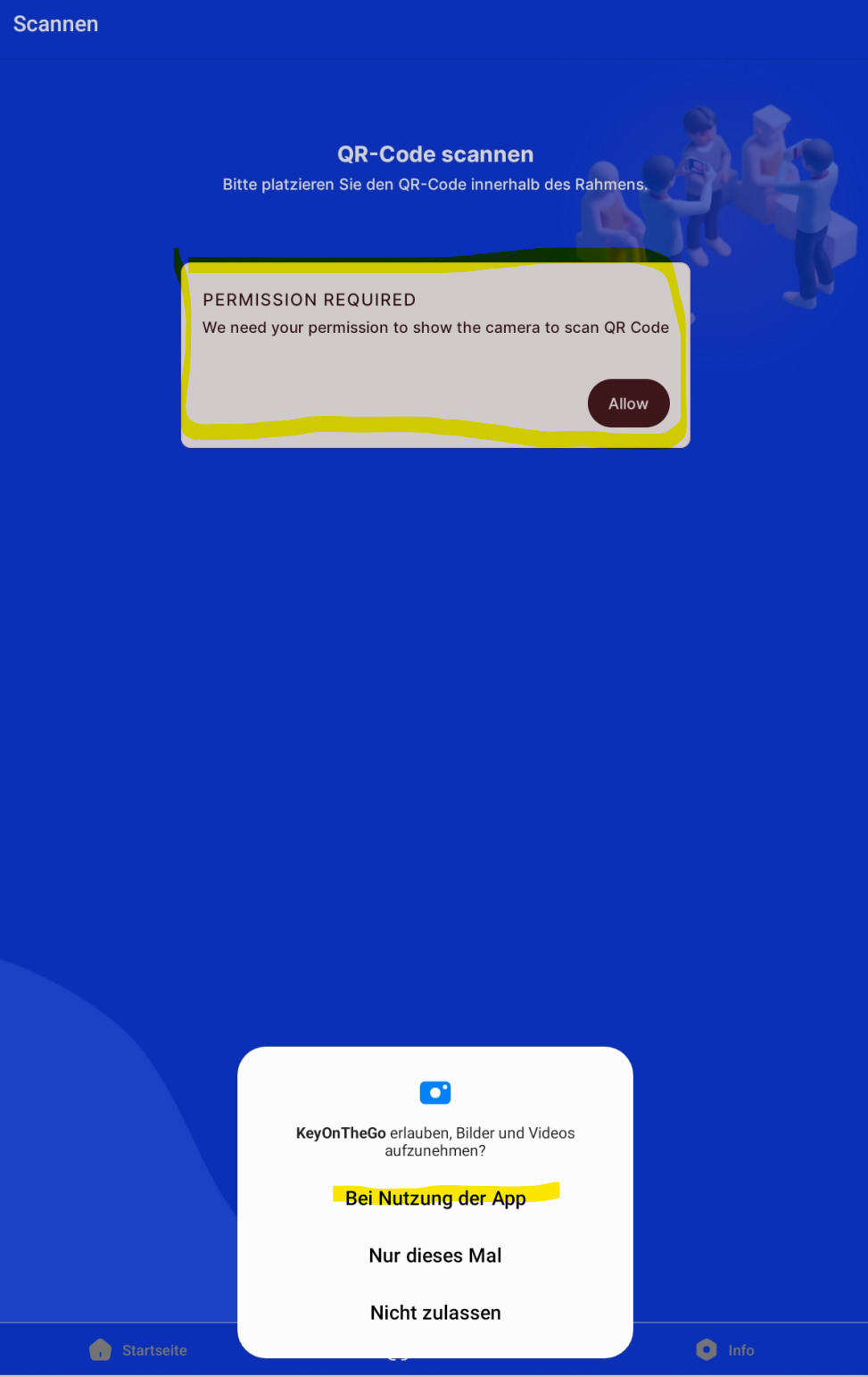
When you use the app for the first time, a permission request appears asking whether the camera of the phone or tablet may scan the QR code in the portier application. Please allow it so the app can be used.
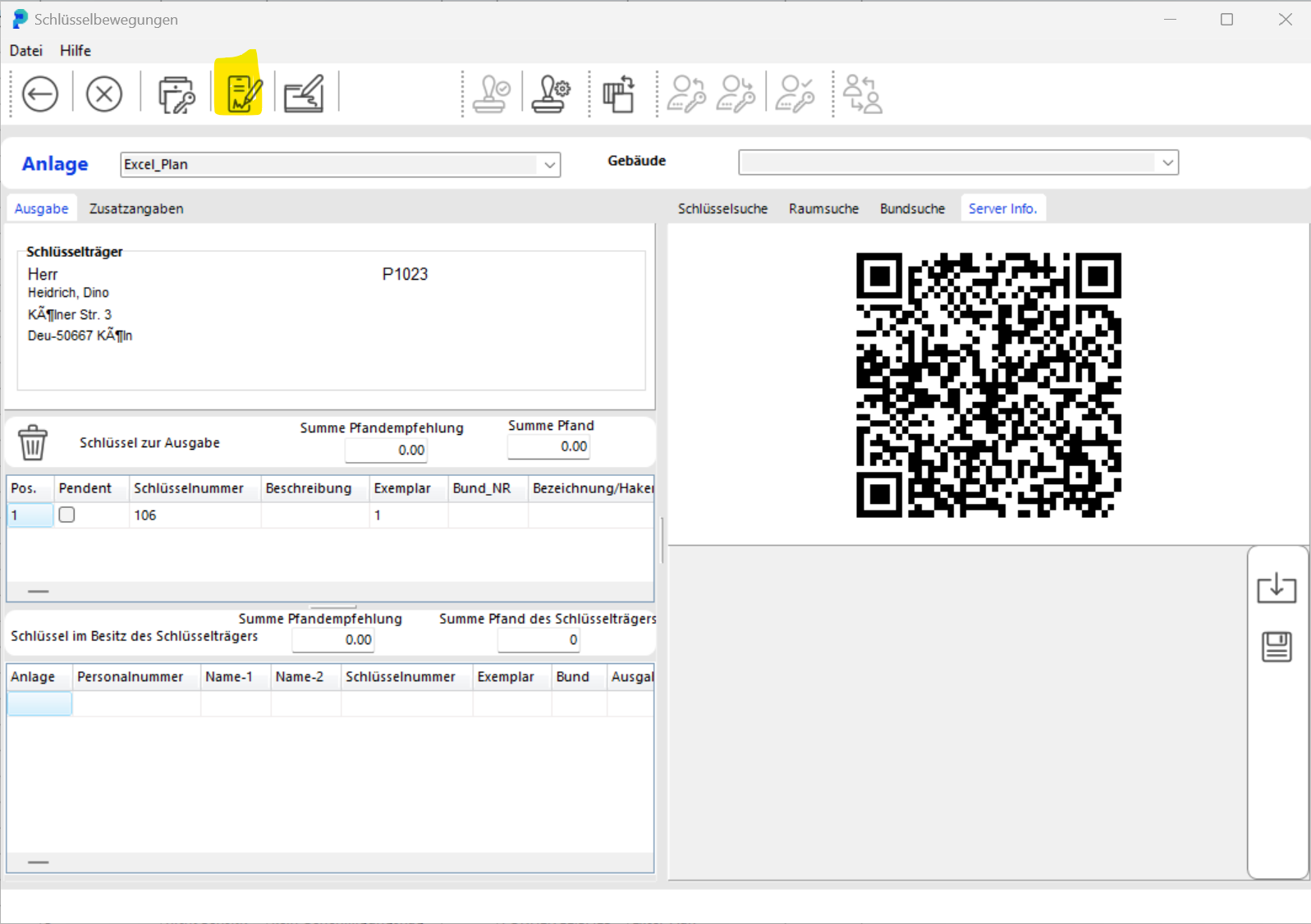
After selecting the key and the person who is to receive it, start the issue with a click on the KeyOnTheGo icon. A QR code then appears, which you scan with the mobile device that has the KeyOnTheGo app installed.
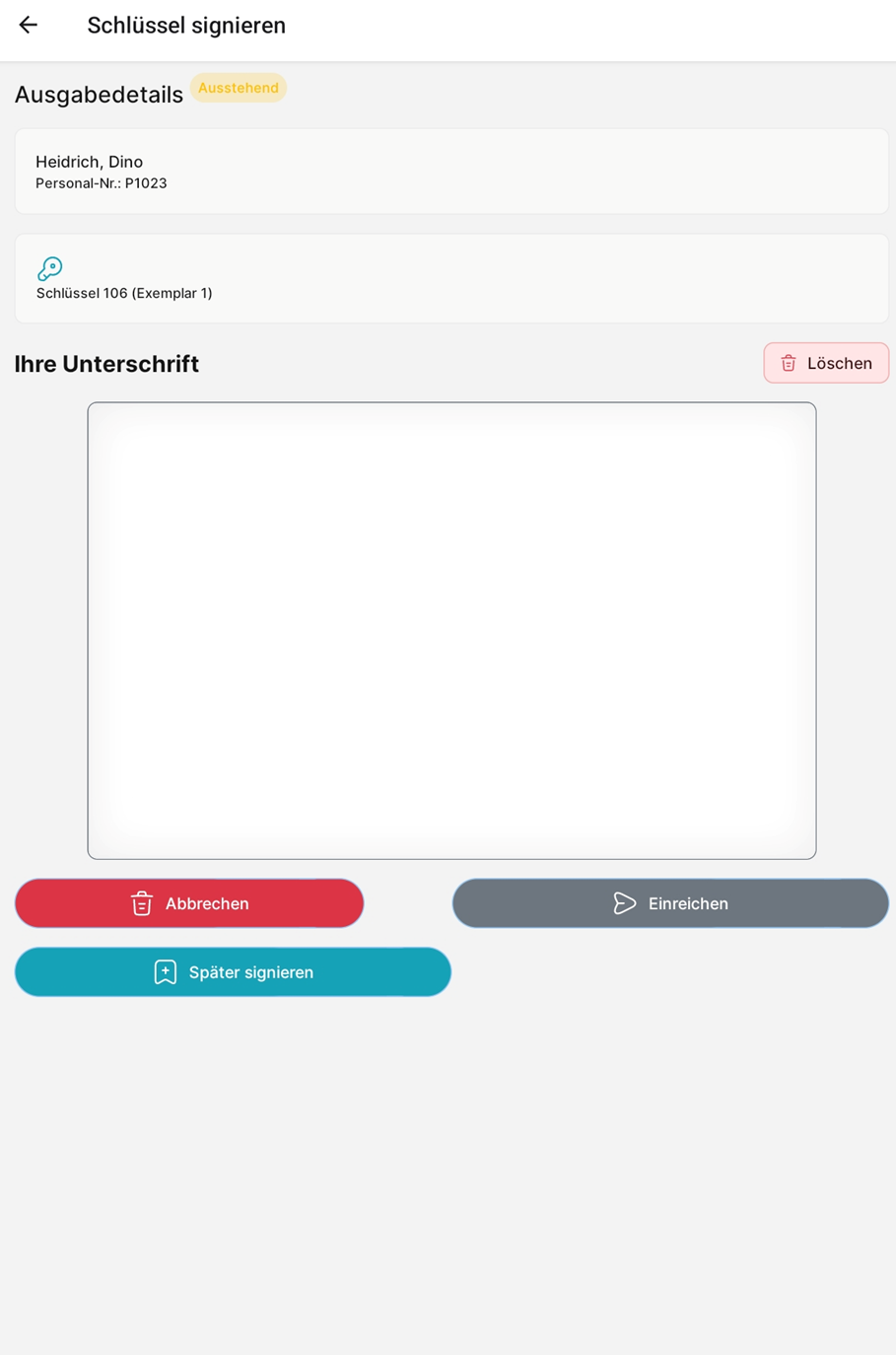
On your mobile device a signature field is displayed showing the issue details (person, key number and copy number, shown as Exemplar). Ask the person to sign in that field, then click "Submit".
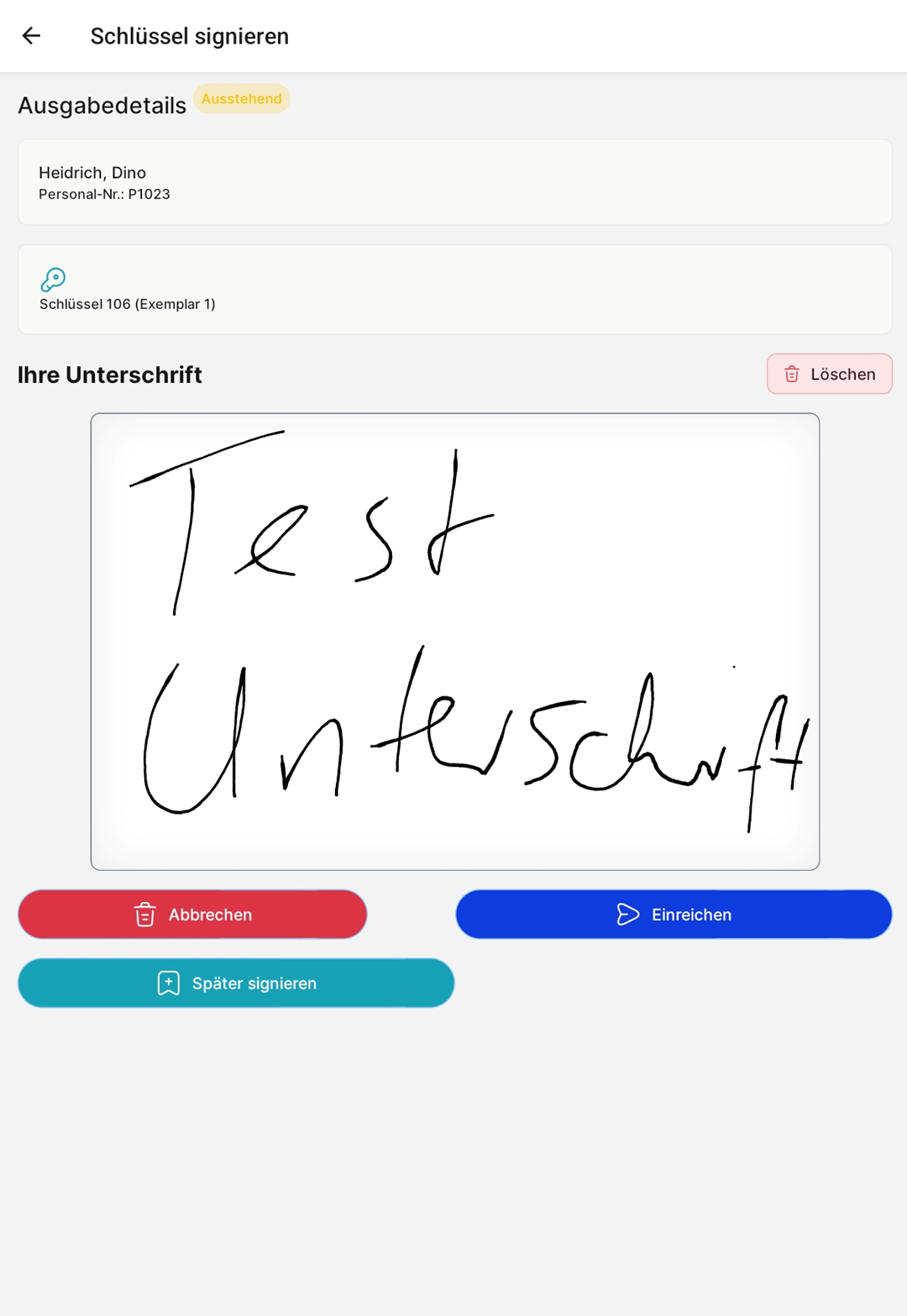
After pressing "Submit", you can still edit or remove the signature.
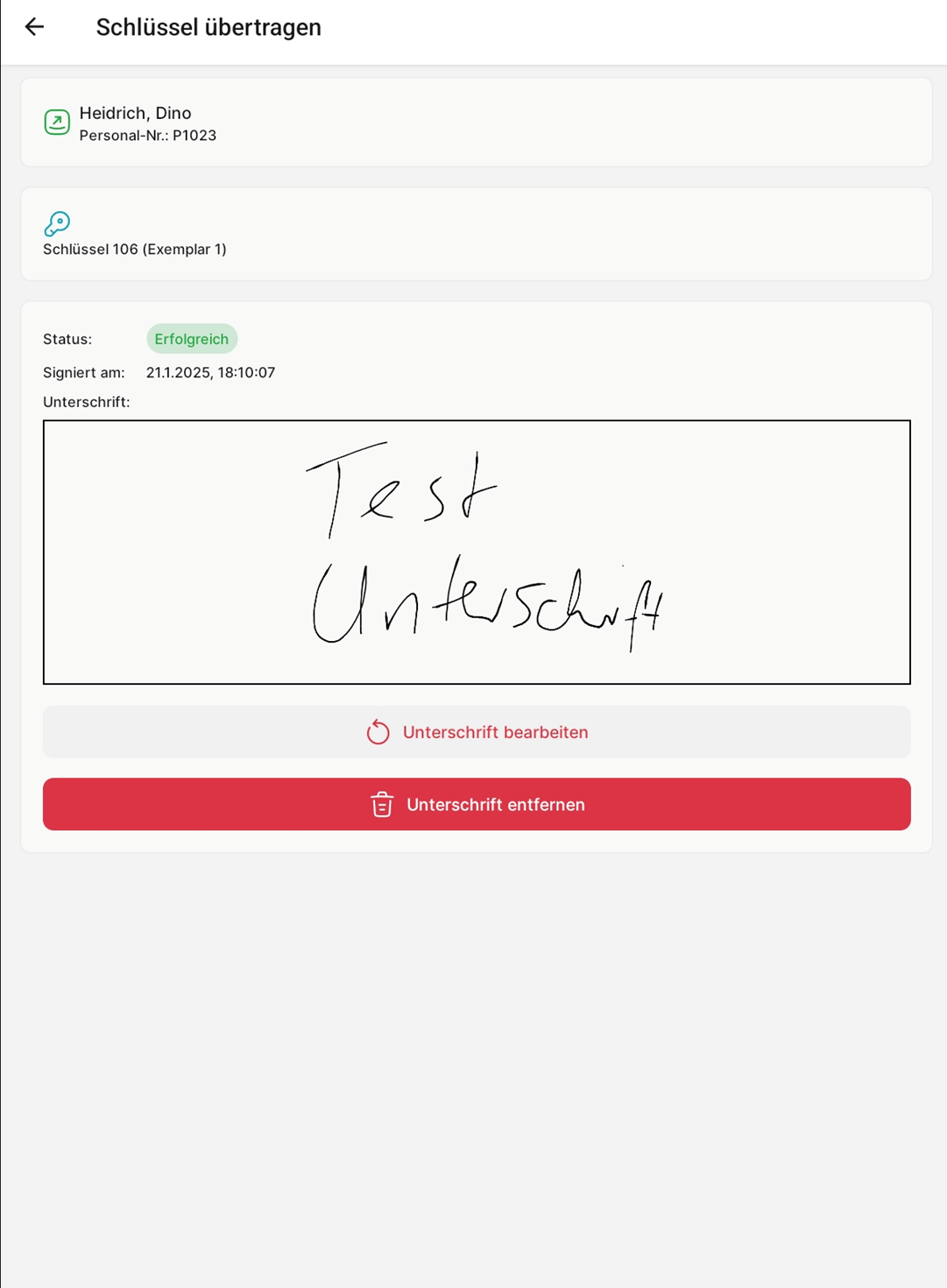
In the portier application, you display the signature data using the receipt icon.
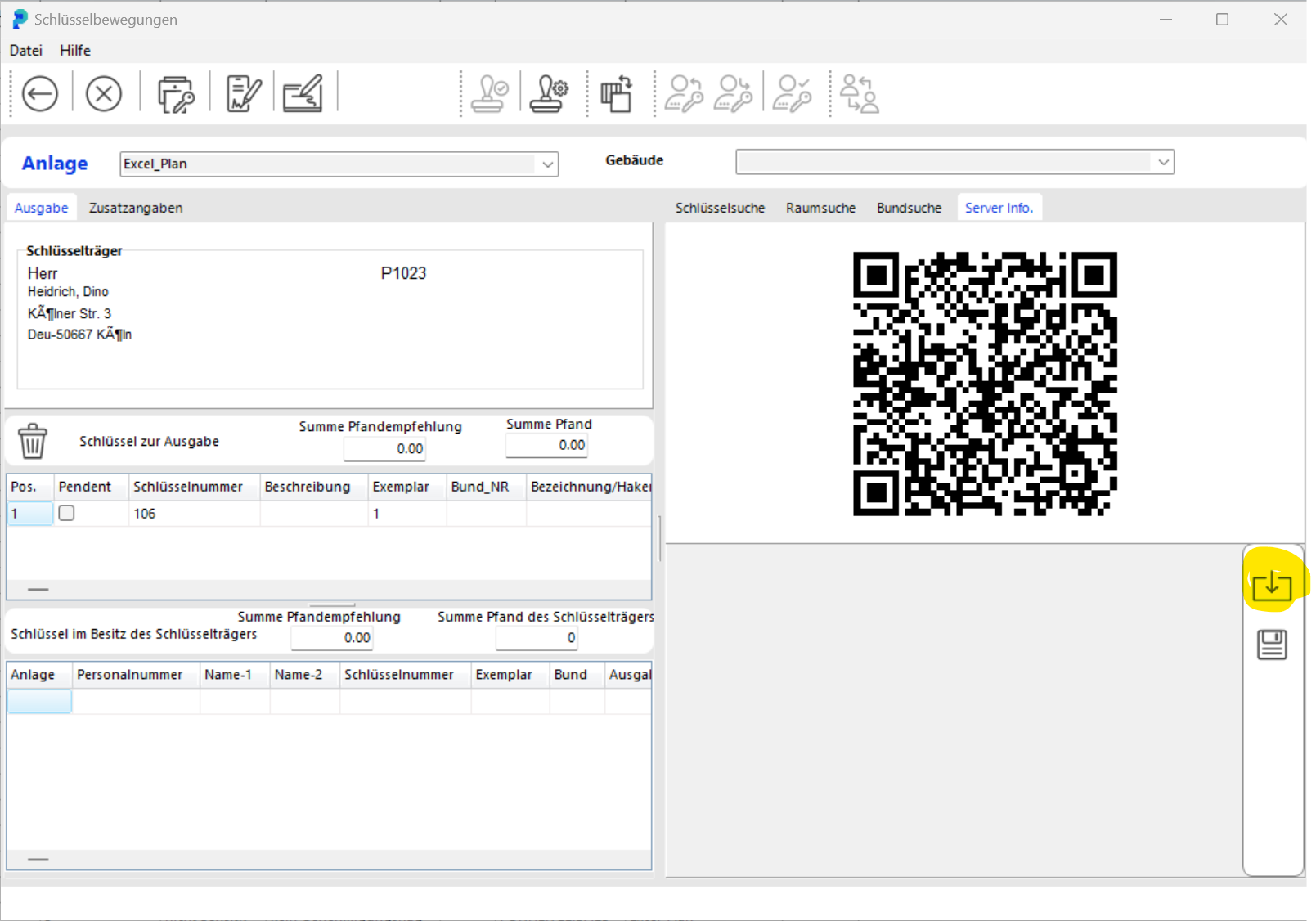
The signature is displayed.
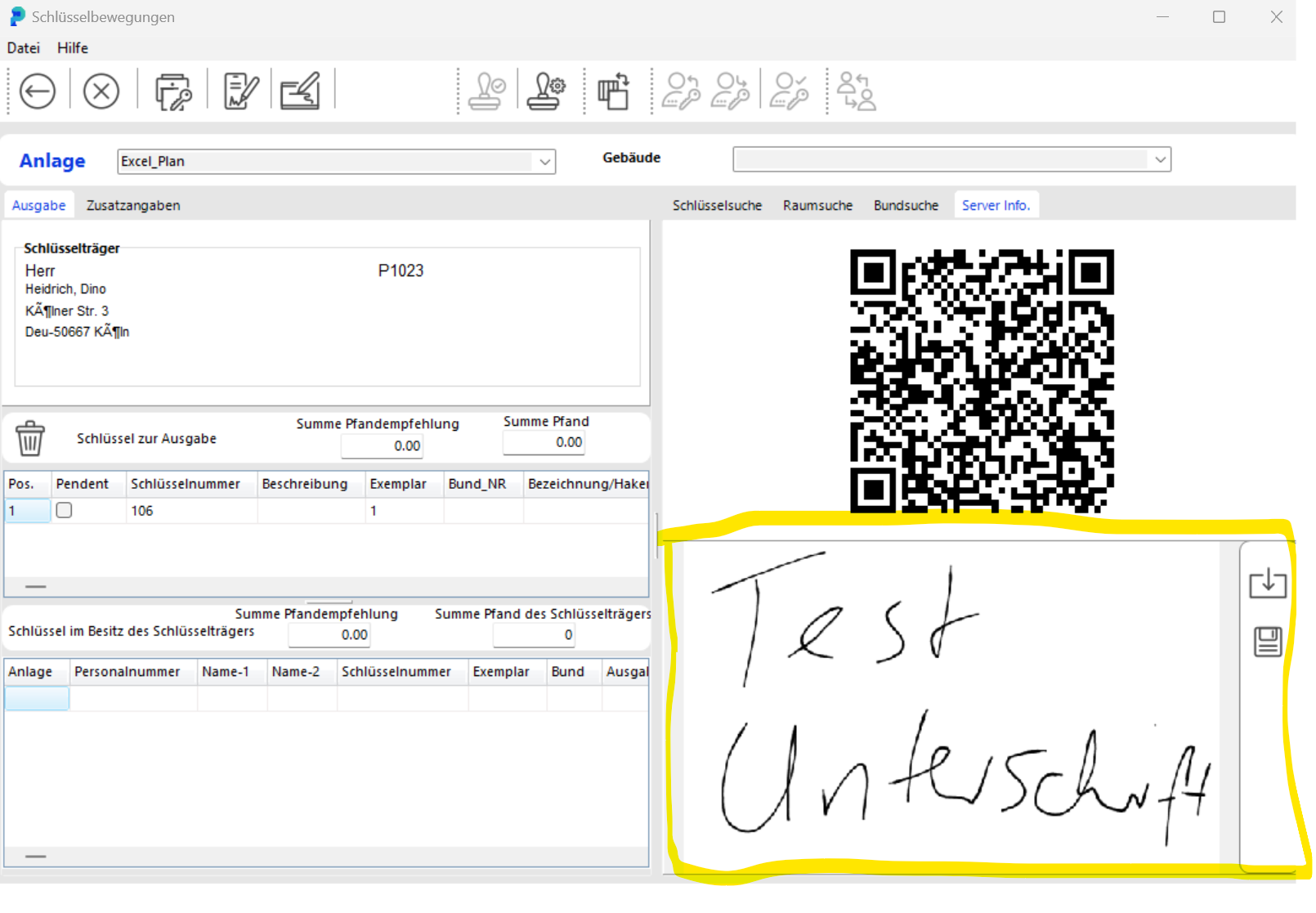
You save the signature by clicking the floppy disk icon.
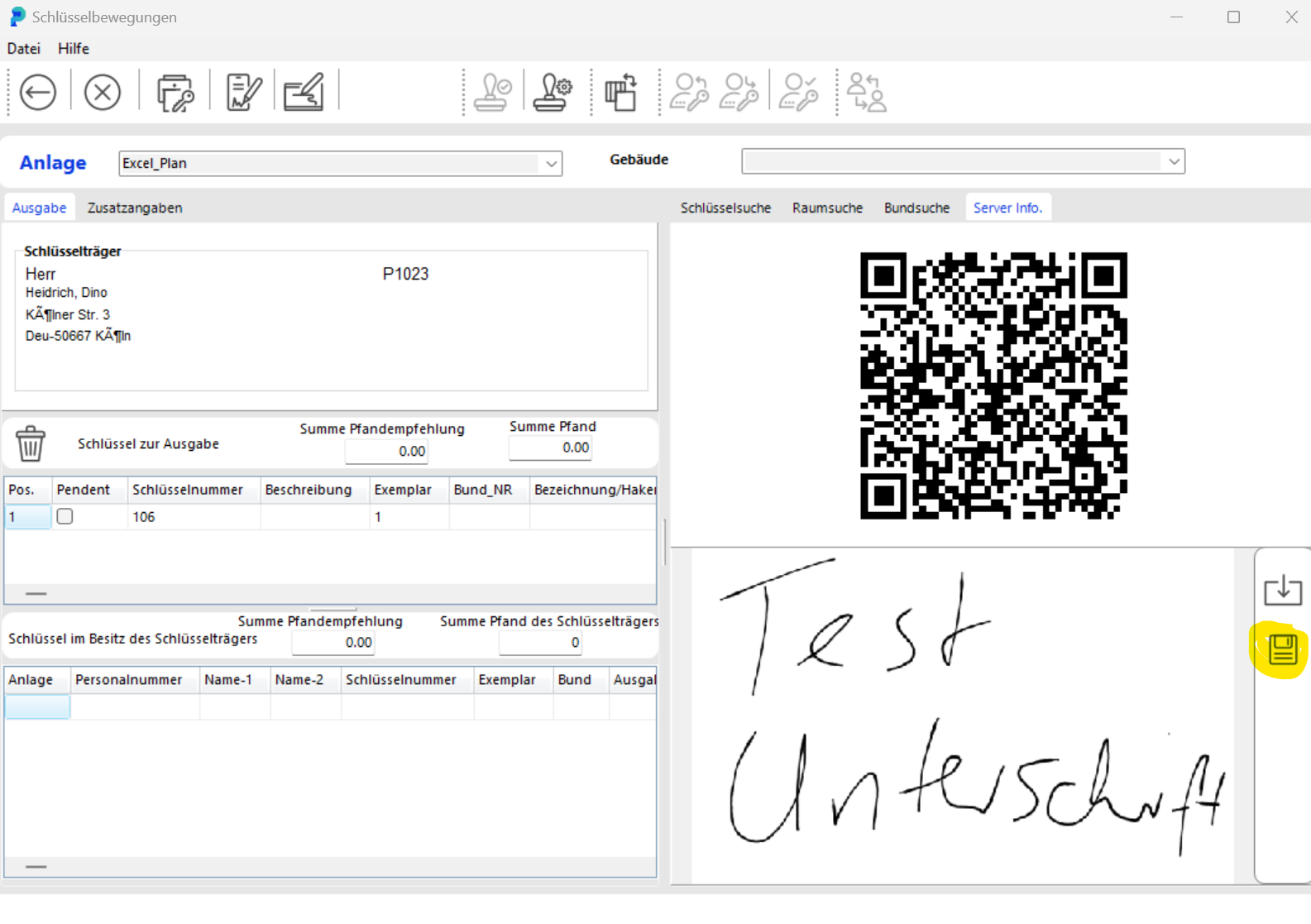
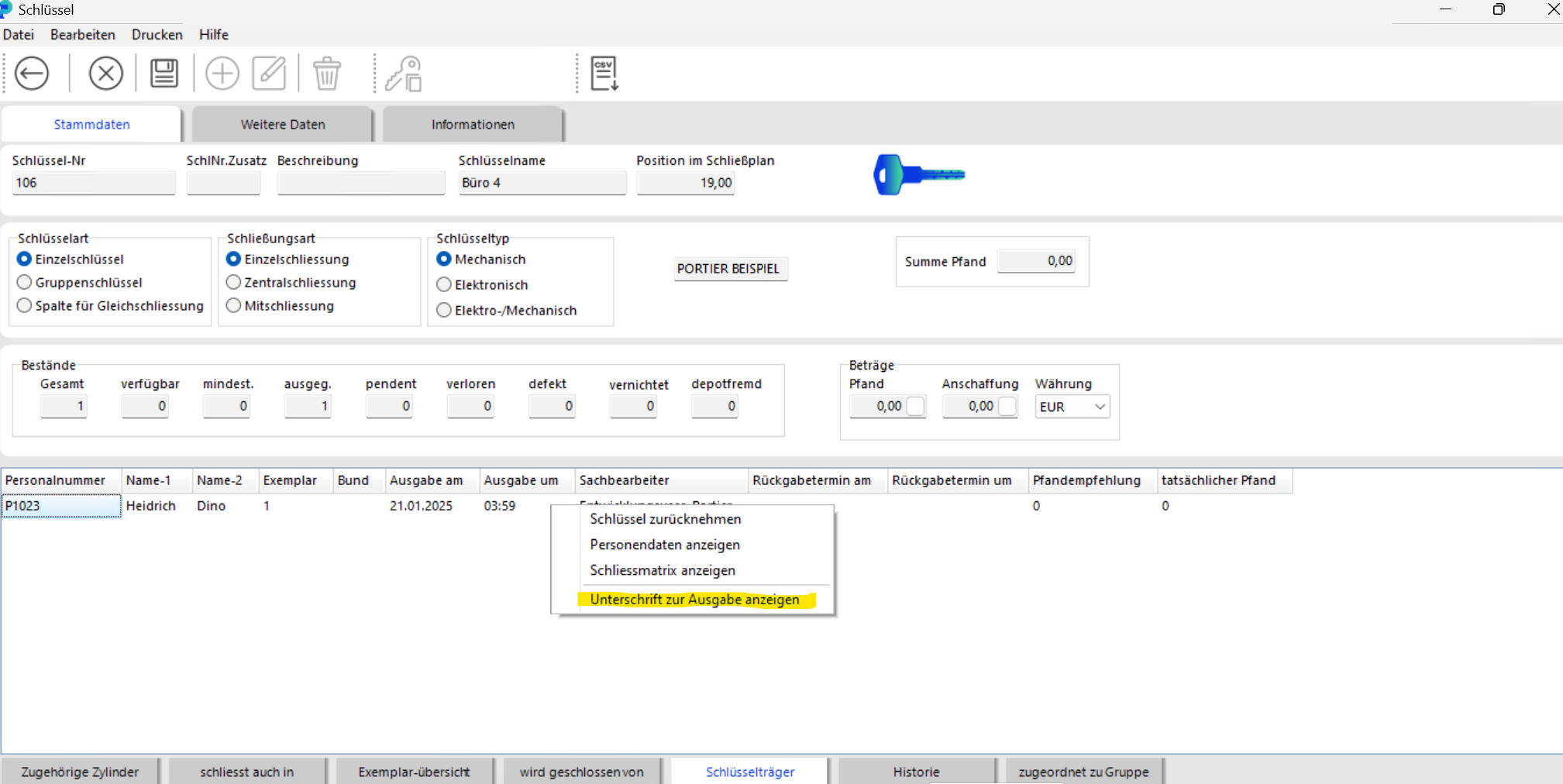
The saved signature is stored in the database and is available in the key view under the Key Holder tab.
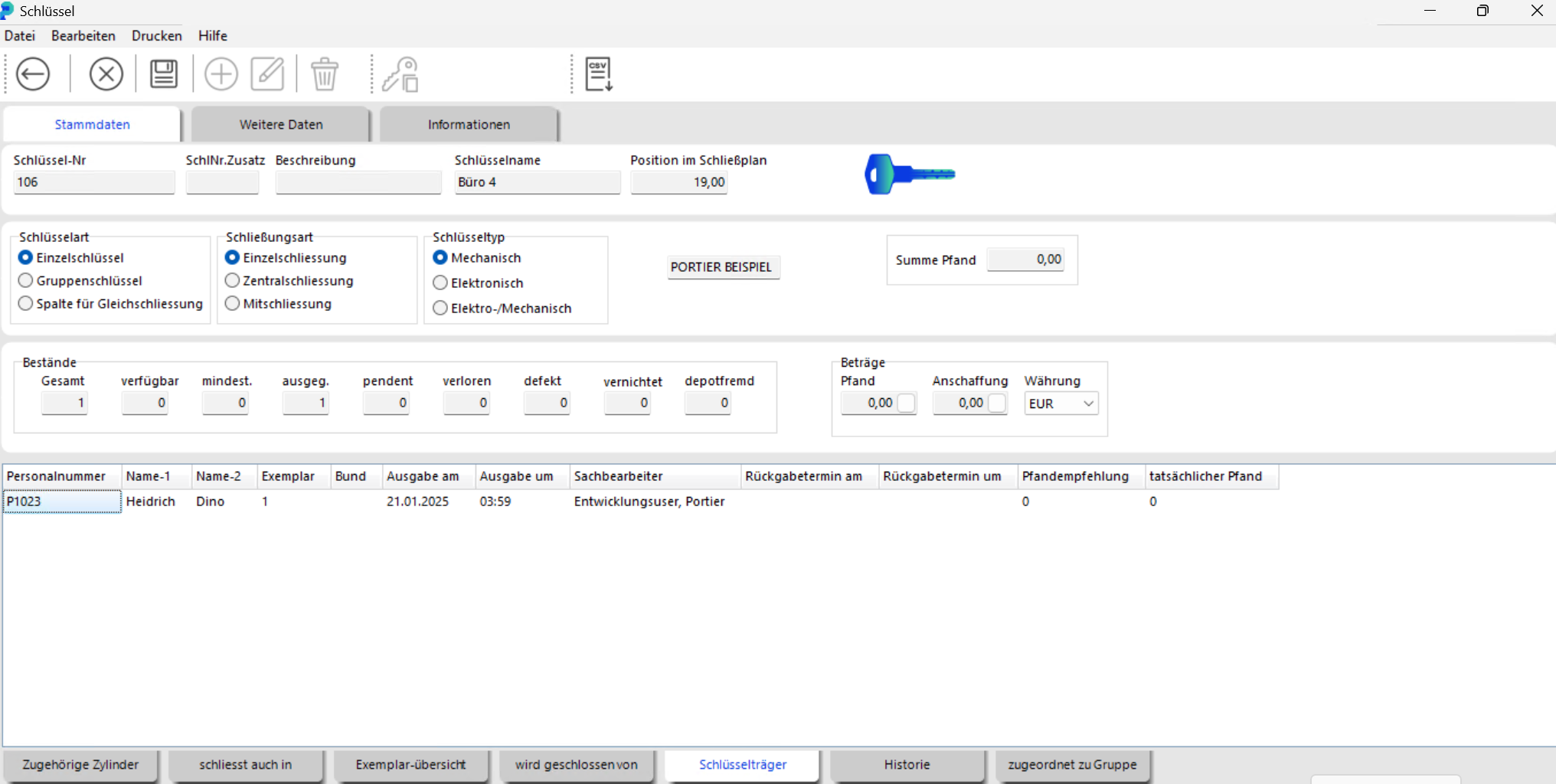
With a right-click on the issue, you display the "Signature for issuance".
To use KeyOnTheGo, a few simple settings are required. Go to the User Settings and select the "Manage Modules" tab. There you choose whether KeyOnTheGo runs over the internet or over an internal network. If you want to use the app over your internal network, open TCP port 1233. The app uses that port to communicate with portier.
Security, retention periods and the questions around TCP port 1233 are answered in the article "KeyOnTheGo Key Assignment".
