The personnel import can run unattended. You set it up as a scheduled task in portier Vision Companion. You name the file to import, when it runs, and which preset maps the columns.
This used to run through a [PERSIMPORT] section in portiervision.ini and PortierVision_PDI.exe in Windows Task Scheduler. That path is no longer supported. If you still use it, read the migration section further down.
A saved import preset. It decides which CSV column goes into which field. Create it once by hand and check it, see Importing Personnel Data.
A CSV file your HR system writes regularly. Either always under the same name, or into a fixed folder with a changing name.
The Windows task PortierCompanionServices. It starts companion-services.exe, and that programme runs the scheduled tasks. portier or your IT set it up when Vision is installed. Without it no scheduled task runs. How often it starts is decided there as well.
A Vision user with permission for the personnel import. Without it Companion reports Insufficient permissions, see User Management.
In Vision, open the System menu and select Import person data. Companion starts and signs you in with your Vision user.
Choose the Personnel CSV card and click Open personnel import.
Switch to the Advanced tab. Under Scheduled imports, click Open scheduled tasks.
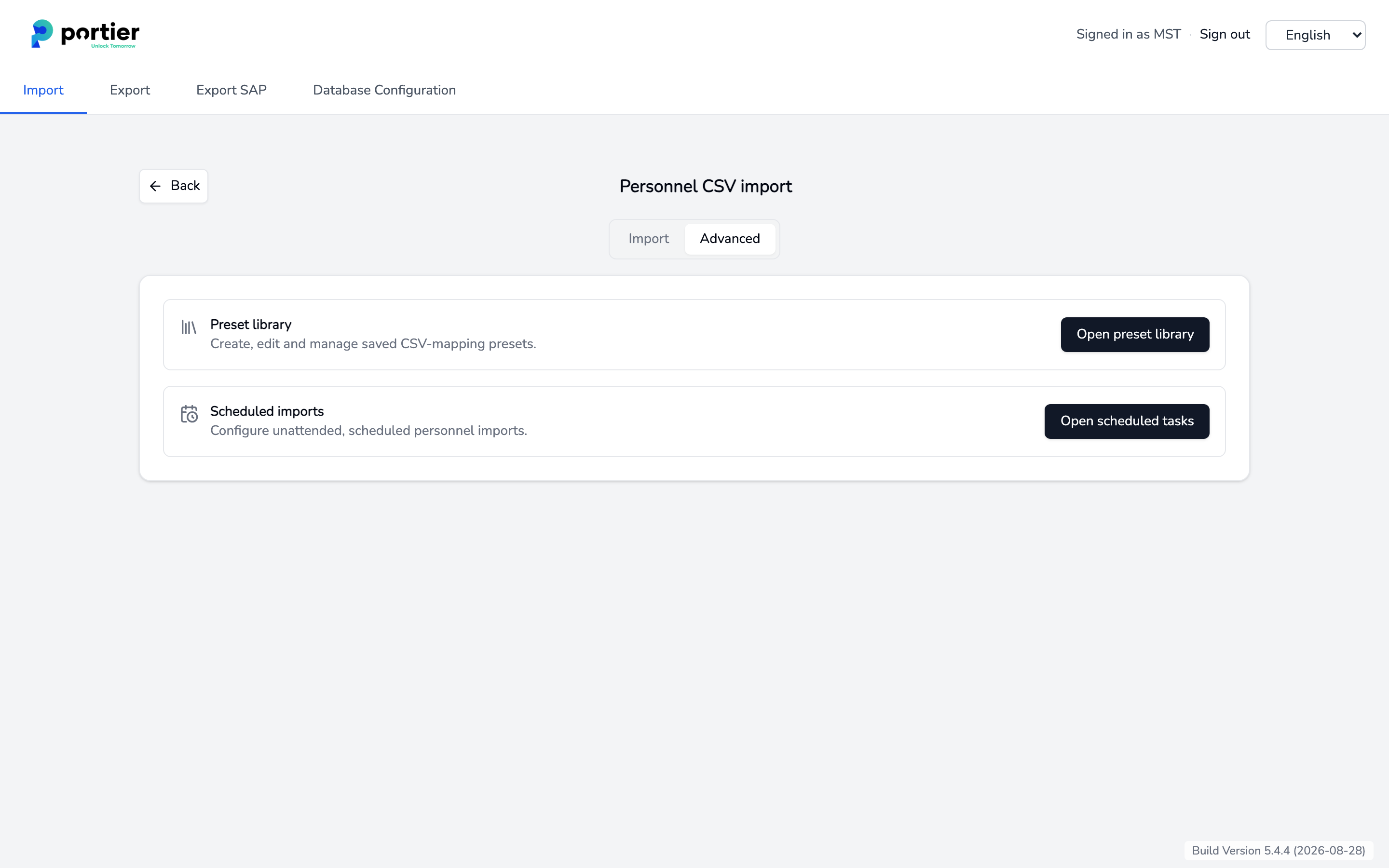
The Advanced tab with the preset library and the scheduled imports.
The Tasks page shows Service status at the top and Configured tasks below it. Click New task.
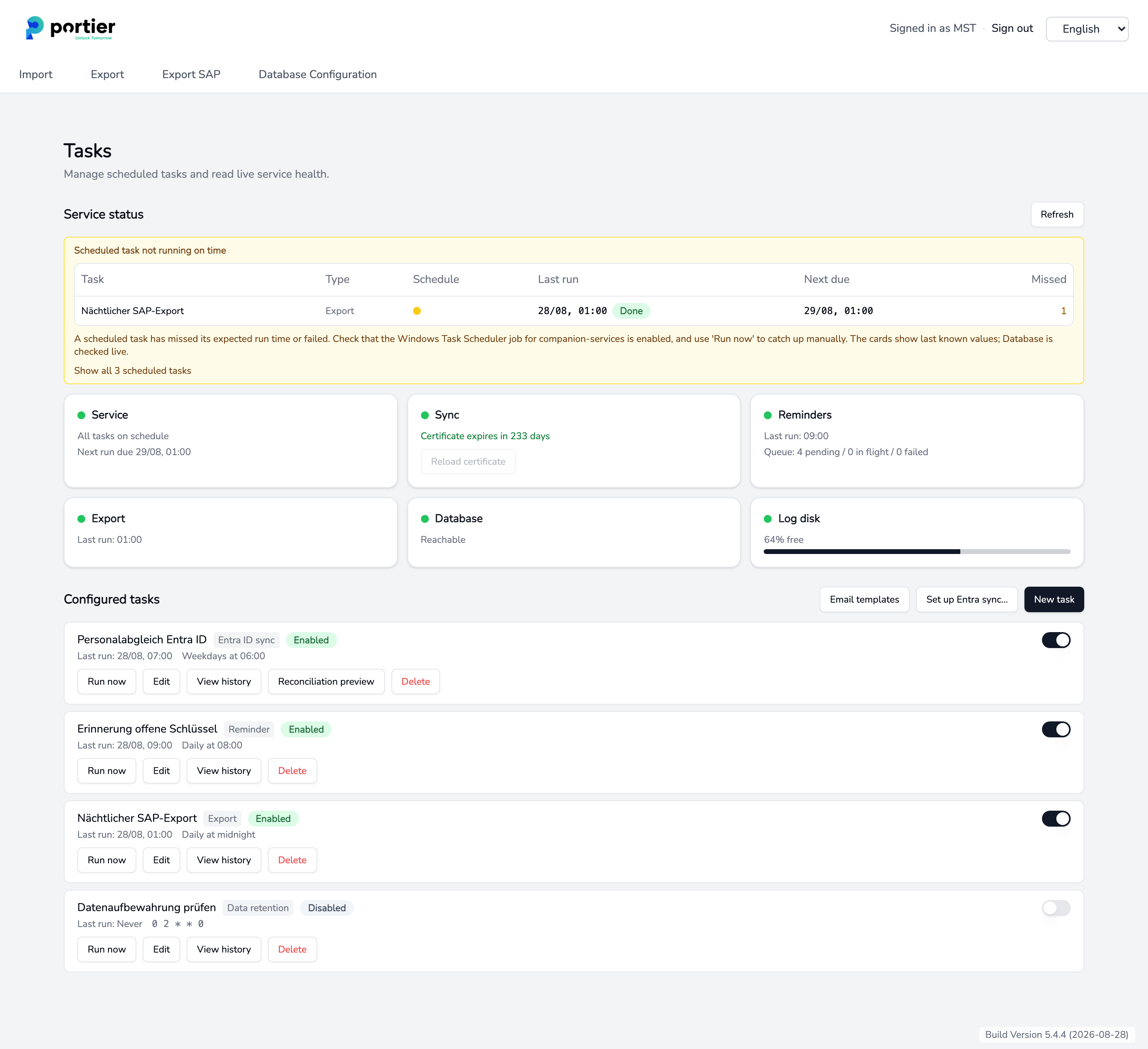
The Tasks page with service status and configured tasks.
Enter a Name and set Type to Personnel file import. The import fields only appear once you have.
Under Schedule, pick a Preset, for example Daily at 08:00. For your own time, choose Custom… and enter a five-part cron expression.
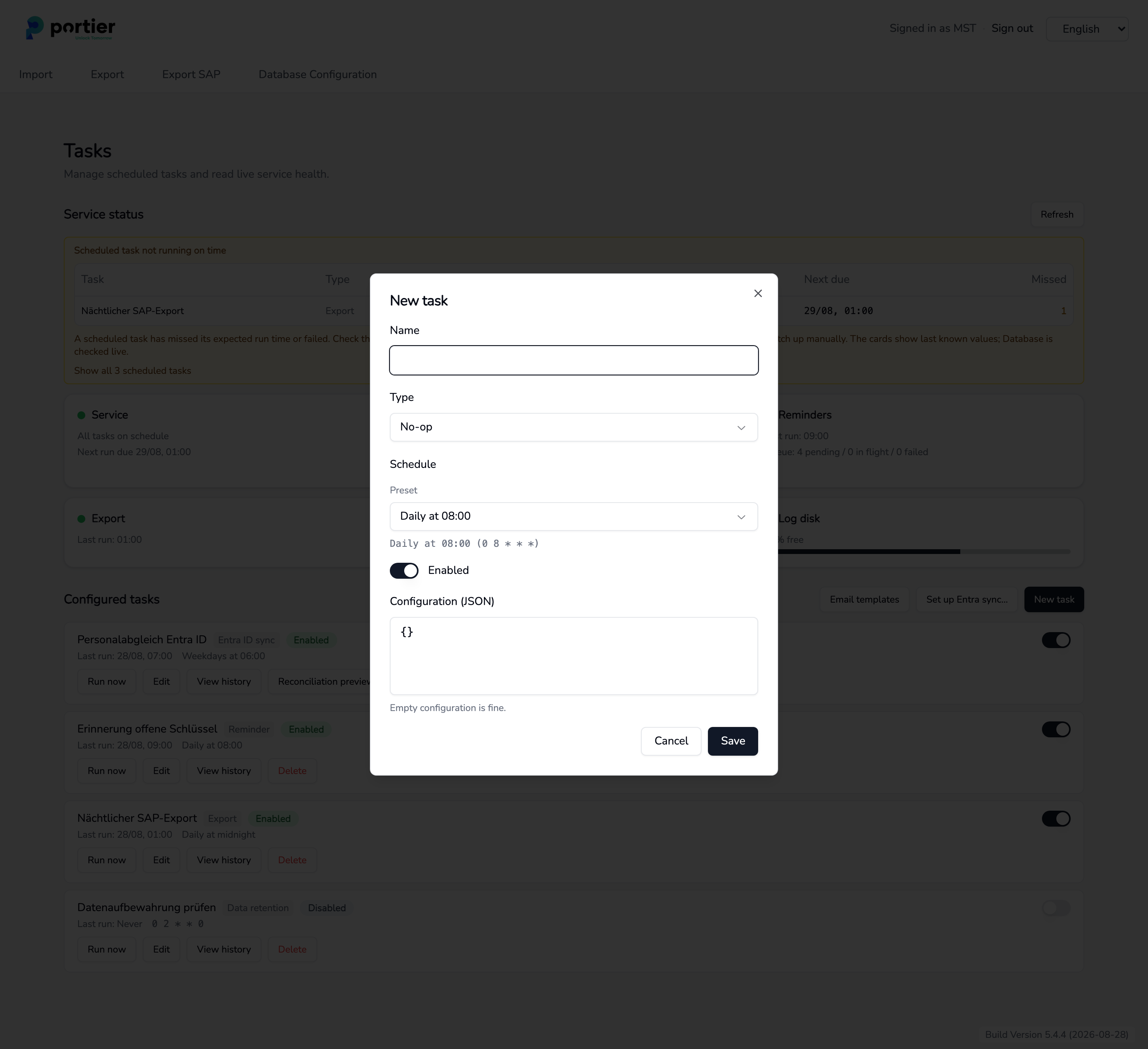
New task with name, type, schedule and status.
Under Import preset, choose the preset that maps the columns.
Set the Source. There are two ways.
One fixed file, if your HR system always overwrites the same filename. Enter the full path under File or pick it with Browse, for example D:\portier\PersonnelData\Personnel.csv.
Folder and filename pattern, if every export gets a new name. Enter the Folder and below it a Filename pattern such as Personnel_*.csv. Case does not matter, and the newest matching file is imported.
Folder mode adds two safeguards.
Minimum file age (seconds) skips a file that has only just been written, so the task never imports a half-finished export. The default is 30.
Maximum file age (hours) fails the run when no matching file is that fresh. A stopped export shows up instead of the same old file being imported again. Blank means no limit.
The three run options Dry run, Keep existing values for empty cells and Skip contractor rows are set to Use preset default. Set one to On or Off and your choice applies to this task only.
Move the switch to Enabled and click Save.
Set Dry run to On for the first run. Click Run now on your task and wait for the result. A dry run works everything out and writes nothing to personnel records.
Then open View history and check the numbers against your file. If they look right, open the task with Edit, set Dry run to Off and save.
A live run reconciles departures. People from the same source who no longer appear in the imported file are marked departed. A dry run does not do this.
On an unattended run this is where an incomplete file gets expensive. If the export stops halfway, everyone left out is missing from the file and is marked accordingly. So set Minimum file age (seconds) and Maximum file age (hours) in folder mode, and read the history for the first few weeks. When you import by hand, the figure appears in the result under Marked departed.
The Configured tasks list shows Last run, Next due and Missed for each task. View history opens the Execution history with start time, status, candidates, succeeded and failed rows, and the error message.
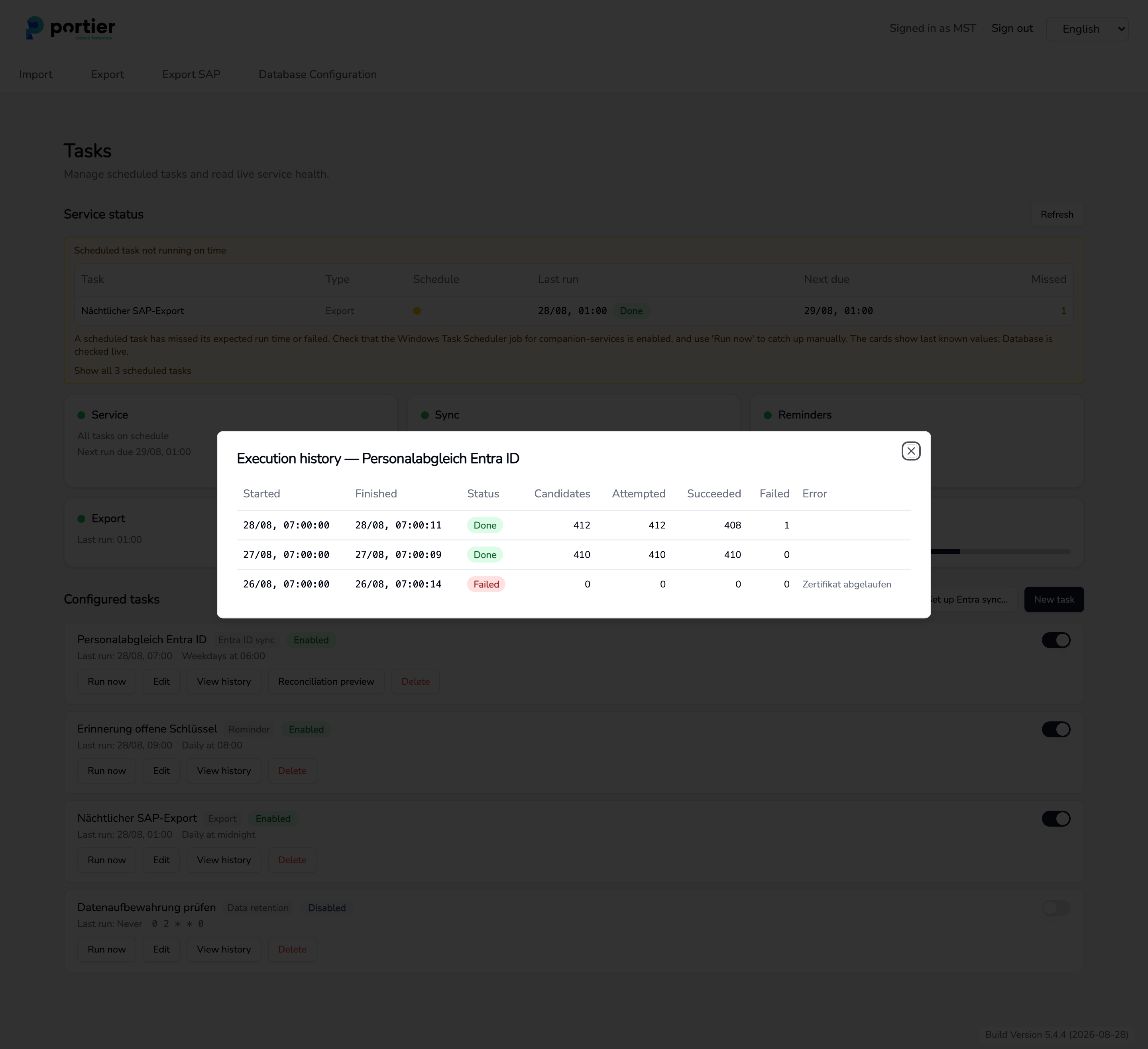
The execution history of a task.
Two messages tell you the task is not the problem, its trigger is.
Scheduled task not running on time: one task missed its run time or failed. Catch it up with Run now.
Scheduled tasks are not running: nothing runs at all. The cause is almost always the Windows task for companion-services. Have someone check that it is enabled, that its stored credentials have not expired, and that the machine was switched on at the scheduled time.
In Windows Task Scheduler, disable your old task, usually PortierVisionAutoImport. Otherwise two imports run against the same data.
Carry the path from the old DATA= line into the new task, either as File or as Folder plus Filename pattern.
You can leave the [PERSIMPORT] section in portiervision.ini where it is. It is no longer read. Do not edit that file by hand, it also holds the database connection.
Ask external firms such as cleaning or maintenance to send you the details of future key holders in advance, in the agreed format. The people are then already on file when the key is issued.
