Permissions in portier Vision do not sit on the user alone. They sit on the pair of user and locking system, or user and building. The same person can hold one role in one building and a weaker role in another.
Open System and then User Management. User management is unlocked from the Plus licence level upwards. On a smaller licence, Vision reports that the function is not enabled.
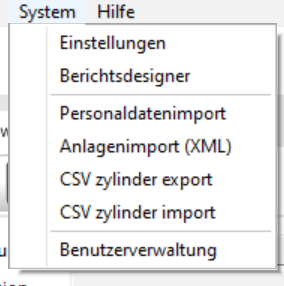
The System module with User Management and its toolbar.
Start the search to list the existing users. A double click opens one of them.
For a new user, click Add in the toolbar. The User window opens. Enter the user ID, password, surname and first name. Vision will not save a record without a password, and it refuses a user ID that already exists.
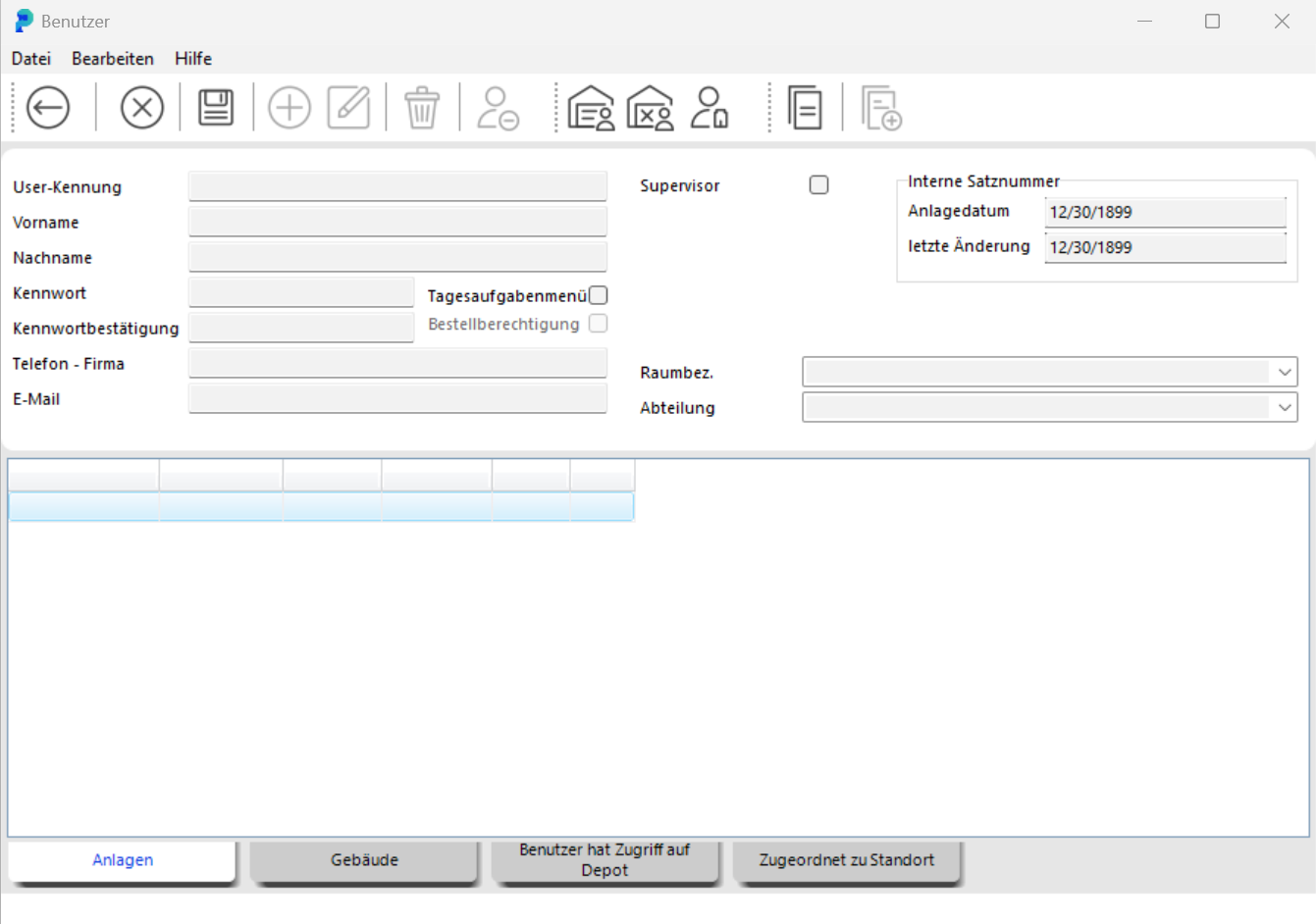
The User window with the fields for user ID, password, surname and first name.
When you save, Vision asks whether you want to assign roles now. Answer Yes and the Role assignment (user) window opens.
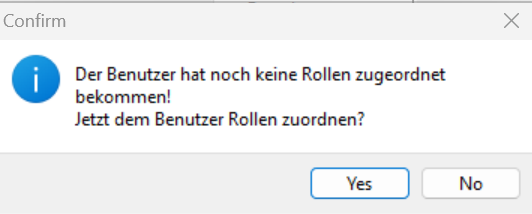
The prompt on saving, asking whether to assign roles to the new user now.
In Role assignment (user), pick the Anlage (locking system) or Gebäude (building) tab. Select the row and click Next. Choose the role at the bottom and confirm with the assign button. The row shows the new role immediately. The delete button next to it removes the assignment again.
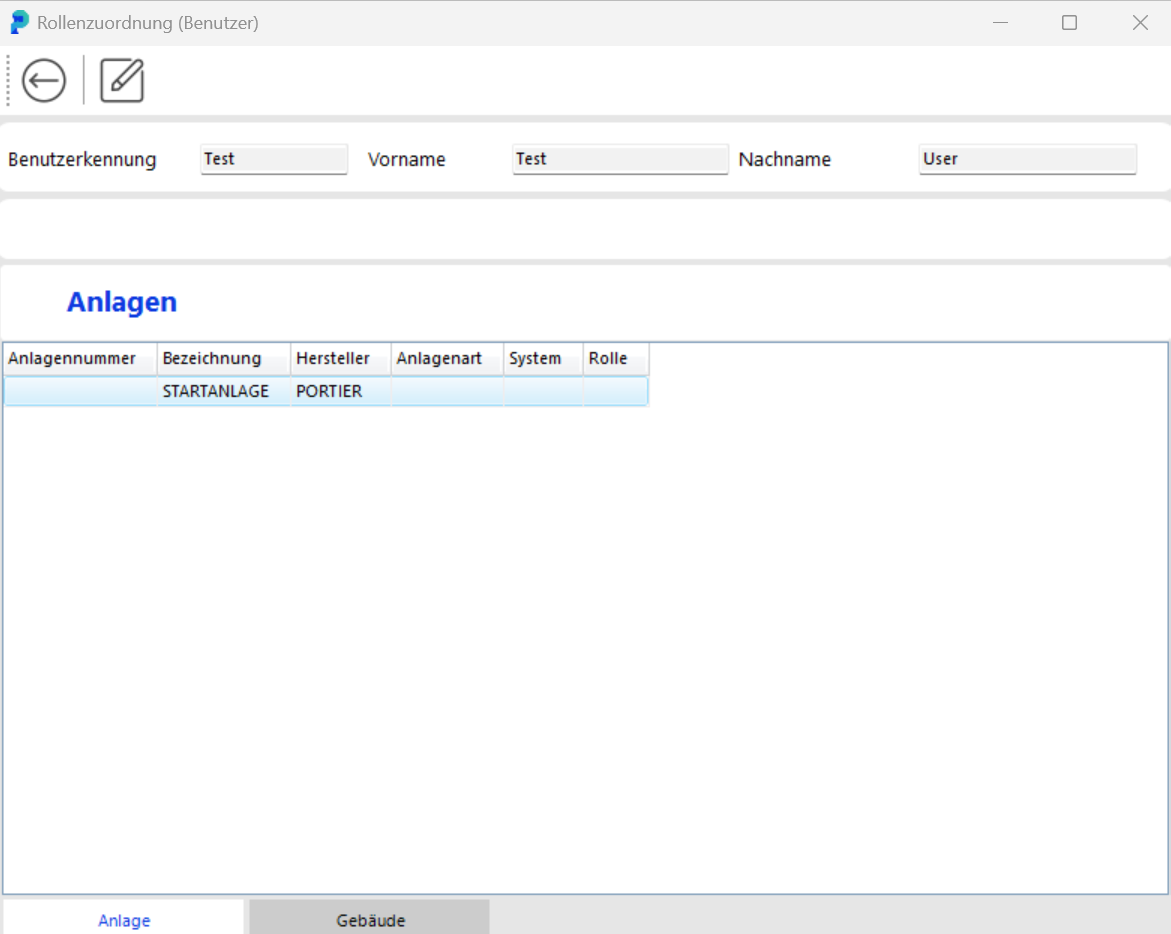
The Role assignment (user) window with the Anlage and Gebäude tabs and the list below them.
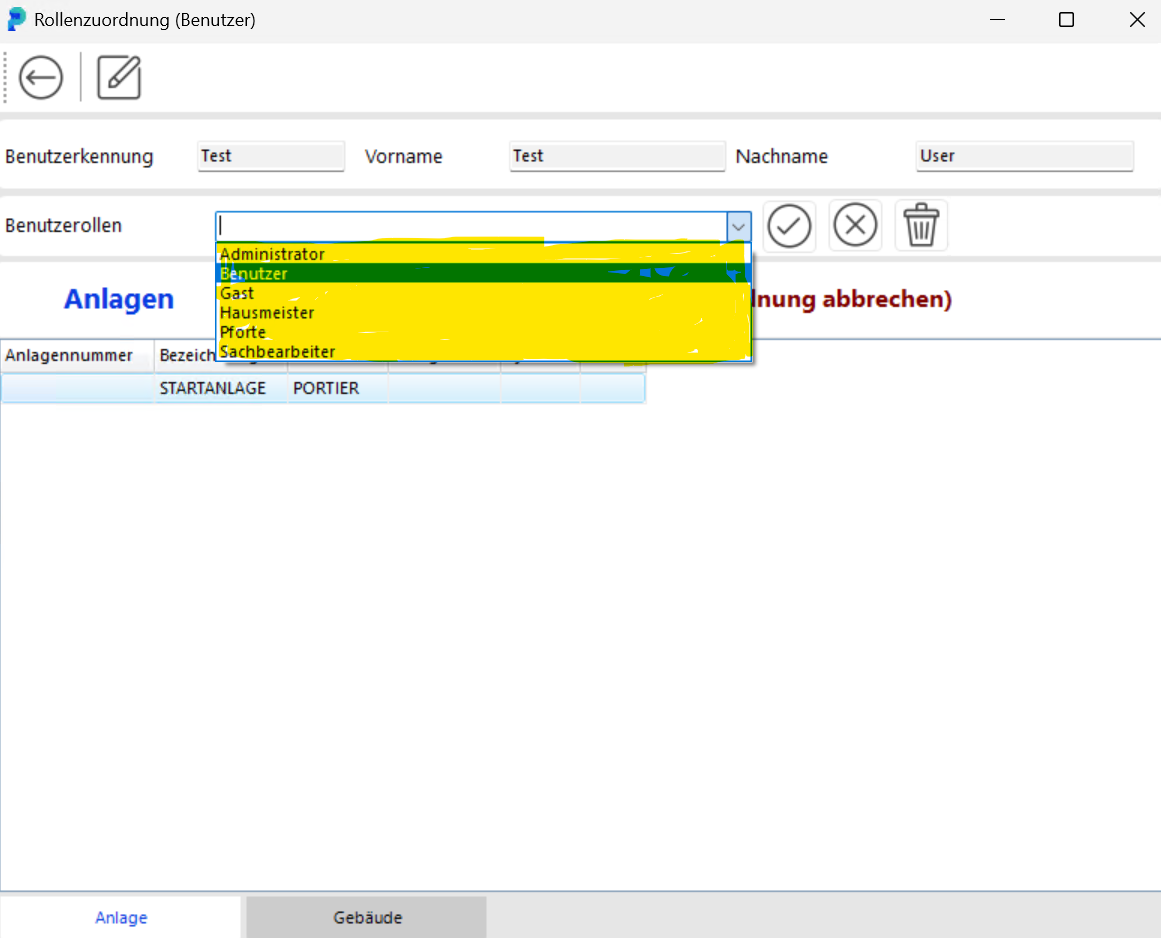
Choosing the role in the lower part of the window, before you assign it.
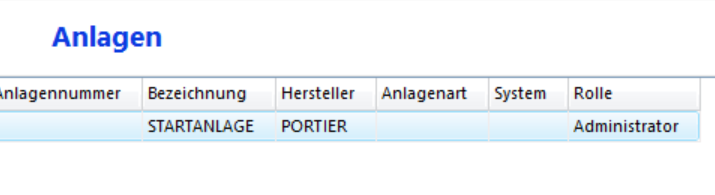
The list with the assigned roles, here Sachbearbeiter and Gast.
Six roles ship with the product.
Administrator
Sachbearbeiter, the everyday working role
Hausmeister, caretaker
Benutzer, user
Gast, guest
Pforte, gate house
Role names are data in the database, not interface text. They appear as delivered whatever language you run Vision in. Which function needs which role is set out in Overview of User Roles and Their Permissions in portier Vision.
In the User window, the Anlagen and Gebäude tabs show what the user can reach. Two further tabs cover depot access and site assignment.
Two limits apply when granting a role and when taking it away.
Only a Supervisor can grant or remove the Administrator role.
A Sachbearbeiter cannot grant the Sachbearbeiter role. That takes an Administrator or a Supervisor.
So whoever is to give a colleague access to the importers must be an Administrator or a Supervisor themselves.
If you need several similar users, create one and copy it. Copy record takes over the master data. Copy all other rights and roles then takes over the roles and assignments. Vision asks before that second step.
Tick Supervisor in the User window and the user needs no roles at all. A Supervisor holds every permission, in every locking system and every building.
To edit, display all users, double click the one you want, change the data and click Save.

An open user record in the User window, the point from which you edit and delete it.
Set user inactive blocks an account without removing it. That is the clean route when someone leaves the building, because the history stays intact. Vision and the Companion both refuse an inactive account.
Delete removes the user. Vision asks once, then a second time whether all roles and assignments should go with it. Nobody can delete their own account.
The importers in portier Vision Companion are tied to the same Vision roles. Older instructions do not cover this yet.
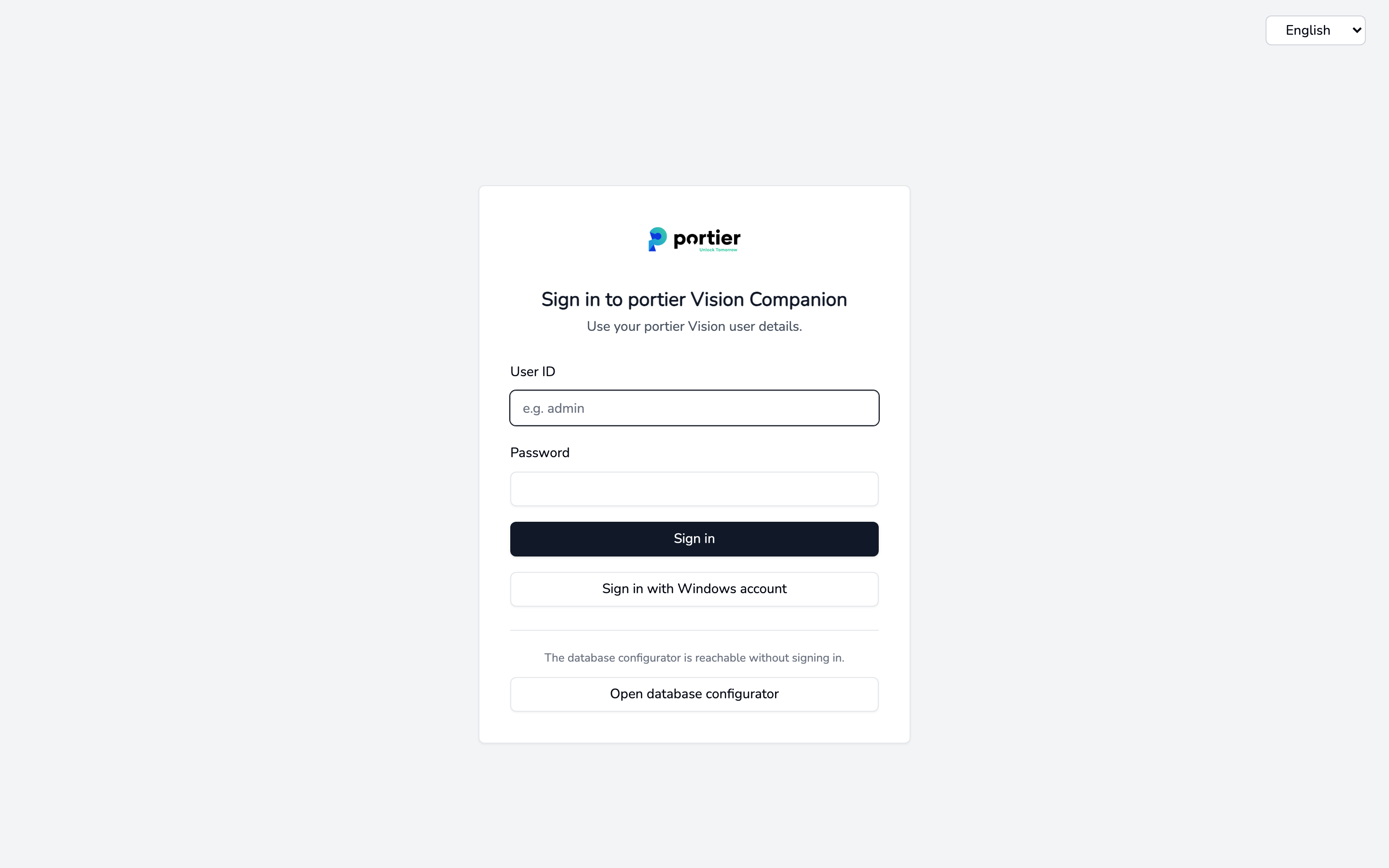
The Companion asks for the same user ID and password as portier Vision.
The Companion uses your portier Vision credentials. Sign in with Sign in, with Sign in with Windows account, or start the Companion from the Vision menu and you arrive already signed in.
portier XML Import, KWD Import, Personnel CSV and Set up Entra ID personnel sync need at least the Sachbearbeiter role, held on at least one locking system or one building. Administrator is enough as well. A Supervisor always passes.
Without one of those roles you can still sign in, but the import pages show Insufficient permissions. Database Configuration stays reachable, even without signing in at all.
The V.I.P. permission level has no effect on the Companion.
In Vision, the role that counts is the one for the locking system or building you currently have open. If it is not enough, Vision names the required role in the message. The Companion instead takes the strongest role you hold anywhere.
Sign-in, the Windows account route and the individual error messages are covered in Sign in to portier Vision Companion.
portier Vision ships with a user named START and the password START. It is set up as a Supervisor and holds every permission.
Create yourself as a Supervisor first. Then delete START.
Our recommendation. Two accounts for yourself.
An everyday account with the Sachbearbeiter role.
A second account with Supervisor rights.
Work under your own name day to day and keep the Supervisor for the exception. That way you cannot change master data or redefine locking functions by accident. The everyday account is enough for the imports in the Companion.
