In portier Vision, permissions hang on a role. A role does not apply to the whole program. It applies per building and per locking system. The same user can be a clerk in one building and a guest in another.
Which role counts right now depends on the building or the locking system you have selected. With nothing selected, the user has no permissions.
You assign roles on the user record in System > User Management, in the tabs Buildings and Facilities. The procedure is in User Management.
A user with the Supervisor box ticked needs no role. They hold every permission everywhere. Only a supervisor can tick that box, and not on their own account.
Role | Level |
|---|---|
Administrator | 1 |
Clerk (Sachbearbeiter) | 2 |
Caretaker (Hausmeister) | 4 |
User (Benutzer) | 8 |
Gatehouse (Pforte) | 16 |
Guest (Gast) | 32 |
The lower the level, the more the role may do. Every role can do everything the roles with a higher level can do. The supervisor sits above all six and carries no level. The German name is given in brackets, in case your install shows it.
As delivered, no action sits at level 8. User and Gatehouse therefore hold the same permissions, as long as nothing has been changed in your install.
The list below is the delivered state. Each role can also do everything listed further down.
Guest
View: locking systems, buildings, locking plan, locks, group keys, CAD plans, doors, key rings, groups, locations, depositories, people, users, dealers, reorders, extensions and the locking matrix
Run Queries
Gatehouse
Issue and take back keys
Work on pending movements
Create people
User
As delivered, the same as Gatehouse
Caretaker
Change and delete people
Create locks and group keys
Create key rings
Book a loss and a defect
Print lists
Change the return date on an existing issue. From administrator upwards this covers every issue, below that only your own.
Clerk
Create buildings
Create, change and delete users
Create doors, groups, locations and the locking matrix
Create dealers, reorders and extensions
Import locking system data, personnel data, reorders and CAD plans
Assign a cylinder to a CAD plan
Print the locking plan
Search and replace
View and create reports
View and create time zones
Open Settings
Administrator
Create locking systems
Assign users to a locking system or a building
Change the locking plan
Change stock
Create depositories
Assign the cylinder version
In Settings, the tabs Basic settings and Locking functions. Every other role sees only User settings there.
Supervisor
Everything, with no role assignment at all
Start the data backup
Tick the Supervisor box on other users
Both entries start portier Vision Companion. Vision checks the permission first.
Menu entry | Permission required | From role |
|---|---|---|
System > Import person data | Import personnel data | Clerk |
System > Facility Import (XML) | Import locking system data | Clerk |
If the role is not enough, Companion stays closed and Vision shows the message.
Companion has no users of its own. You sign in with your Vision user. Started from the Vision menu, it takes the sign-in with it and opens already signed in.
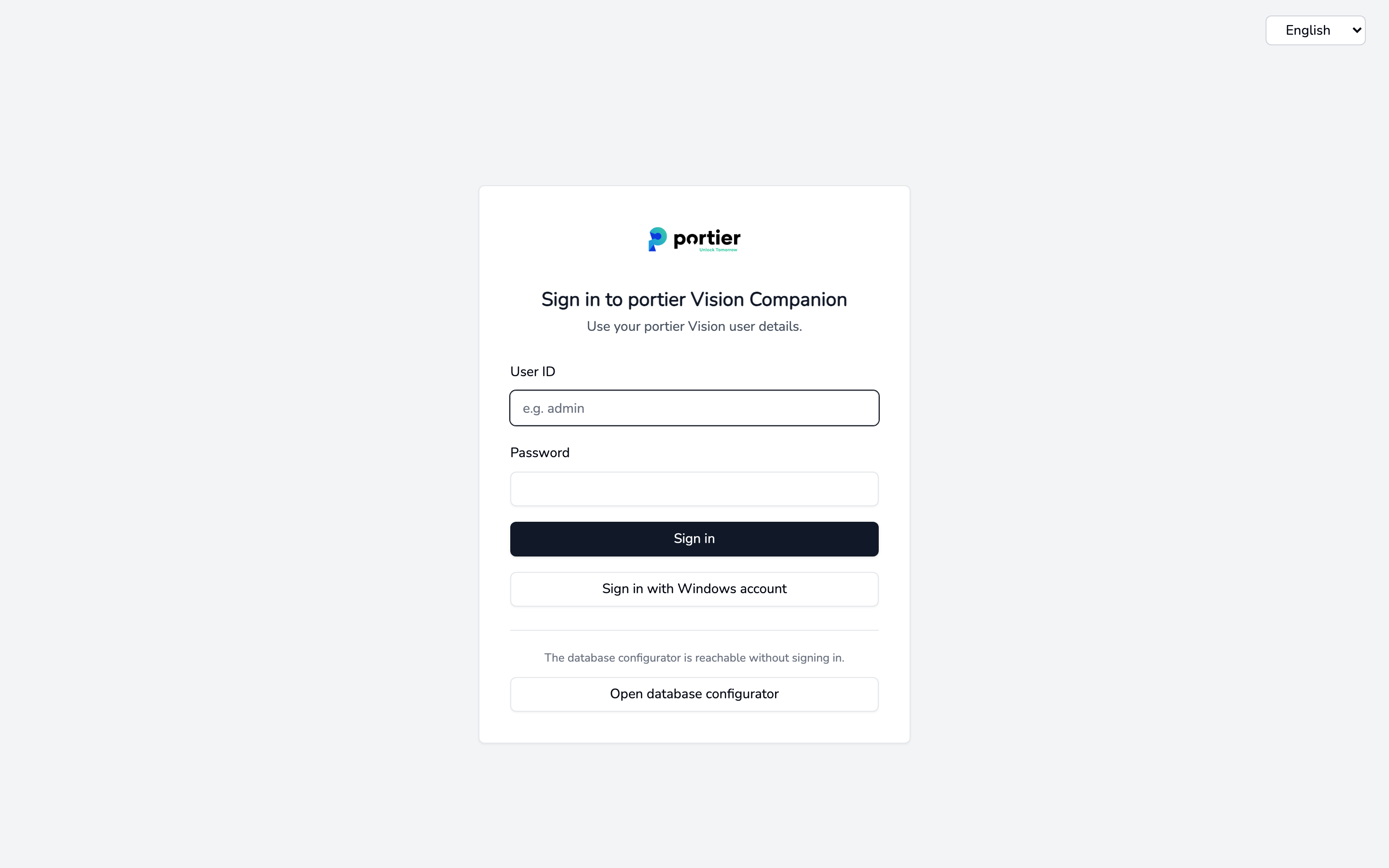
Companion uses your portier Vision user details. The database configuration stays reachable without signing in.
Three features are behind a permission. All three require Clerk or higher.
Feature in Companion | Requires |
|---|---|
Personnel CSV, the CSV import of personnel data | Clerk |
Set up Entra ID personnel sync | Clerk |
portier XML Import and KWD Import | Clerk |
Companion checks differently from Vision. It has no selected building. It takes the strongest role the user holds on any locking system or in any building. Only Administrator and Clerk count here. Anyone who is no more than caretaker, user, gatehouse or guest everywhere can still sign in, but every importer shows Insufficient permissions. A supervisor passes everywhere.
Earlier Companion versions required administrator for the importers. Clerk is enough today.
Database Configuration is deliberately behind no permission. It is reachable before signing in, through Open database configurator on the sign-in screen.
Vision shows Your access role is not sufficient., followed by Required and You have. The message names the role that is actually required and the role you hold in the locking system or building currently selected.
Then check the user in System > User Management and the tabs Buildings and Facilities. What decides is the role for the exact locking system being worked on, not a role held somewhere else.
Companion shows Insufficient permissions instead. In that case the user holds neither administrator nor clerk on any locking system or building.
The level required per action is held in the database. If it has been adjusted in your install, it differs from the list above. The message in Vision always names the value that applies at your site.
