
Many customers asked for a transfer function. It matters most when one key holder is responsible for several keys, a head teacher or a department head for example. Instead of returning every key one by one and issuing each of them again to the next person, this function does it in a few steps. In the booking history portier Vision still records the transfer as a return from Person A and an issue to Person B. Both people also receive a receipt.
A key transfer is technically a return from the previous key holder plus an issue to the new one, combined into a single step. This has two consequences: each key produces two entries in the history (a return and an issue), not a single transfer entry. And the issue to the new key holder runs the same checks as any regular issue.
How to proceed
Start a key return with the person currently holding the keys.
Select all keys for return, or only the ones you want to transfer. At the far right of the return window you will find the new Transfer icon.

Click it.
In the search screen that appears, find the new key holder. Once you have selected them, portier Vision shows the planned transfer once more.
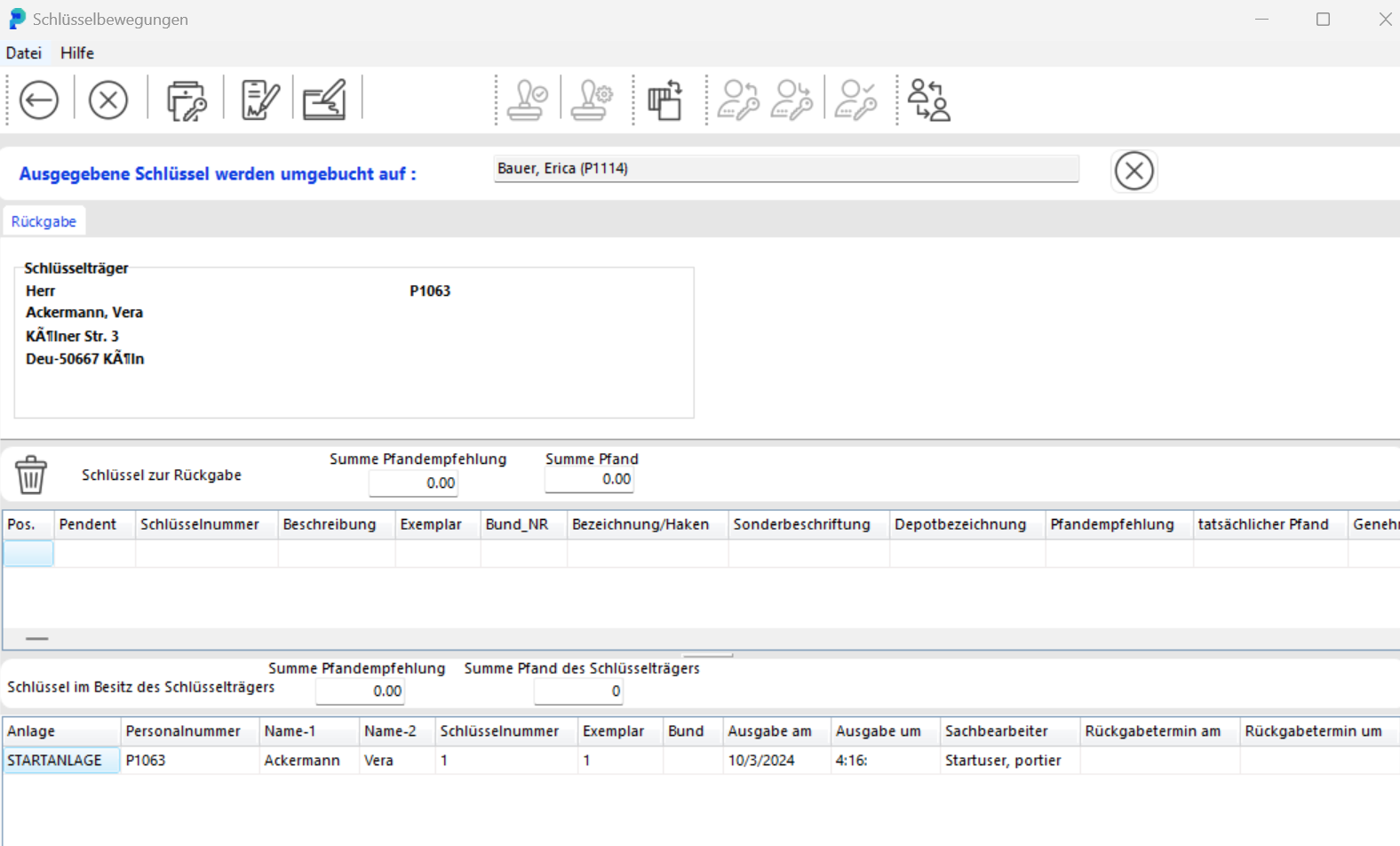
You can still cancel the action with the white X on a red background at the far right.
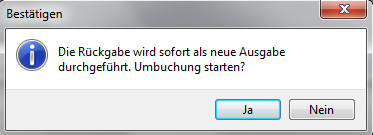
Click the save icon, as you would for a key issue. Confirm once more that you want the transfer. portier Vision immediately creates two receipts:
a return receipt for the previous key holder
an issue receipt for the new key holder
Both people receive a printed receipt, and the transfer appears in each person's key history. In the database it is recorded as a correct return from Person A and as a new issue to Person B.
What is checked during a transfer
When issuing to the new key holder, portier Vision checks each key for:
Competence level: The new key holder's competence level must be at least that of the key.
Employment status: The new key holder's end date must not be in the past, and the record must not be set to inactive.
Approval requirement: Keys that require approval need an approval before the transfer (see Approval Process for Key Issuance via E-Mail).