Vision has its own reminder window, opened with F10 or the bell icon. It shows the signed-in user which keys are due back, on screen, and it sends nothing. Switching it on is covered in Reminder.
This article covers something else. portier Vision Companion runs a task of type Reminder in the background that emails keyholders before they leave the company. Nobody has to work through a list. The task is executed by companion-services through Windows Task Scheduler, so it runs with Vision closed.
Both draw on the same data, open issues and the End of role field on the person record.
The tasks page has no tab of its own in the navigation. You reach it like this.
Open the Companion and go to Import.
On the Personnel CSV card, click Open personnel import.
Go to the Advanced tab, card Scheduled imports, button Open scheduled tasks.
On the Tasks page, click New task.
Enter a Name and pick Reminder under Type.
Under Schedule, choose a Preset such as daily at 08:00, or enter your own five-field cron expression.
As soon as Reminder is the selected type, the form replaces the JSON field with the sections described below.
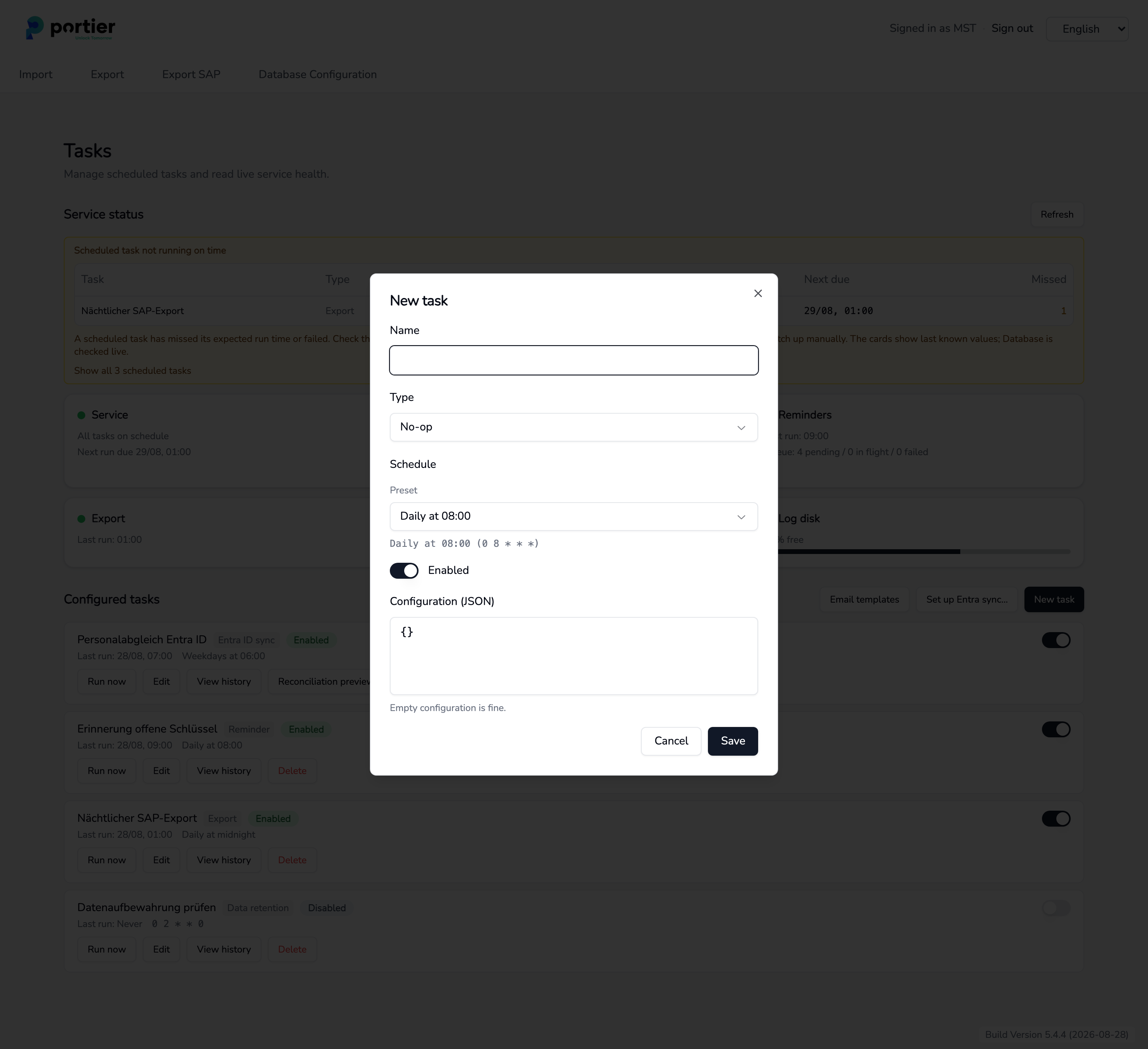
New task with name, type and schedule. The fields below change with the type.
One task reminds in up to two stages. Each stage carries two settings, Days before exit and the template it writes with.
A new task starts with one stage. Add stage brings in the second.
Under each stage the form shows the range it covers. The stage with the smallest day count covers through to the exit date itself.
The stages carry the markers Earlier reminder and Final reminder.
Two stages may use the same template. The supplied German template names the exit date, so it reads correctly at either offset.
The form accepts no more than two stages. A third would share the Earlier reminder marker with another one, and Vision's reminder overview would then show only the later of the two sends.
Older tasks created before stages existed work from a single window built from Exit within the next (days) and Exit no sooner than (days). Switch to stages carries those values into the first stage.
A person is written to when both are true.
They hold at least one open key, meaning an issue that has not been booked back.
Their exit date falls inside the stage's range. No exit date, no reminder.
The email goes to the person's own address. If a different address is on record for their supervisor, it goes to them in copy as well. Where no usable address exists, the run skips the person and writes a line to the log.
The mail lists every key the person still holds. A later run skips the person while that holding is unchanged. If another key is issued, a fresh mail goes out with the full list.
Skip entries flagged departed-unclosed leaves out people the personnel import has flagged as departed with unresolved data.
Delivery method offers three routes.
Log only (no mail sent). The default on every new task. The run works out the recipients and writes them to the log, no mail leaves the system.
SMTP server. Your own mail server. Enter host, port, encryption and the from address, with username and password as required. The password is encrypted on save and never shown again. When you edit the task later, leave the field blank to keep the stored password.
portier Mail Service. Sent from the portier mail account, sender [email protected]. Nothing to set up. Allow that sender on your mail server so the messages do not land in spam.
Beside it sits the Dry run (preview, no mail sent) switch. It is on for a new task. For live operation, turn it off and change the delivery method as well. One without the other is not enough.
Advanced settings holds batch size, send attempts, retry backoff and run duration. Leaving them blank is fine, the defaults shown then apply.
Templates come from portier. On the Tasks page, Email templates opens the list with name, language and ID. One German, one English and one French template ship with the product.
Import template reads a portier-supplied JSON file. It is validated before anything is written to the database. Where the import would replace a stored template, the preview shows both versions side by side first.
Preview template opens the Template preview with From, To, Cc, Subject and Body, with sample data for one key or for three.
Look at every template in the preview once before you go live. A template that cannot be filled completely is skipped at send time. The run then only writes a warning to the log, no mail goes out, and nothing else shows the failure. The preview flags this case.
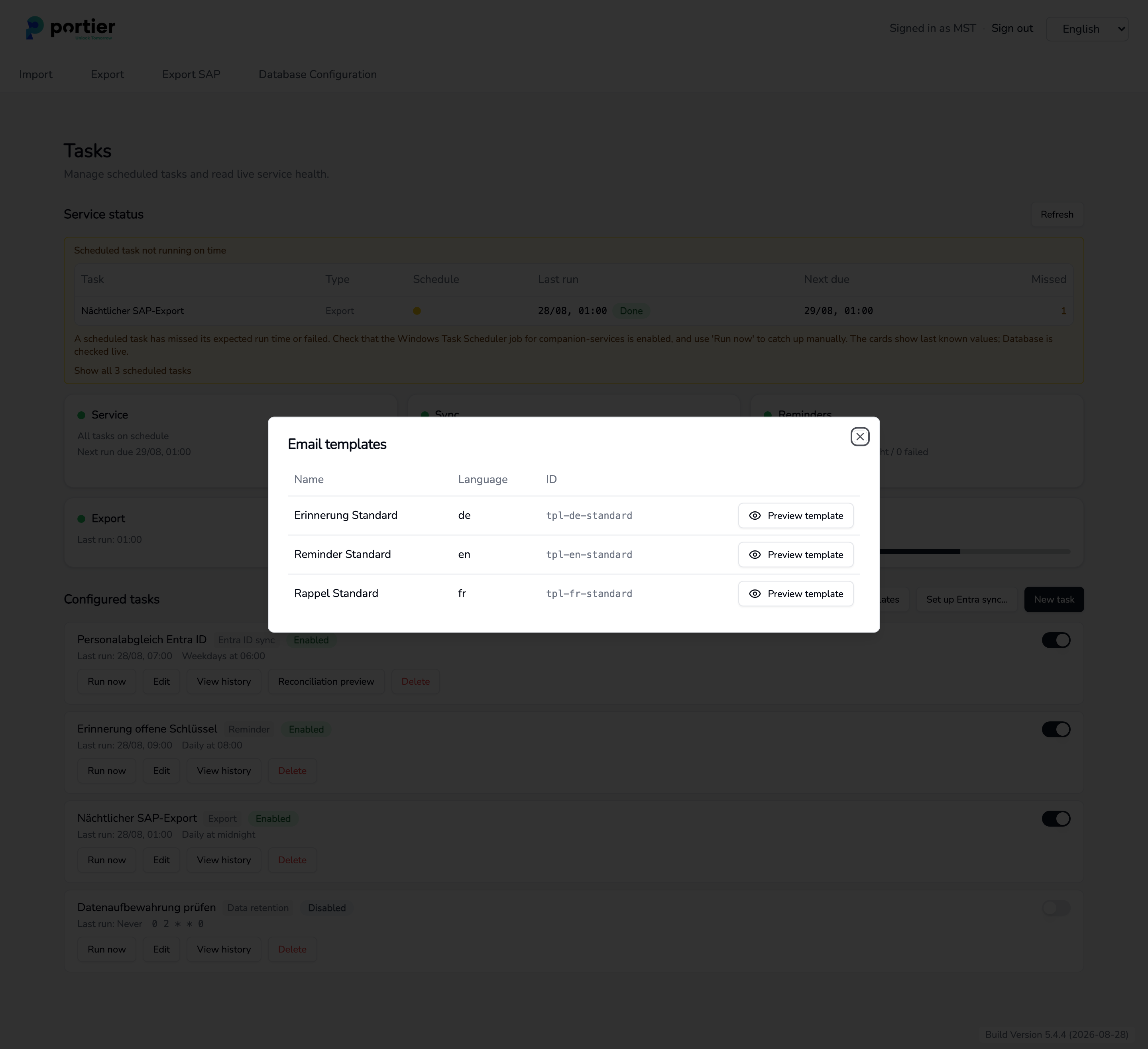
The three supplied templates. Preview template opens the preview.
On the Tasks page, the Reminders card shows the last run and the queue with pending, in-flight and failed messages.
View history opens the task's Execution history, with started, finished, status, candidates, attempted, succeeded and failed, plus any error.
Run now catches up a missed run.
If the page reports Scheduled task not running on time or Scheduled tasks are not running, the cause is usually not the task itself. Check the companion-services job in Windows Task Scheduler, its stored credentials, and whether the machine was on at the scheduled times.
For the first live run, leave the dry run on, check the candidate count in the execution history, and only then switch over.
Related. Reminder for the window inside Vision, Scheduled tasks and service status for the tasks page as a whole.
