Single office environment
Up to about 3 to 5 concurrent users
Database and clients on the same LAN
No WAN access required
Recommended database: Firebird 4.0 or Microsoft SQL Server.
This scenario suits smaller installations with limited concurrency.
Several users reach portier Vision over Remote Desktop (RDS)
The application runs centrally on a Windows Server
The database sits on a separate dedicated server (recommended)
This reduces the impact of WAN latency and centralises administration.
Clients connect directly to Microsoft SQL Server over LAN or WAN
A dedicated SQL Server is required
Network latency has a strong effect on performance
Recommended database: Microsoft SQL Server 2019 or 2022, Standard or Enterprise.
In WAN environments, SQL Server sizing and low latency decide how responsive the application feels.
portier Vision runs on physical workstations or on virtual machines. Performance depends on the client hardware, on the database server and on network latency.
Recommended configuration:
Operating system: Windows 11, Windows 10 supported
CPU: 4 virtual cores or the equivalent in physical cores
RAM: 8 GB minimum, 16 GB recommended
Storage: SSD with at least 10 GB free
Screen resolution: 1024 x 768 or higher, the minimum size of the Companion window
Notes:
8 GB RAM is technically enough to run the application
16 GB is recommended where Outlook, Teams, a browser and Excel run alongside it
For very large locking plans or heavy use, 32 GB improves responsiveness
Where several users reach portier Vision over Remote Desktop on a shared Windows Server, size the resources by the number of concurrent users.
Base configuration:
4 vCPU
16 GB RAM
SSD storage
Scaling:
about 2 GB RAM per additional concurrent user
more CPU in line with active use
Requirements depend on workload and on how much of it runs in parallel.
In virtualised environments (Azure, VMware, Hyper-V):
Provide enough dedicated CPU and RAM
Avoid heavy CPU or memory overcommitment
Use SSD-backed storage
Insufficient host resources or high contention on the virtualisation layer slow the application down even when the VM meets the figures above.
Intended for:
Single-site environments
Up to about 3 to 5 concurrent users
LAN access only
Recommended configuration:
CPU: 2 to 4 cores
RAM: 4 to 8 GB
Storage: SSD
Firebird is not recommended for WAN or multi-site deployments.
Supported versions:
SQL Server 2019 Standard
SQL Server 2022 Standard
SQL Server 2022 Enterprise
Up to 15 concurrent users:
4 to 6 CPU cores
16 GB RAM
SSD storage
More than 15 concurrent users:
8 or more CPU cores
32 GB RAM or more
NVMe recommended
Mandatory configuration:
SQL Server runs on a dedicated server or VM
No shared resources with terminal services
Maximum server memory is configured explicitly
TempDB sits on SSD or NVMe
Regular maintenance: index maintenance, statistics updates, backups
portier Vision 5 talks to the database often, especially at startup and during large data operations. Network latency directly affects how fast the application feels.
under 5 ms: excellent performance
5 to 20 ms: very good
20 to 40 ms: noticeable delay during large operations
more than 40 ms: performance degradation likely
Even with sufficient bandwidth, higher round-trip latency increases the response time of database-intensive operations.
WAN guidance:
Place the application and SQL Server as close together as the network allows
Minimise round-trip latency
Size SQL Server properly and host it on low-latency storage
Port | Connection | Purpose | When needed |
|---|---|---|---|
TCP 1433 | client to database server | Microsoft SQL Server | database runs on SQL Server |
TCP 3050 | client to database server | Firebird | Firebird runs on another machine |
TCP 443 | outbound to the internet | licensing, updates, Entra ID sync, portier Mail Service | always |
TCP 587, 465 or 25 | outbound to the mail server | reminder emails through your own SMTP server | only with SMTP delivery |
For the mail server, 587 with STARTTLS is the default, 465 for straight TLS, 25 only unencrypted.
Domain | Purpose |
|---|---|
https://www.dl.portiervision.com | program downloads and updates |
https://portier.chargebee.com and https://app.eu.chargebee.com | licence and subscription validation |
https://api.sendgrid.com | email portier sends: confirmation codes during licence activation, and reminders through the portier Mail Service |
https://login.microsoftonline.com and https://graph.microsoft.com | only for personnel sync from Microsoft Entra ID |
Blocking these addresses affects licensing, subscription validation, updates and email delivery.
Vision desktop on Microsoft SQL Server. The Vision desktop connects through the Microsoft ODBC Driver 18 for SQL Server. Where the database runs on SQL Server, this driver is mandatory on every workstation and every terminal server.
The portier installer carries the driver and installs it before Vision. If the same version or a newer one is already present, it skips the step. The step can be unticked in the installer dialog.
A silent installation straight from the MSI does not install the driver. Install it beforehand in that case.
The registered entry must be exactly "ODBC Driver 18 for SQL Server". The older ODBC Driver 17 and the SQL Server Native Client are not used.
No ODBC DSN is needed. Vision passes the driver name in the connection itself.
If the driver is missing, Vision stops the connection attempt at once and reports that the Microsoft ODBC Driver 18 for SQL Server is not installed on this computer, and that the driver has to be installed before Vision is restarted.
Vision desktop on Firebird. No ODBC driver, nothing to set up. Vision talks to Firebird directly.
portier Vision Companion. No ODBC and no DSN, on Firebird or on SQL Server. The Companion and the background service connect to the database directly. A missing ODBC driver is therefore never the reason the Companion cannot reach the database. Check the server name, the port and the credentials instead.
SQL Server access, whichever driver applies:
Enable TCP/IP in SQL Server Configuration Manager
Allow remote connections where clients come from other machines
Open port 1433 in the firewall on the database server
To confirm that ports and credentials are right, open Database Configuration in the Companion and use Test Connection.
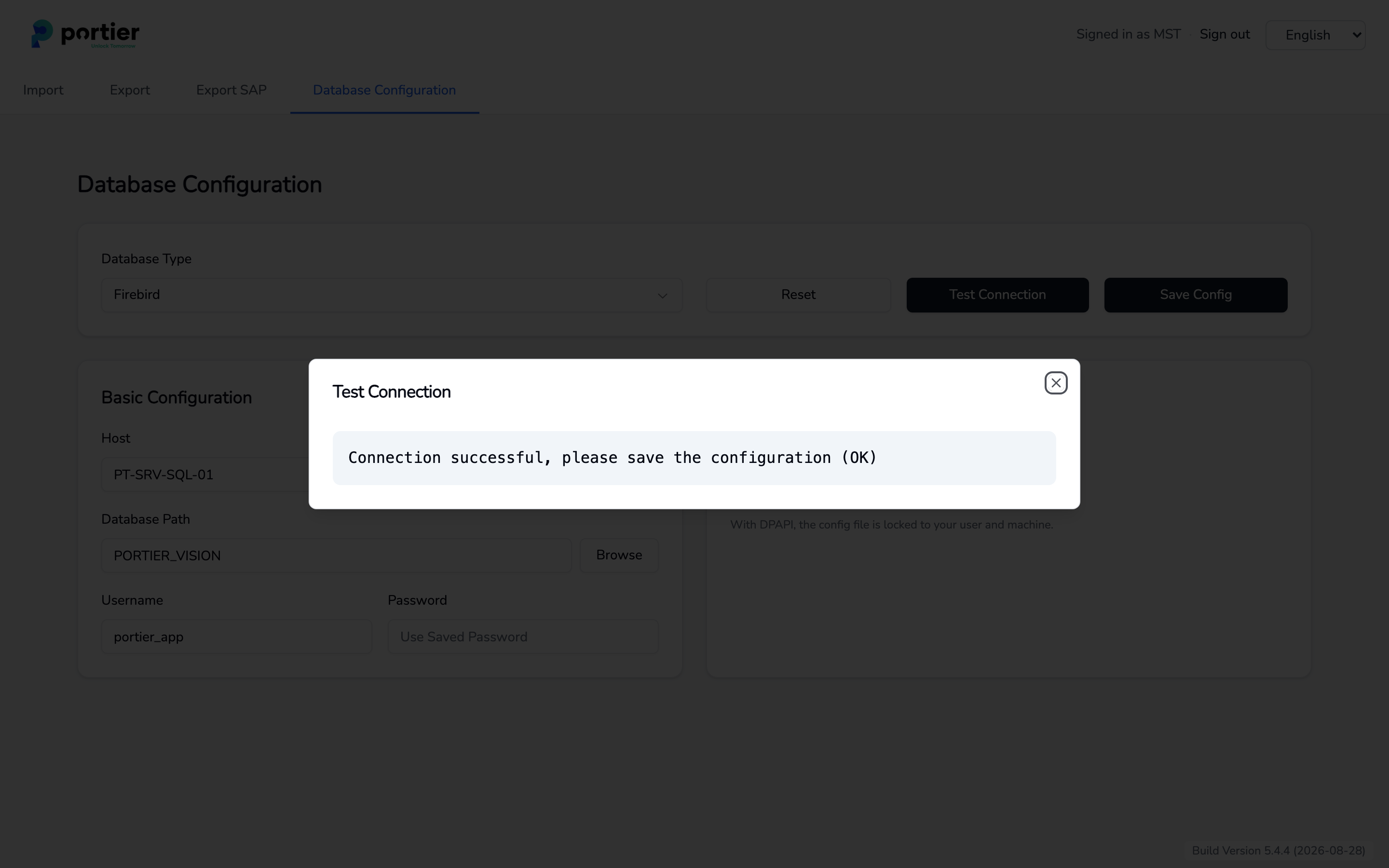
Database Configuration in the Companion, a successful "Test Connection"
The portier Vision Companion renders its interface in an embedded browser window and requires Microsoft Edge WebView2. Without the runtime the Companion does not start, which also means the database cannot be configured and no locking-system or personnel data can be imported.
WebView2 is usually present on:
Windows 11
workstations that have Microsoft Edge installed
On minimal Windows Server installations and hardened VMs the runtime is often missing or blocked by policy. Install it manually in that case:
Also check that group policy and endpoint protection permit the installation.
The Companion (portierVisionCompanion.exe) is installed together with Vision 5 and started from the Vision menu. It sets up the database connection and imports locking-system and personnel data. The background service (companion-services.exe) runs the scheduled work, such as reminder emails, Entra ID sync and exports. Both add requirements of their own.
64-bit Windows. The Vision desktop is a 32-bit application, both Companion programs are 64-bit.
Microsoft Edge WebView2, see 5.4.
A reachable database: Firebird on port 3050, SQL Server on port 1433.
No ODBC driver and no DSN, see 5.3.
Uploaded locking-system files must stay under 5 MB. Split a very large estate beforehand.
The background service runs as an entry in Windows Task Scheduler. The account behind it needs:
the "Log on as a batch job" right
read access to portiervision.ini and to the personnel file an import reads
write access to the log directory %ProgramData%\portier\Vision\Logs
network access to the database
One point to watch with the DPAPI encryption setting. The saved configuration is tied to the user and the machine, so the database connection has to be set up under the same account the scheduled task runs as. Otherwise the service fails when it opens the database. Shared Key removes that tie.
On a terminal server the service needs no session of its own. It starts at short intervals, works through whatever is due and exits again.
The Companion watches free space on the drive holding the log directory and shows it under Service status on the Log disk card. Below 30 percent free the card turns yellow, below 10 percent red. Size the volume so that it stays above 30 percent free.
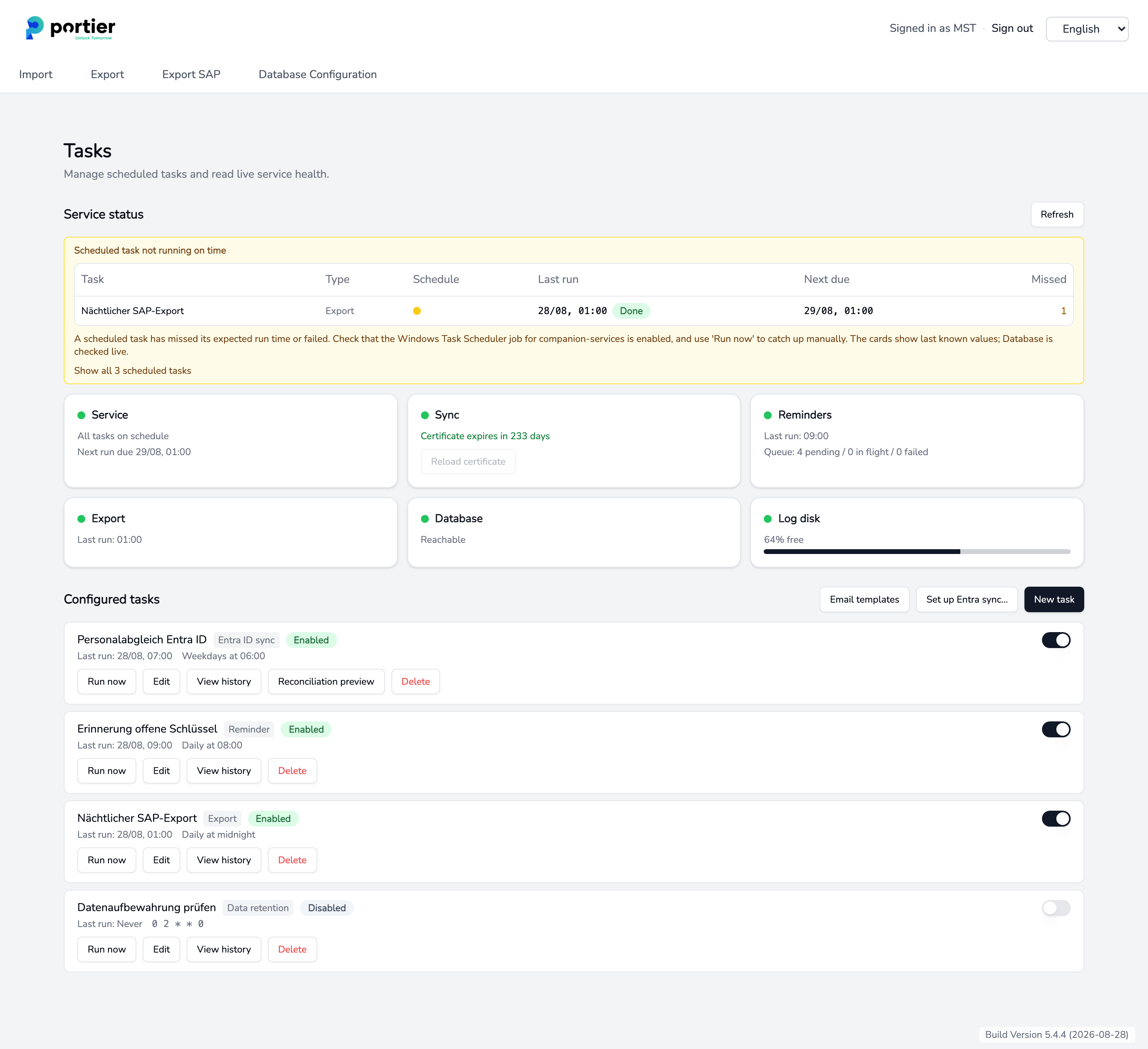
Service status in the Companion with the Database, Log disk and Reminders cards
Systems that only meet the minimum figures will run, but respond more slowly under higher concurrency, intensive data operations or WAN conditions.
For multi-user or multi-site deployments, a dedicated and properly sized SQL Server is recommended. Storage performance for the transaction log and TempDB matters most.
Performance depends on:
database server resources
storage latency
network round-trip time
concurrent user activity
database configuration and maintenance
