
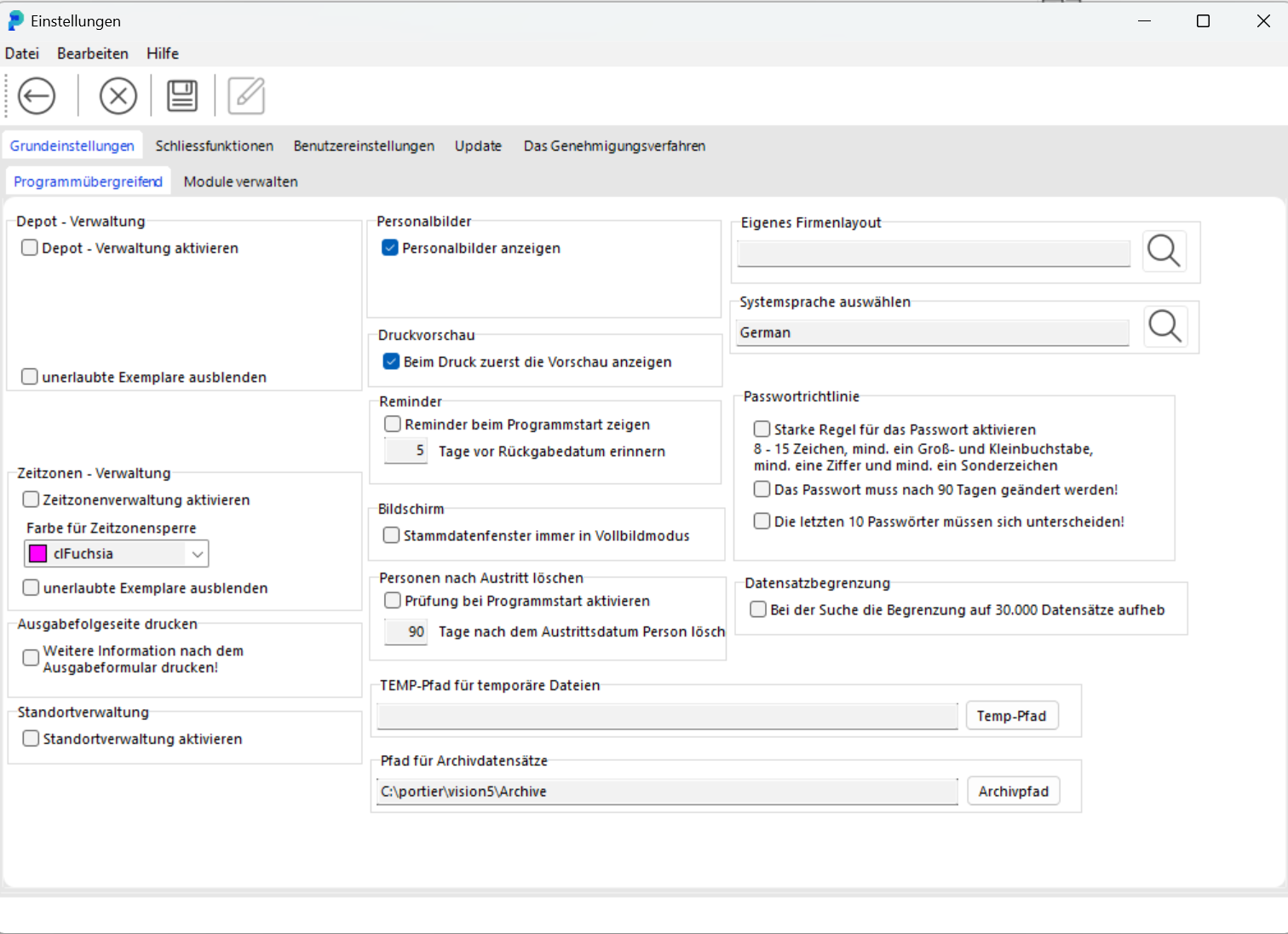
1. Depot Management
Enable Depot Management to manage depots. You can create new depots, edit or delete existing ones, and assign users and key copies to depots. This gives you targeted control of keys and other resources within a depot.
2. Time Zone Management
Time Zone Management lets you define time zones during which key issue is permitted. Outside these periods, key issue is blocked. This enables precise control of access times. You can define and edit time zones for individual keys or key rings.
3. Show Person Photos
Enabling this option allows person photos to be displayed in the corresponding records. This makes it easier to identify users in user management or as key holders.
4. Print Preview
When Print Preview is enabled, a preview window is shown before every print operation. This lets you confirm that documents are correctly formatted before final printing.
5. Reminders
This function reminds you at program start of any pending actions, for example when a return date is approaching. You can set how many days in advance you wish to be reminded about returns.
This setting only controls the notice shown inside the program. Reminder emails are sent by the portier Vision Companion as a scheduled task (task type reminder). The mail queue, the send history and the reminder overview stay in the Vision database.
6. Master Data Window in Full Screen
When this option is active, the master data window always opens in full screen mode. This improves the overview when working with large amounts of data.
7. Check at Program Start (Delete Persons After Departure)
With this setting, you can specify that persons are automatically deleted from the system after a defined period (e.g. 90 days after departure). This helps keep the database clean and up to date.
The portier Vision Companion brings two related functions that run independently of this check. A scheduled task clears data once the retention period has passed. The personnel import marks people as departed as soon as they are missing from the imported file. An incomplete file therefore also marks people who are still with the company, and there is no safety threshold against that. Check the personnel file before you switch on automatic deletion.
8. Company Layout
Upload a custom company logo here to personalise portier® VISION.
9. Select System Language
This setting lets you select the system language, e.g. German, English, or French, to adapt the user interface to the preferred language.
10. Password Policies
Define the password rules here, such as minimum length, required special characters, or how frequently the password must be changed. You can also require that the last 10 passwords must differ from one another.
11. Record Limit
This setting removes the limit on the number of records displayed in search results. By default, results are capped at 30,000 records. This option is useful when working with very large datasets.
12. TEMP Path for Temporary Files
Set the path for temporary files created during operation of portier® VISION. This path is used for intermediate storage.
13. Path for Archive Records
Define the storage location for archived documents managed in the portier® VISION document archive. This includes documents such as approvals, contracts and other personnel-related records that can be linked directly to the relevant users or key holders. You then have one central store for all important documents and can retrieve them quickly.
14. Additional Settings
Hide invalid copies: hides non-permitted key copies from the list.
Print issue follow-up page: after printing a key issue slip, an additional follow-up page is printed automatically.
Database Connection
The database connection is not set here. You configure it in the portier Vision Companion, on the database configuration screen.
The extensive settings in portier® VISION allow you to tailor the system to your specific needs and ensure high efficiency in daily operations.