You need extra keys or cylinders for an existing locking system. The ORDER MANAGEMENT module is where you record a reorder, check the items, complete the order, and pass it to your dealer as a printout or by email.
A new order always refers to the current installation.
Note: if you have a building activated rather than an installation, the REORDER and EXTENSION buttons are hidden in the ORDER MANAGEMENT module. Activate the installation first.
Individual keys can be excluded from a reorder when they are assigned to a depot. See the article on the reorder restriction for keys assigned to a depot for how that restriction works and how to lift it.

Switch to the ORDER MANAGEMENT module and click the REORDER button. You can also use the keyboard shortcut CTRL + N.
Click SEARCH to display any existing orders. To edit an existing order, double-click it.
To create a new order, click ADD RECORD.
In both cases, the REORDER window opens.
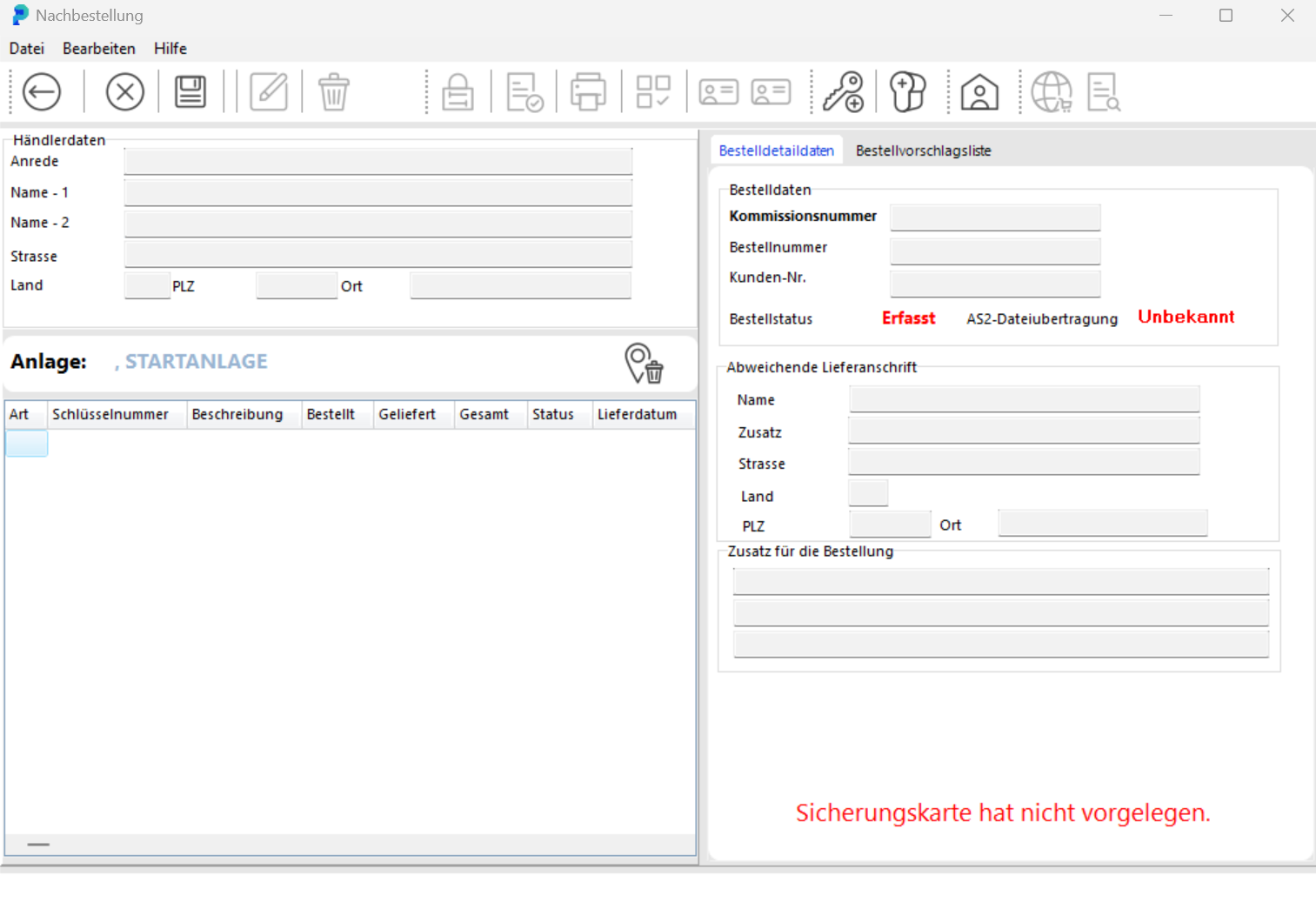

Here you edit your existing reorder or enter the data for the new order. Take over the dealer data by clicking SELECT DEALER.
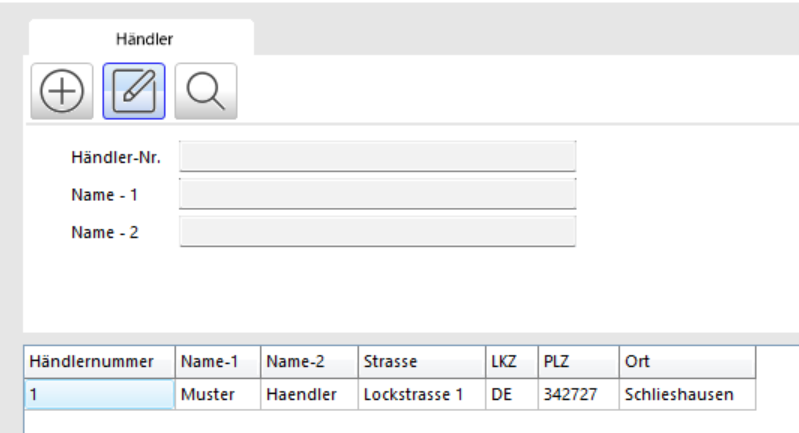
In the DEALER SEARCH window, select the dealer you want and take over the details by clicking APPLY SEARCH RESULT.
In the ORDER DETAILS tab, enter:
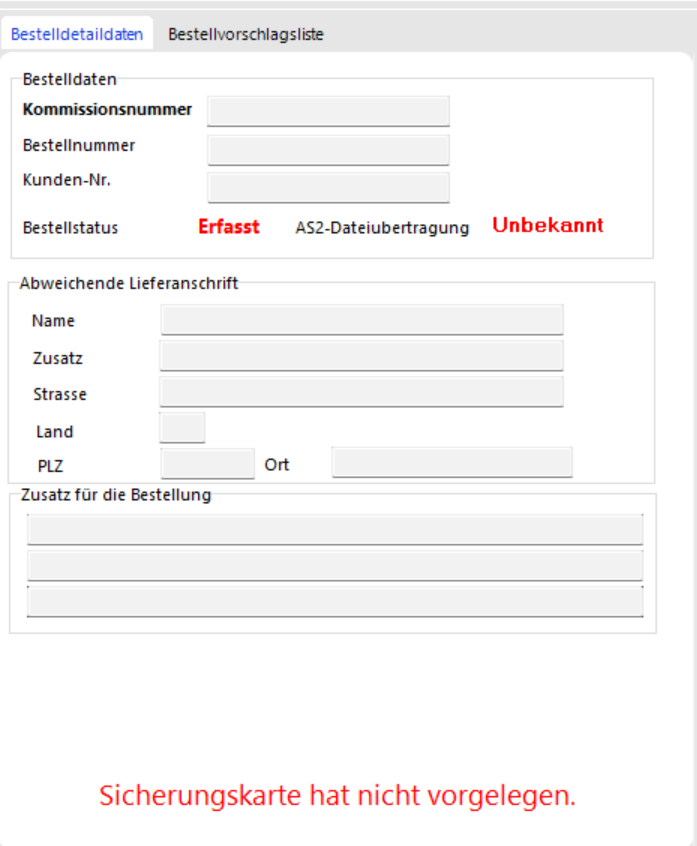
Order number (e.g. from your SAP system)
Commission number (if applicable)
Alternative delivery address (if applicable)
Notes for the dealer (if applicable)
To add order items, click ADD KEY or ADD CYLINDER.


In the KEY SEARCH or CYLINDER SEARCH windows, select the key or cylinder you want to reorder.

Confirm the selection by clicking APPLY SEARCH RESULT.
The selected items appear on the left side of the REORDER window.
In the ORDER SUGGESTIONS tab, you will find keys and cylinders that were flagged for reordering during daily work (see "Key issue").
All items listed there are reminders only. To add one to the order, drag it into the order list while holding the left mouse button.
If you remove an item from the order list (trash icon), it returns to the suggestions list.

Save your order by clicking SAVE.

Leave the REORDER window by clicking BACK.
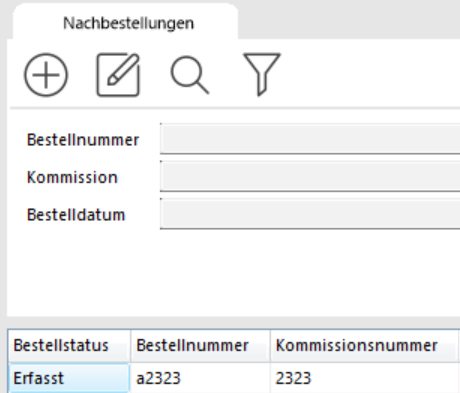
The order now appears in the order overview list with status Recorded and can be reopened and edited at any time by double-clicking.

Close the order definitively by clicking COMPLETE ORDER and confirming the prompt. The order can no longer be changed after that. Check the items, the dealer data and the delivery address beforehand.
To print the order, click the PRINT ORDER button.

A print preview is displayed.

Print the order form from the preview by clicking one of the two PRINTER buttons, depending on whether you want to print only the current page or all pages.

To send the order form by email, click the eMail button.
