Tip: Key copies must be assigned to a depot. Unassigned copies are visible and reorderable by every user in the system.
The screenshots show the German interface. The German label is given after each button name.
Select the settings in the upper right. In the Basic Settings & Manage Modules tab („Grundeinstellungen & Module verwalten“) you can restrict ordering permissions.
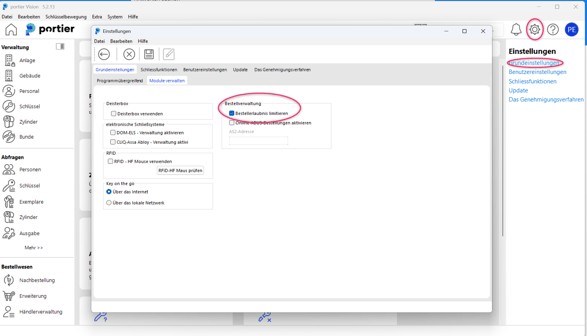
To use this ordering function, your keys must be assigned to the respective depots.
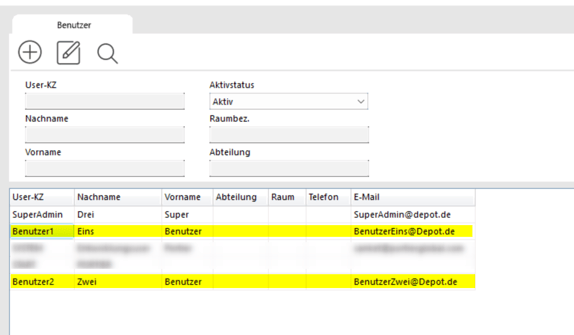
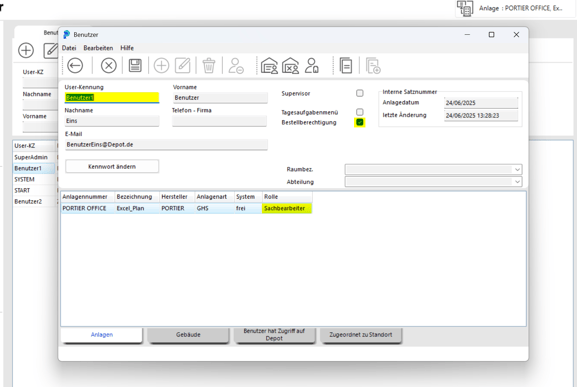
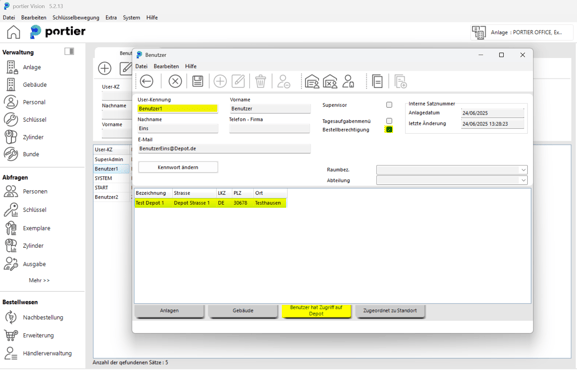
In the following example there are User 1 and User 2. Via “System” in the top bar and User Management („Benutzerverwaltung“), the administrator grants users the right to reorder. Both users hold at least the Clerk permission level („Sachbearbeiter“) for the system and have depot rights for their own depot. Ordering permission is activated for both.
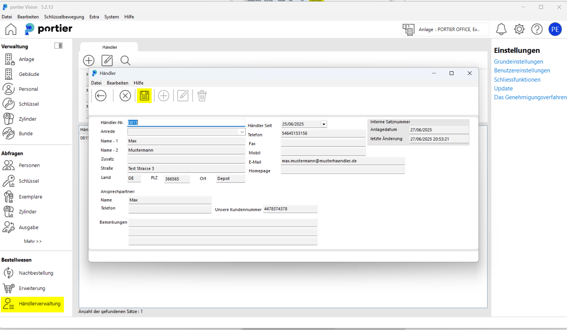
In Dealer Management („Händlerverwaltung“) you can store your dealers' address data to save time on future orders.
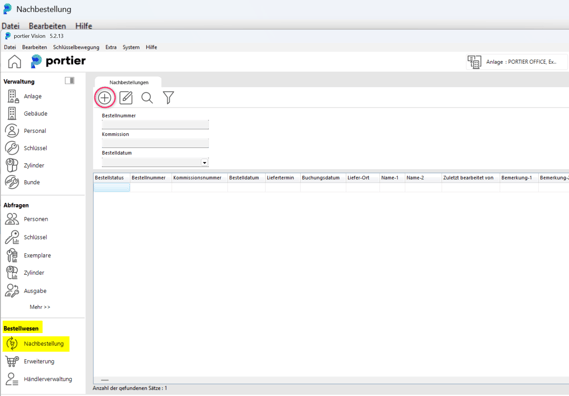
Under Ordering, Reorder („Bestellwesen, Nachbestellung“) you can create a new reorder.
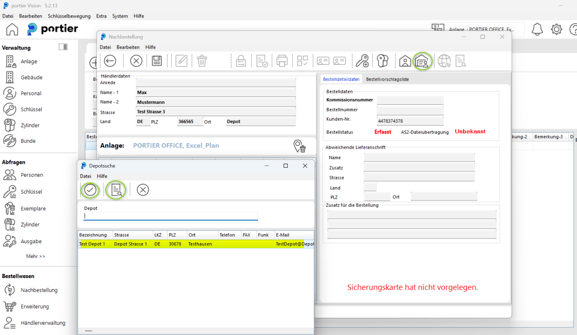
A new window opens. Click the dealer button (red circle) to select the address of the dealer you want (magnifying glass) and confirm with the (checkmark symbol).
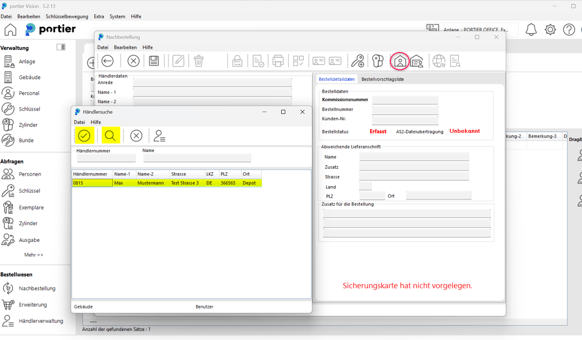
The address is transferred to the reorder form automatically. Via the depot button (green circle) you can select a different delivery address. Use the (middle button) in the depot search to display the available depots, then confirm your selection with the (checkmark symbol). The address is then transferred to the alternative delivery address field automatically. Make sure you enter an order number / commission number („Bestellnummer/Kommissionsnummer“).
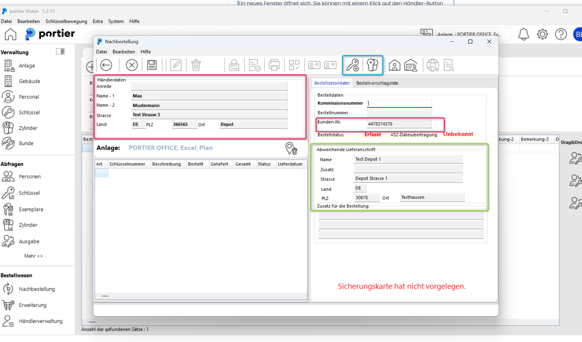
You have now transferred the dealer address (in red) and the alternative delivery address (in green). You can start ordering your keys and cylinders (symbols in blue).
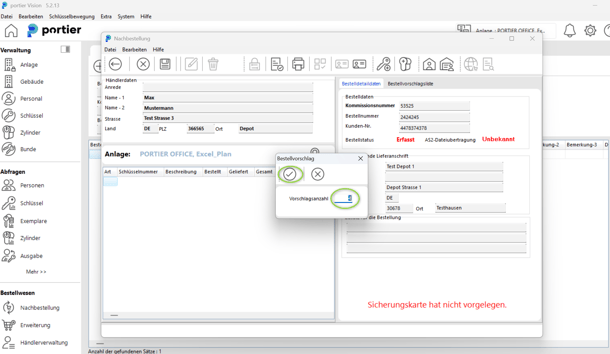
Click Add Key/Cylinder („Schlüssel/Zylinder hinzufügen“, in blue) to open a new window. Via the search icon (magnifying glass) you see all keys and cylinders from the depot you hold rights for. Add the keys or cylinders you want to the order. After you confirm your selection with the (checkmark symbol), another window opens where you enter the quantity.
The selected keys and cylinders appear in the order form. Once your selection is complete, you can finalise the order (blue circle) and print it (green circle).
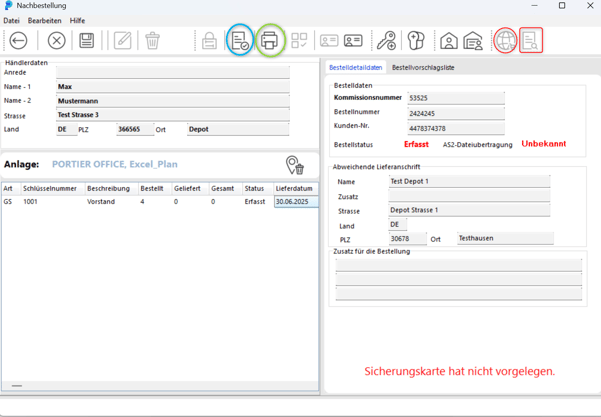
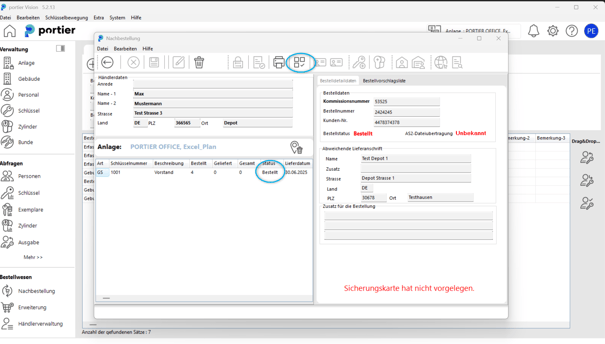
For customers with AS2 ordering authorisation, the order can be sent via the (globe icon in red). The status of the order can then be checked with the search icon next to it (in the red box).
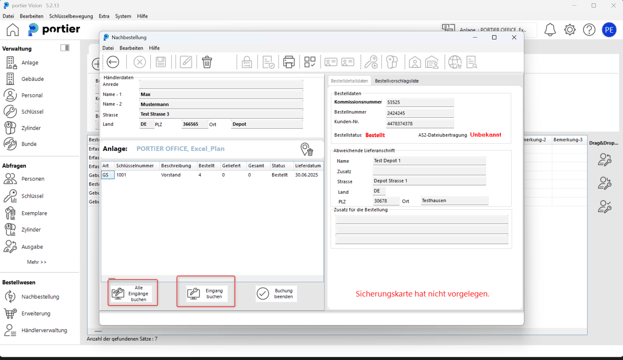
Once orders have been recorded and set to Ordered („Bestellt“), confirm the delivery on goods receipt by clicking the Receive icon („Empfangen“, blue circle). This books the order as arrived in the system, and the new keys or cylinders become available for further management in the depot.
After you have received the key copies, they are assigned automatically to the depot selected earlier. You keep a clear view of which new copies are managed in which depot, and you can control further issue from there.