
Recording a Cylinder
In portier VISION, each cylinder has its own record.
In the MANAGEMENT / CYLINDERS module, click the ADD RECORD button in the toolbar. The CYLINDER window opens.
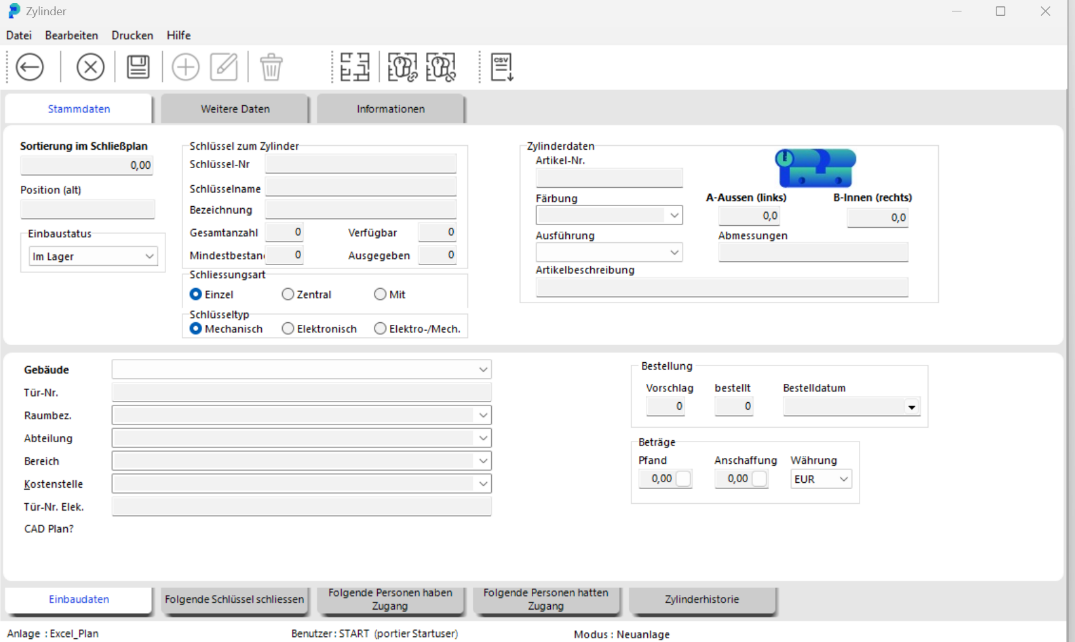
In the upper section "KEYS FOR CYLINDER", enter the relevant cylinder data. In the Installation Data section, you specify exactly where the cylinder has been installed.
Save the entered data by clicking the SAVE button.

Close the CYLINDER window by clicking the BACK button.

The cylinder is now available. In the Keys section, portier creates a key record and makes available exactly the number of copies (Exemplare) you entered under Total quantity.
The link between cylinder and key is established via the key number, also called the locking number.
Important: this key number can never be changed.
How to Modify a Cylinder
In the MANAGEMENT / CYLINDERS module, enter the data of the cylinder you are looking for in the CYLINDERS tab, for example the key number, and press ENTER. The cylinder is displayed.
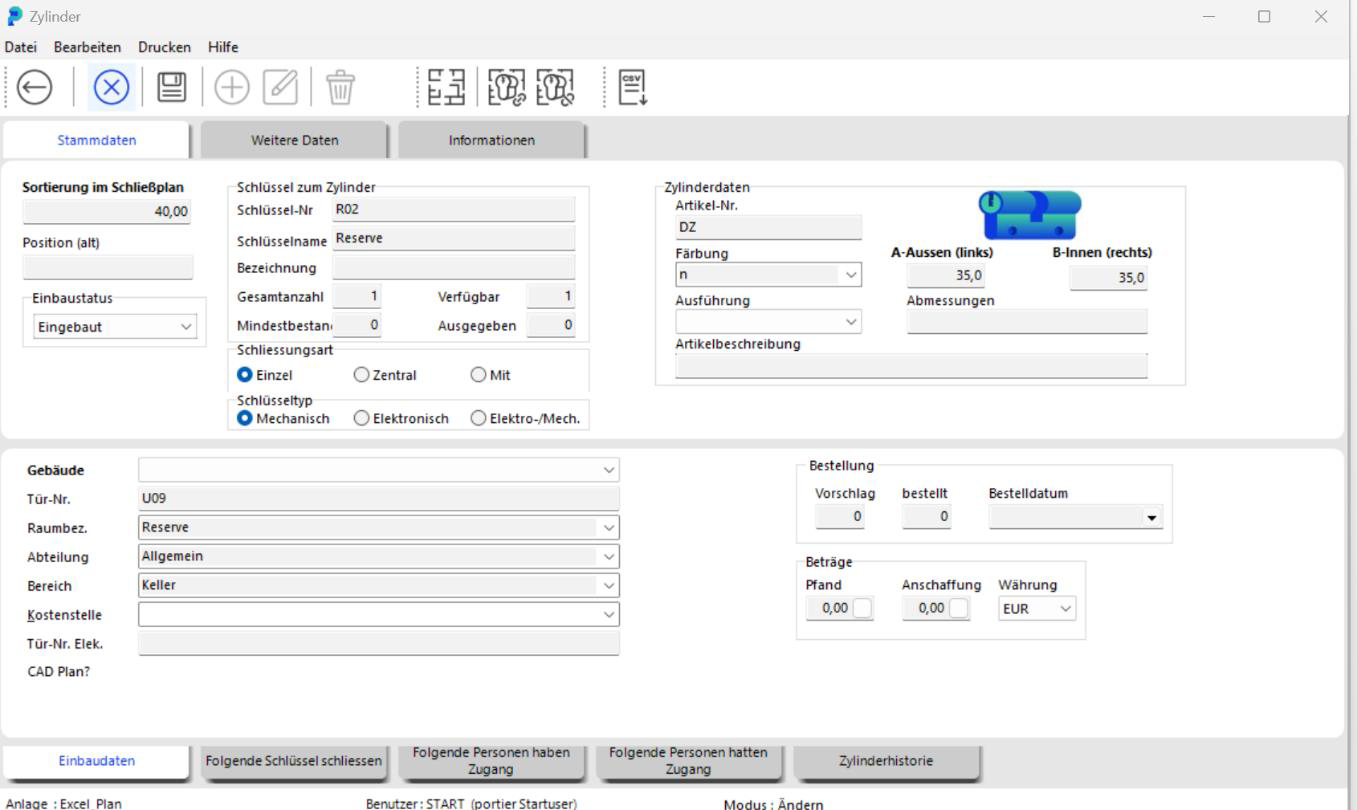
Double-click the cylinder to open the CYLINDER window. There you find the Installation Data tab. Use it to edit the cylinder details.
Save the changed cylinder data by clicking the SAVE button.

Important Note
Key details can no longer be changed in the cylinder screen after the initial entry. In MANAGEMENT / KEYS you can edit the key details, provided you have the corresponding permissions. Only the key number itself can never be changed after initial entry.
Note on Re-Importing
If the locking system is imported again later, portier does not update a system that already exists. The SCHLUESSELART and SCHLIESSUNGSART fields are not refreshed on re-import either. Cylinders you entered by hand therefore stay as you created them.