Your locking system data arrives as a file from the manufacturer or the dealer. You import it in portier Vision Companion, which Vision starts from its own menu.
The file for your locking system. The Companion reads two formats, portier XML (.xml) and KWD (.kwd).
For KWD, version 8 or later. Older files are rejected.
A Vision role allowed to import locking system data, at Sachbearbeiter level or above. Your administrator sets this in user management.
portier Vision Companion. It is installed together with Vision.
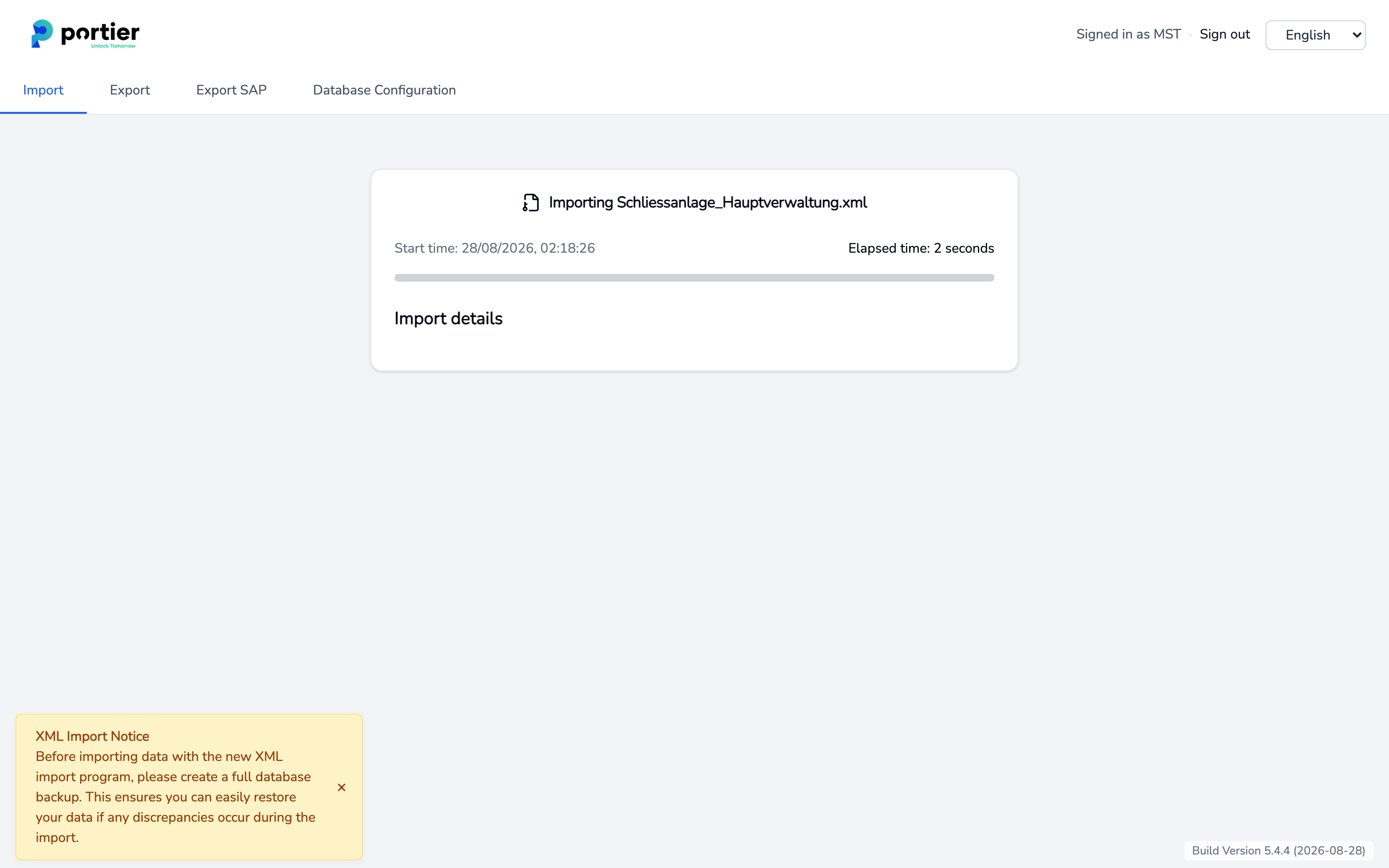
The Companion says so itself on the import page, under XML Import Notice. Create a full backup before you import anything. If the result does not look the way you expected, that backup takes you straight back to the previous state.
In Vision, open the System menu and choose Anlagenimport (XML), the locking system import entry.
Vision starts portier Vision Companion and signs you in with your Vision user.
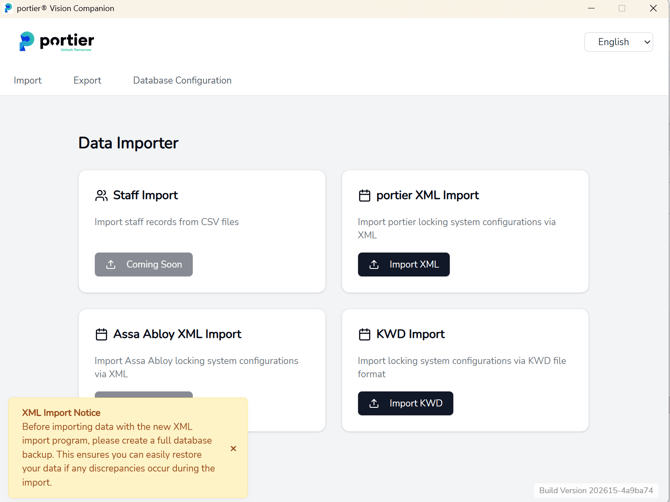
The Companion opens the Import area.
The Vision System menu with the Anlagenimport (XML) entry
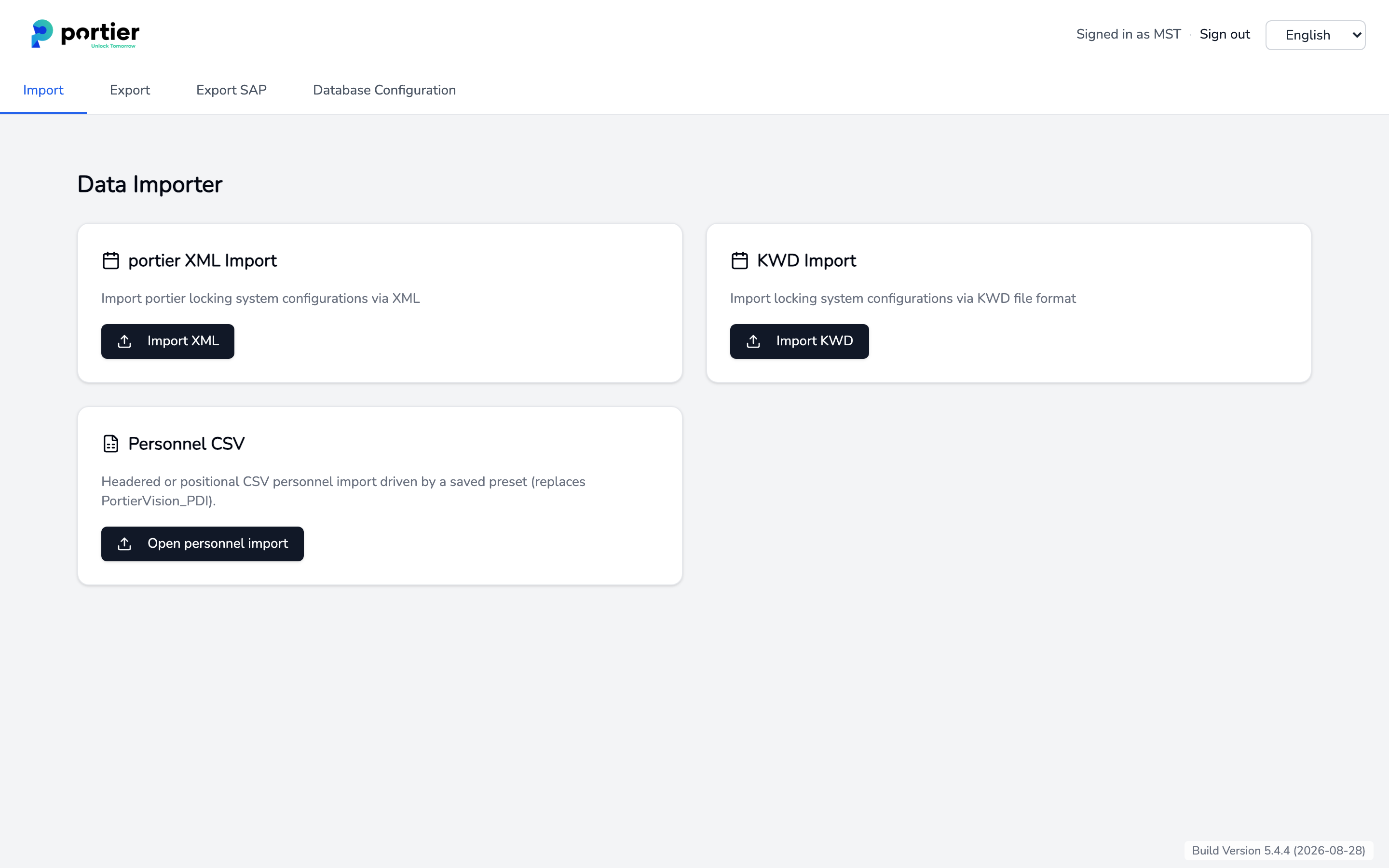
The Import area with the portier XML Import, KWD Import and Personnel CSV tiles
For an .xml file, use the portier XML Import tile and the Import XML button.
For a .kwd file, use the KWD Import tile and the Import KWD button. The Companion converts the KWD file into portier XML first and then runs it through the same pipeline. The outcome is the same, only the entry point differs.
The third tile, Personnel CSV, belongs to the personnel import and does not touch your locking system.
Click the dashed area. The Windows file dialog opens, filtered to the matching extension. Select your file and click Import XML File or Import KWD File.
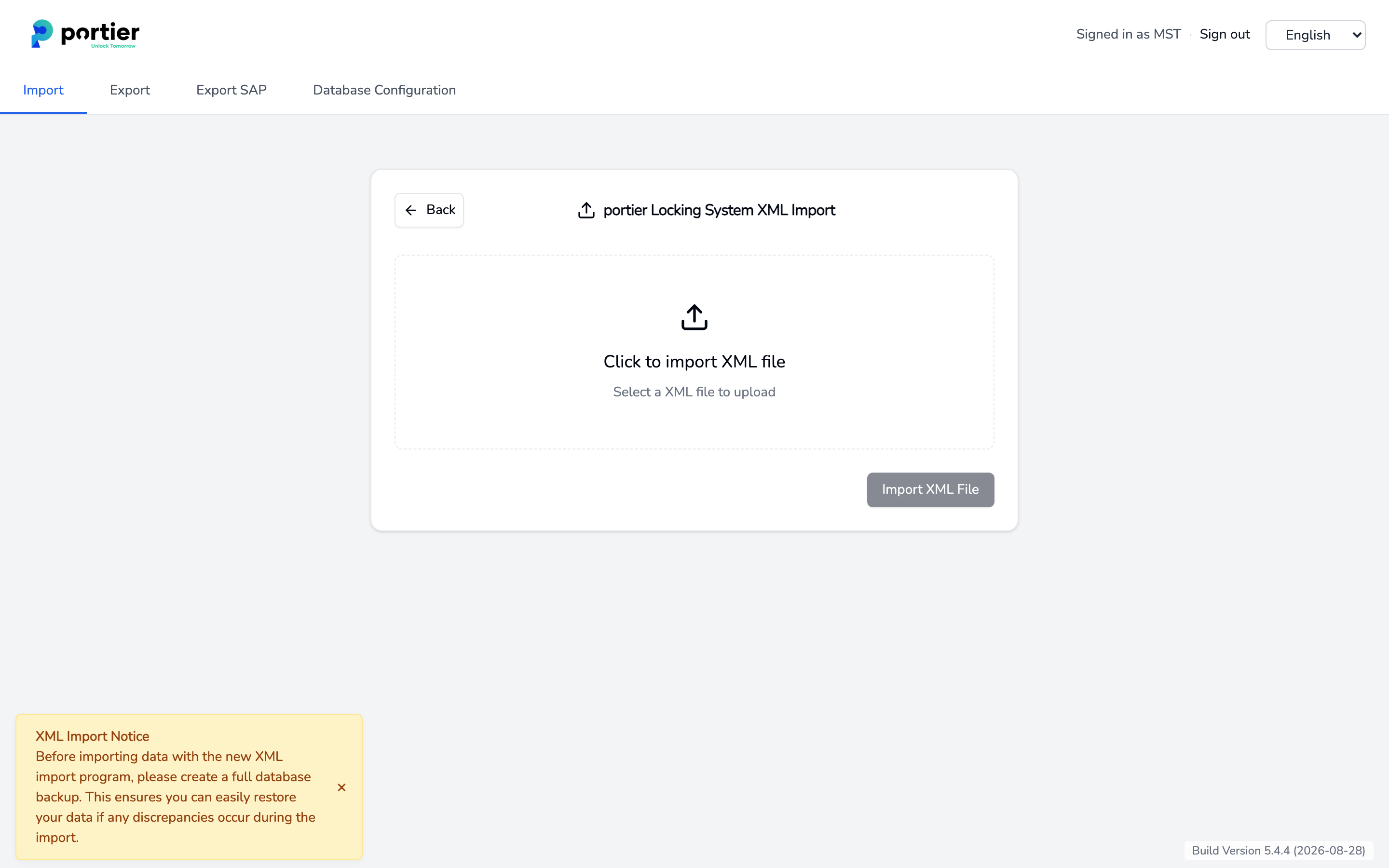
File selection for an XML file with the Import XML File button
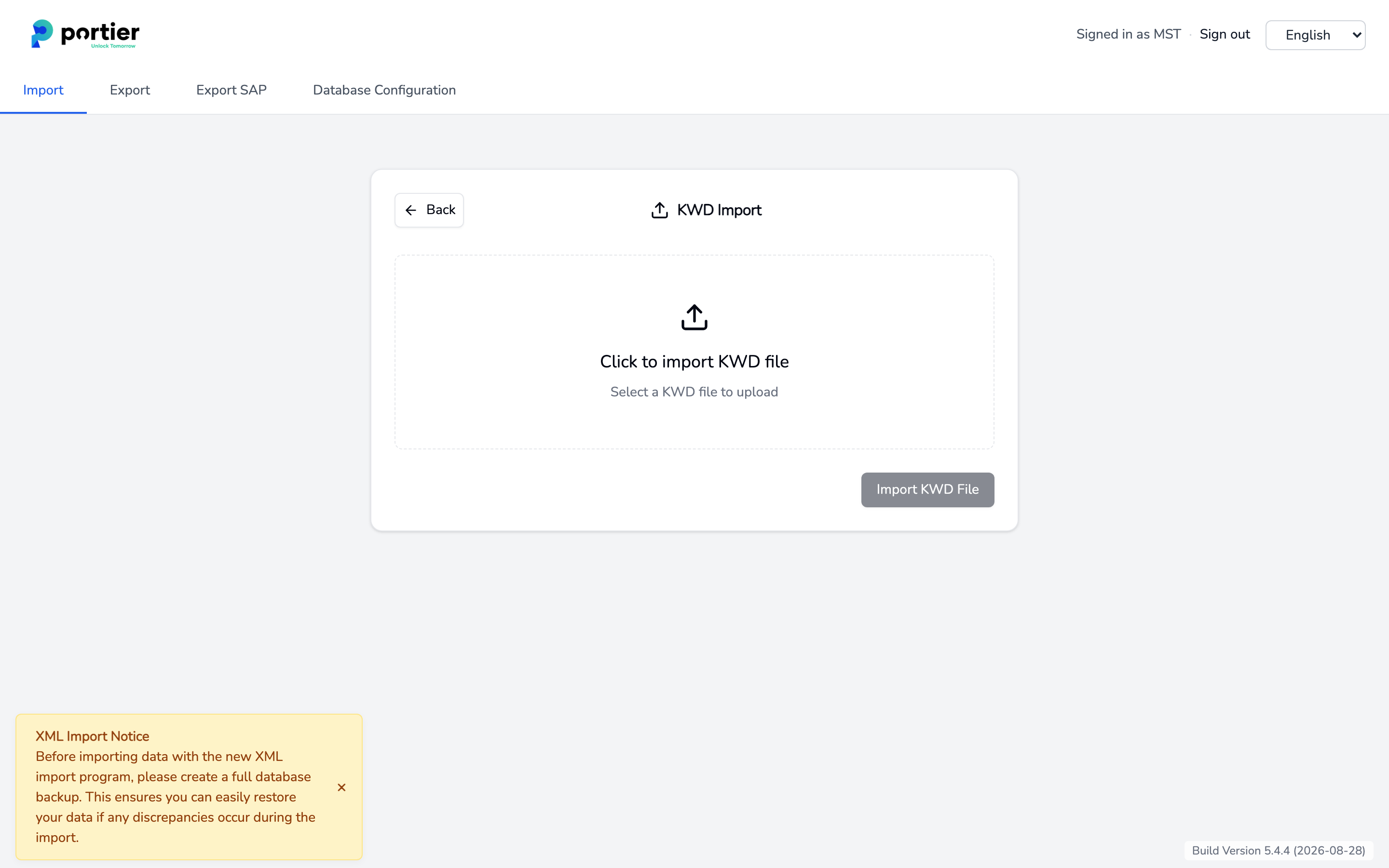
File selection for a KWD file with the Import KWD File button
The Companion works through the file in six steps.
Parse portier XML Interface, or Parse KWD File for KWD
Locking System
Building
Key
Cylinder
Function
Each step carries numbers, such as "Keys created: 318" or "Cylinders already in database: 96". At the end the Companion reports Import completed successfully and the elapsed time. You can then use Upload Another File or go back with Finish.
Compare the numbers against what your dealer supplied. That is the quickest check that the file was complete.
A finished import with the numbers for each step
The STANDARD version manages exactly one locking system. An empty starter system is supplied with the installation. So that your import lands in that starter system instead of creating a second one, enter the manufacturer and the system number first.
In Vision, open Abfragen, then Anlagen, and start the search with the magnifying glass.
Open the starter system with a double-click.
Click the tool icon and enter Hersteller and Anlagennummer exactly as they appear in your file. Both usually sit at the start of the file.
Upper and lower case do not matter. Spaces do. A system number with a trailing space counts as a different number.
The Companion does not create a duplicate. It recognises an existing system by system number and manufacturer. If those do not match, it checks the cylinders. When at least half the cylinders in the file already sit in one system, the import is assigned to that system and you see "Matched an existing system by cylinder identity (12 of 20); no duplicate created."
What lands and what does not:
New buildings, keys, cylinders and functions are added.
An existing locking system is not overwritten. A changed name or changed master data in the new file does not come through.
An existing building is not overwritten. Buildings are matched on their description alone, so two buildings with the same description collapse into one. Give buildings unique descriptions.
An existing key is not overwritten. A changed key type in a newer file does not come through.
For an existing cylinder, only the dimensions are refreshed.
If you genuinely need to rebuild a locking system, the import is not the way to do it. Contact support.
Das Programm "portierVisionCompanion.EXE" befindet sich nicht im Verzeichnis!
The Companion is missing from Vision's program folder. Reinstall Vision with the current installer, or contact support.
Insufficient permissions
Your Vision role is not allowed to import locking system data. Your administrator raises the level in user management.
unsupported KWD version
The file is older than KWD version 8. Ask your dealer for a newer export.
XML file is corrupt or invalid or XML file is empty
The file is incomplete, usually because a copy or a download was cut short. Fetch the file again.
