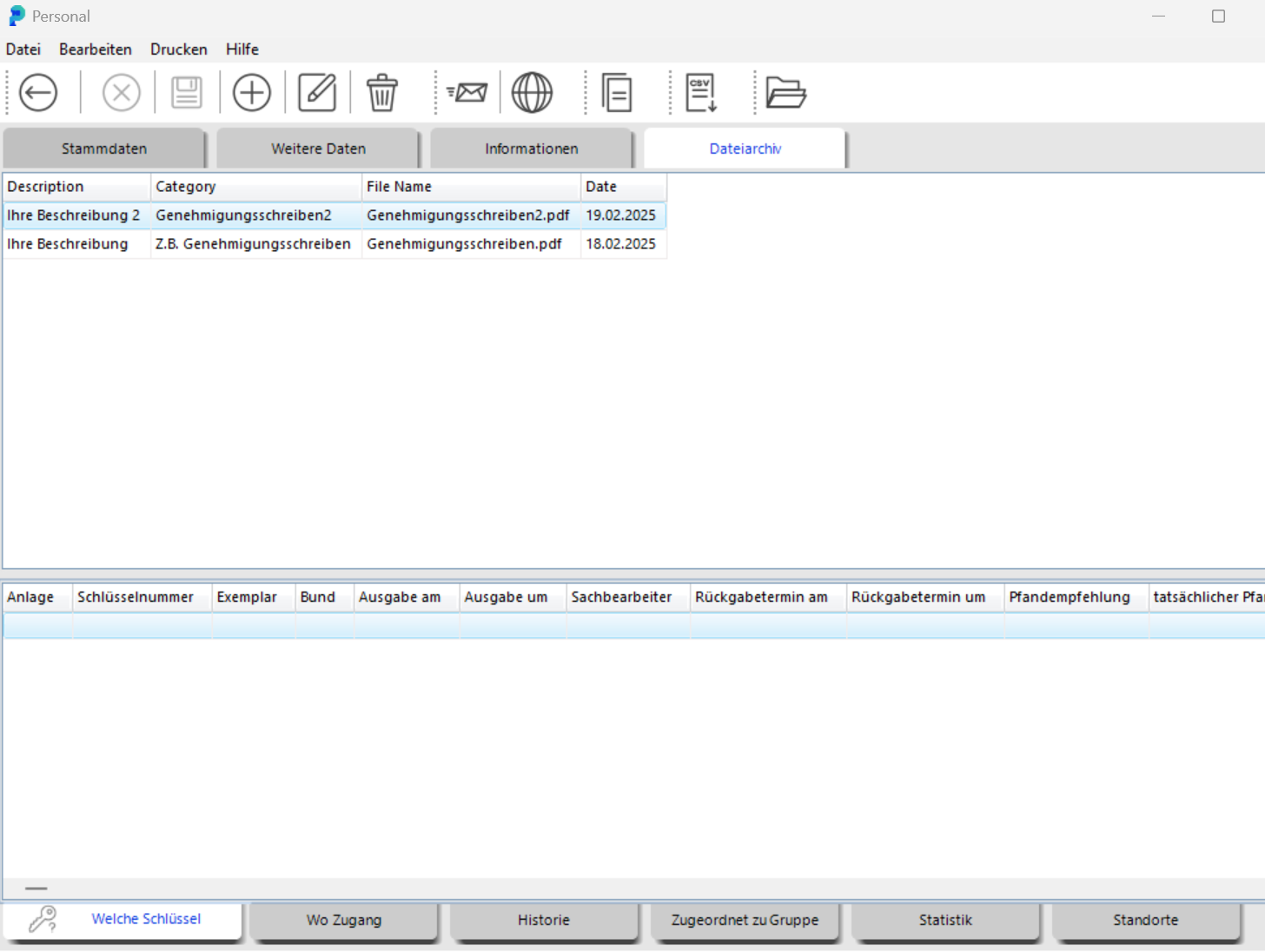
Since version 5, portier Vision includes the "DocuVault" file archive. It lets staff store files in a person's personnel record. Typical content is access records, authorisations and other documents that belong to the person.
On the start screen, click the "Personnel" menu item at the top left. Open the person you need and switch to the "File archive" tab.
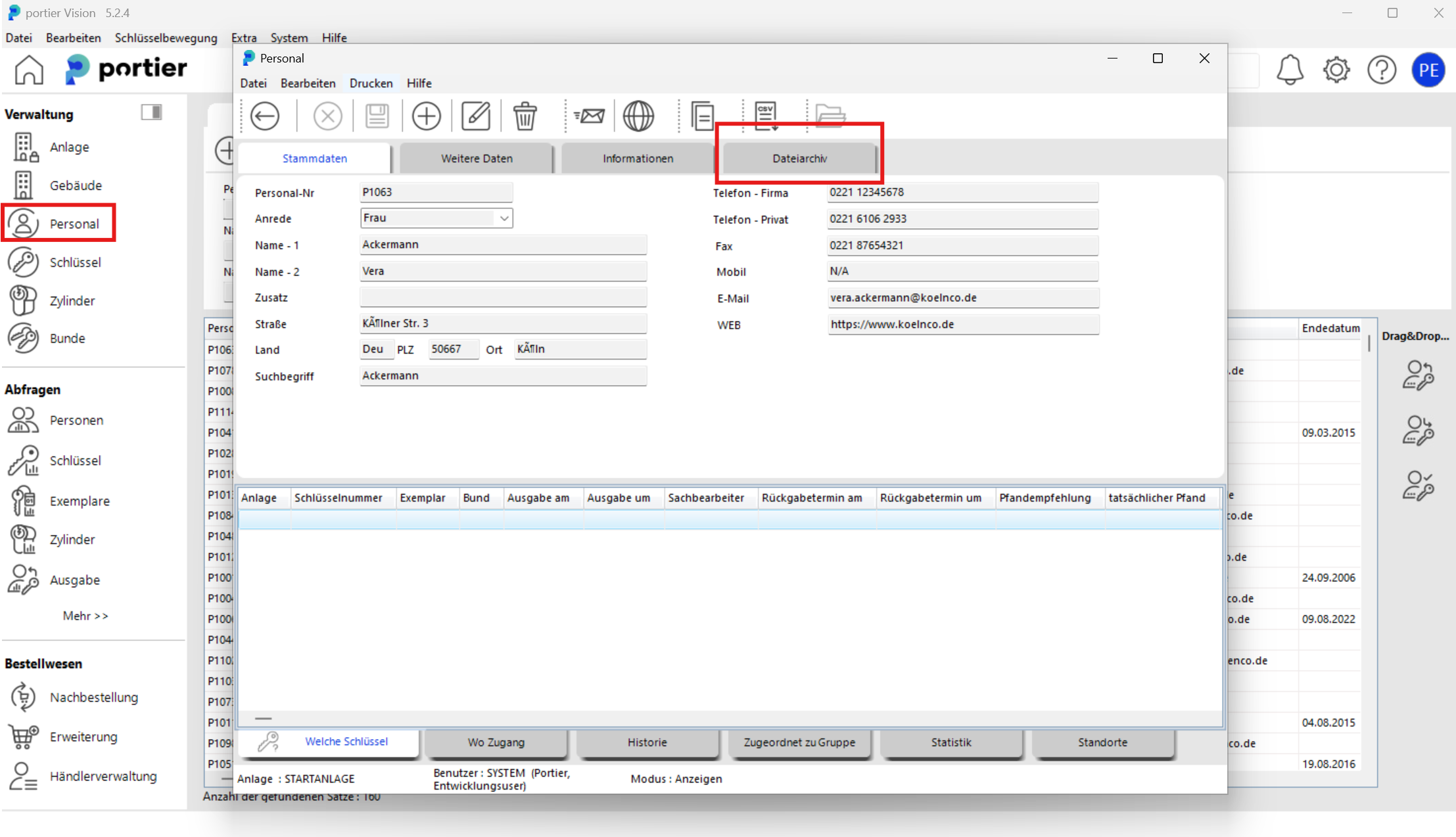
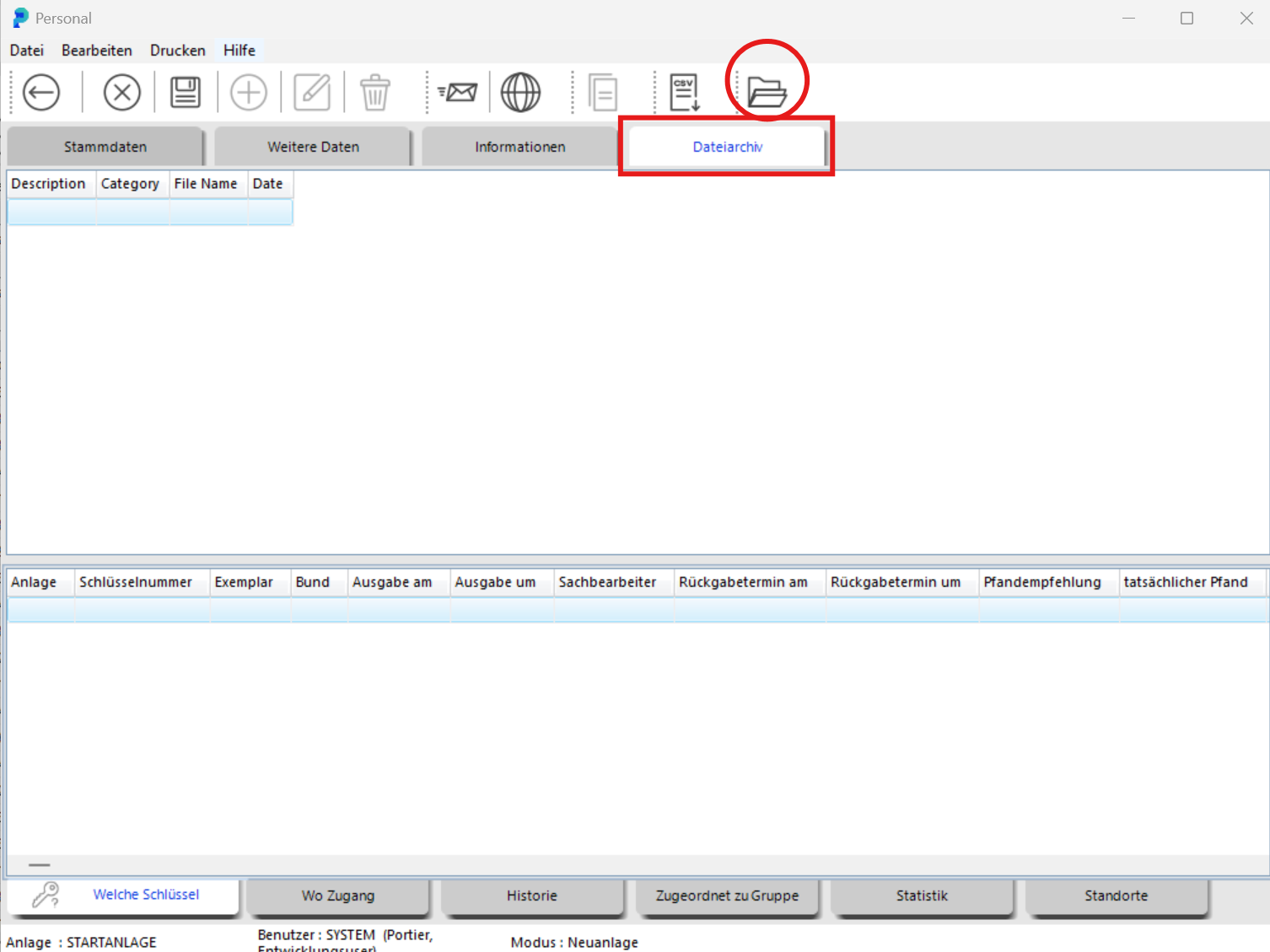
The file archive opens. Click the folder icon on the right to upload a file.
In the file archive, click the search icon on the right and select the document you need.
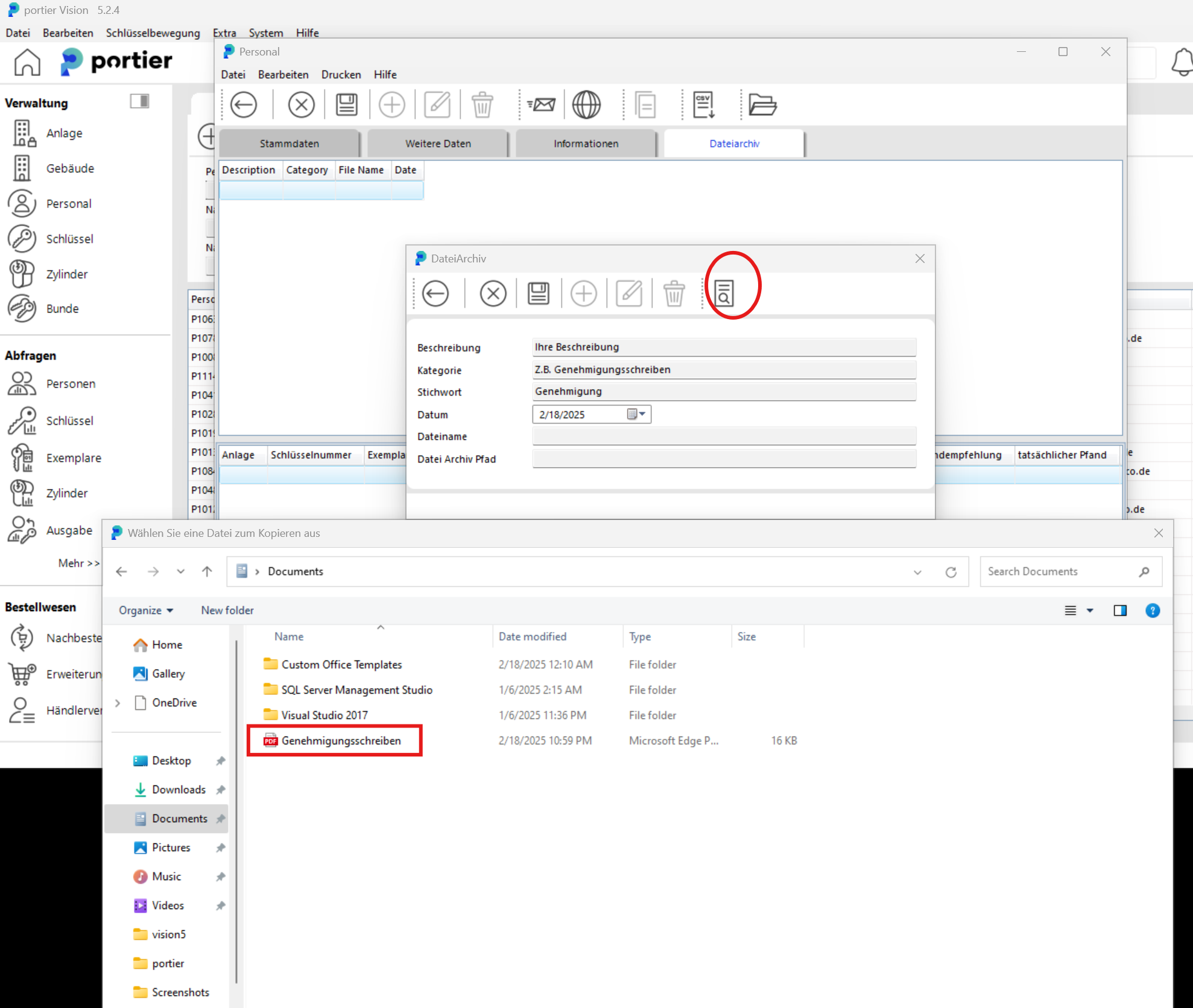
Then click the floppy disk icon (save) and after that the left arrow.
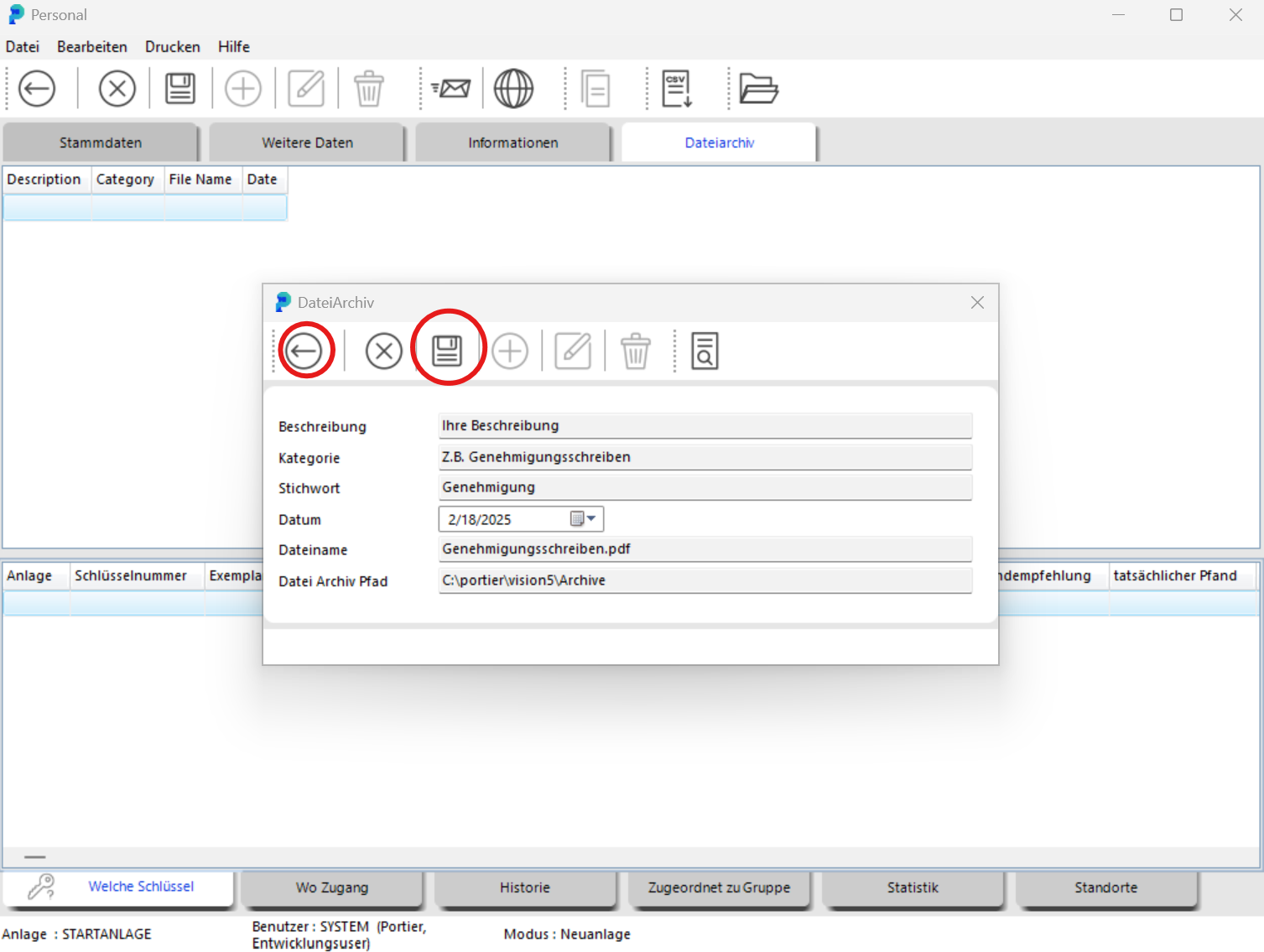
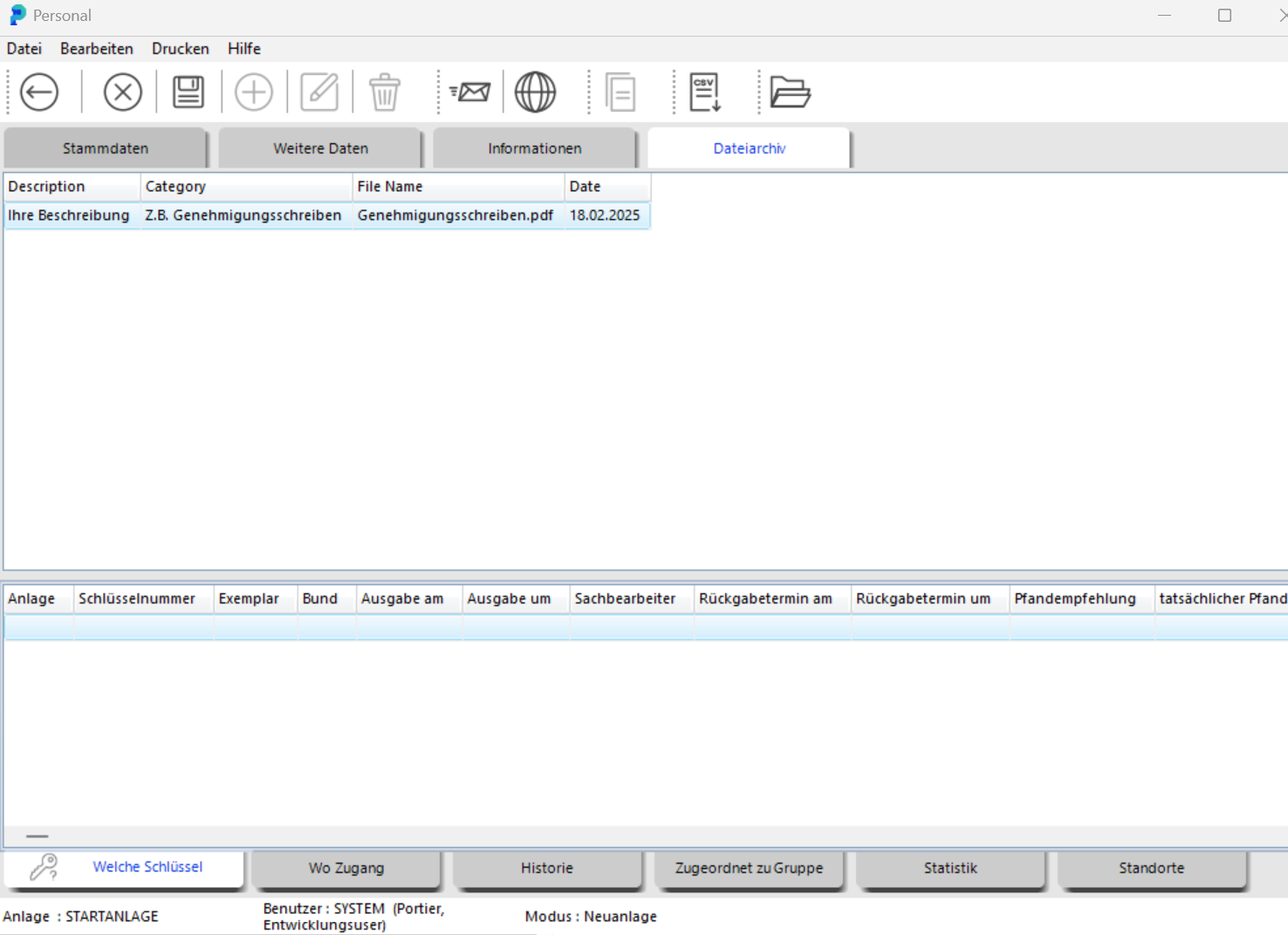
The file is now in that person's file archive.
For a second file, click the floppy disk icon again and then the plus sign.
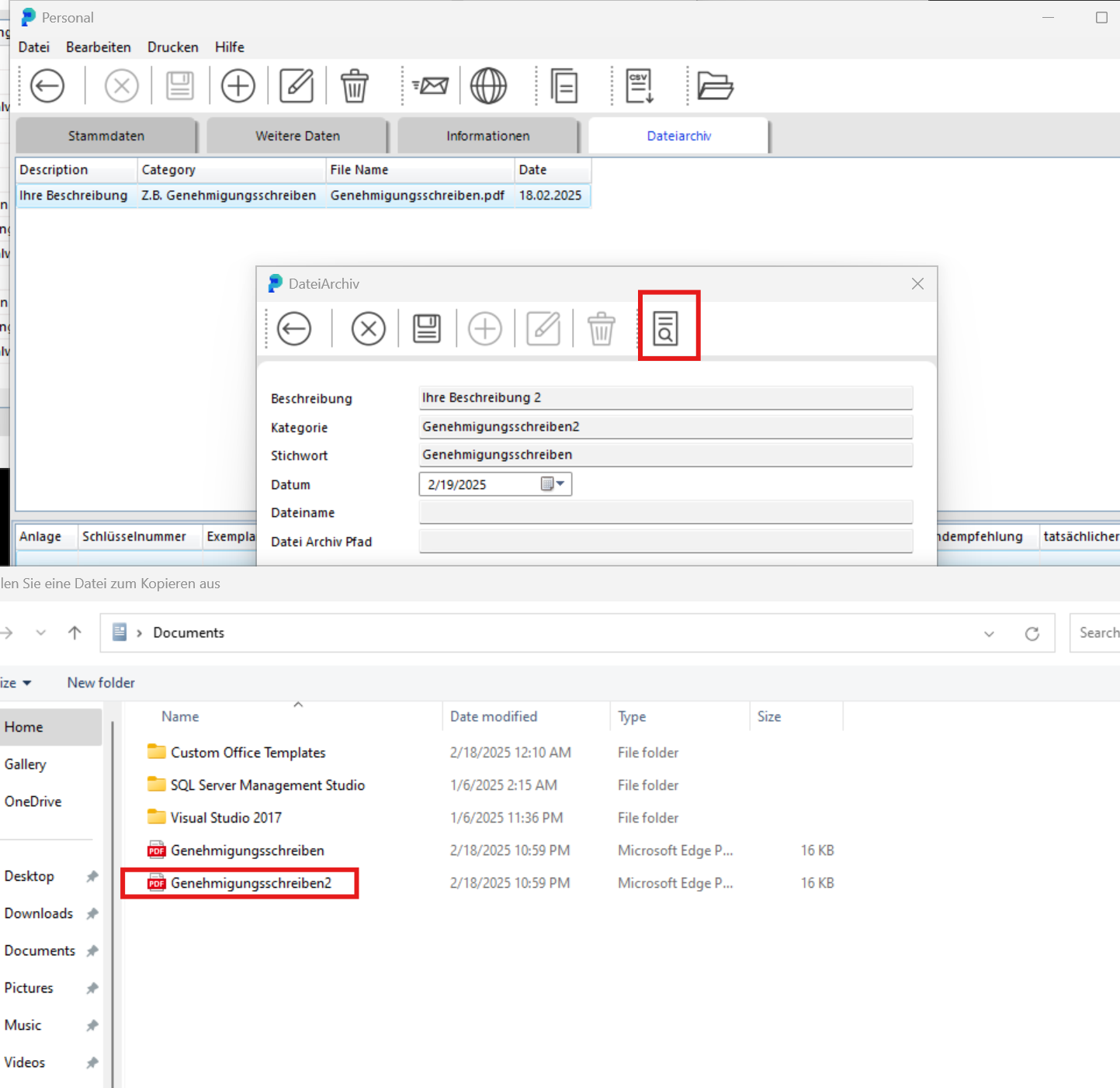
Double-click the file to select it. Click the floppy disk icon and then the left arrow.
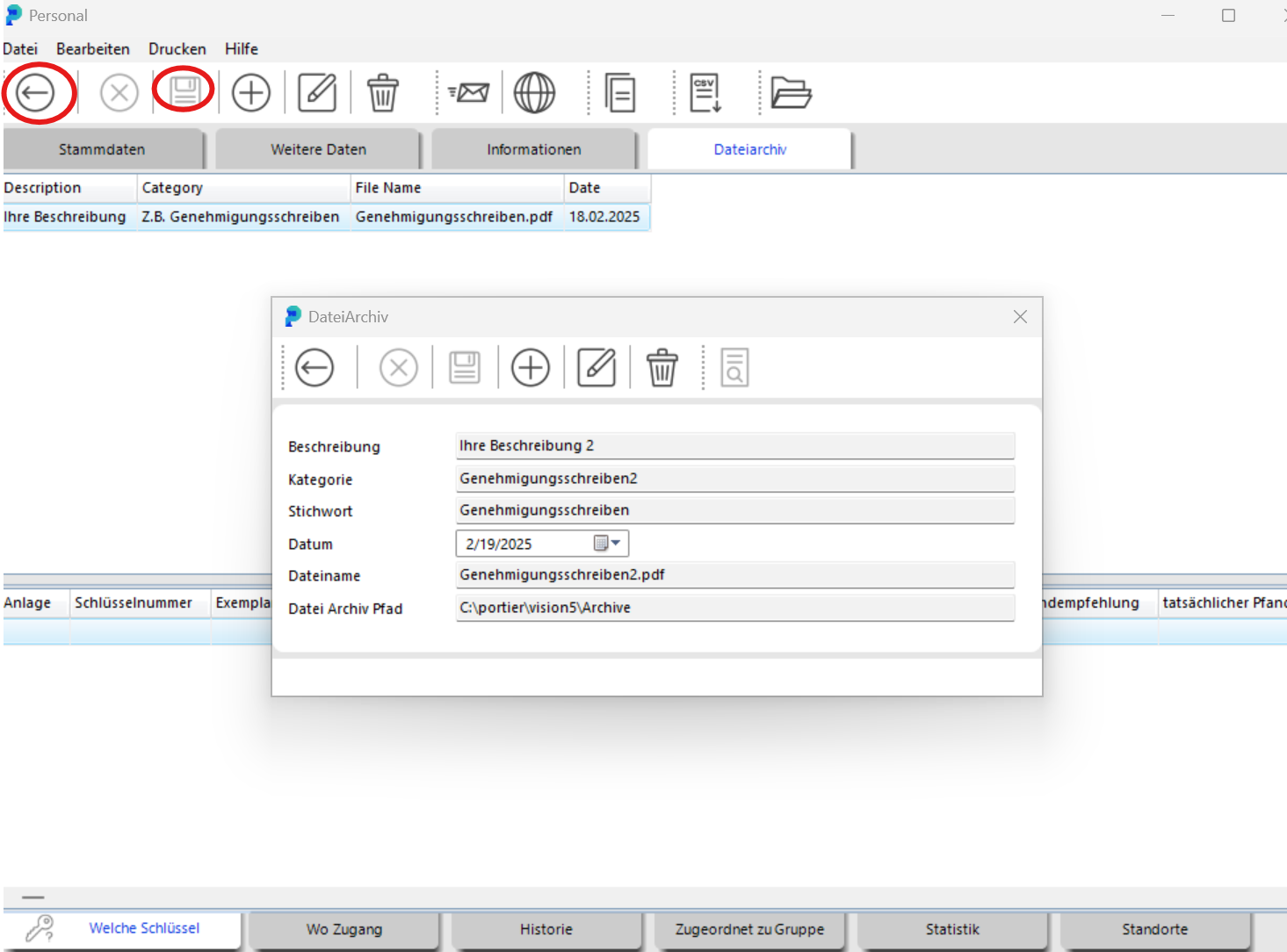
The second file is now in the file archive as well. Every further file goes in the same way.