
In portier®VISION, you can create groups and assign both keys and people to these groups. When a key is issued, portier®VISION checks whether the recipient belongs to the authorised group.
This way you can reserve keys for certain areas for an authorised group of people (for example laboratory keys for laboratory staff only).
To do this, click the entry Define Groups in the menu Edit. Alternatively, use the keyboard shortcut Ctrl+G.

Existing groups are displayed by clicking the button Start Search. To edit a group, double-click it.

To create a new group, click the button Add Record in the toolbar.
In both cases, the window Define Groups opens.
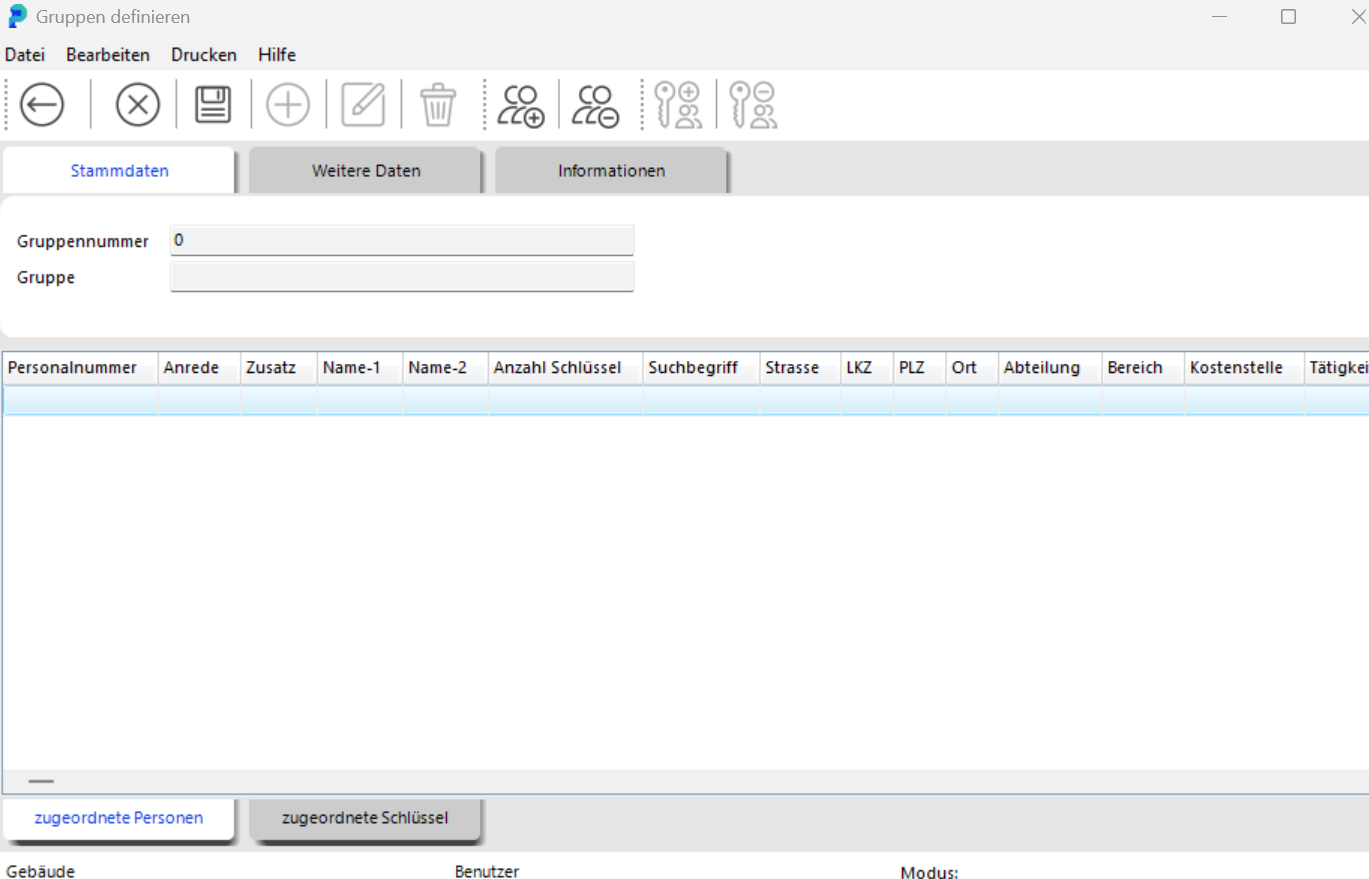
Here you enter the data for the new group or change the data of an existing group.
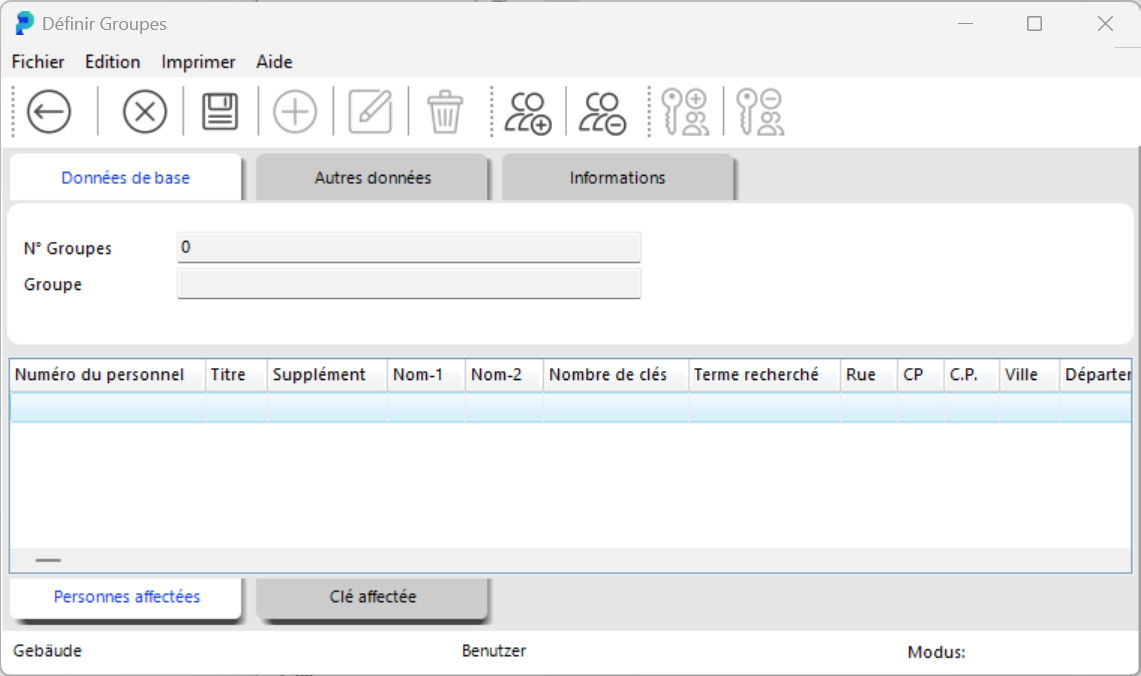
Add people to the group:
Click the tab Assigned People at the bottom of the window.
Click the button Assign People to Group at the top of the window. The window Search Personnel opens.
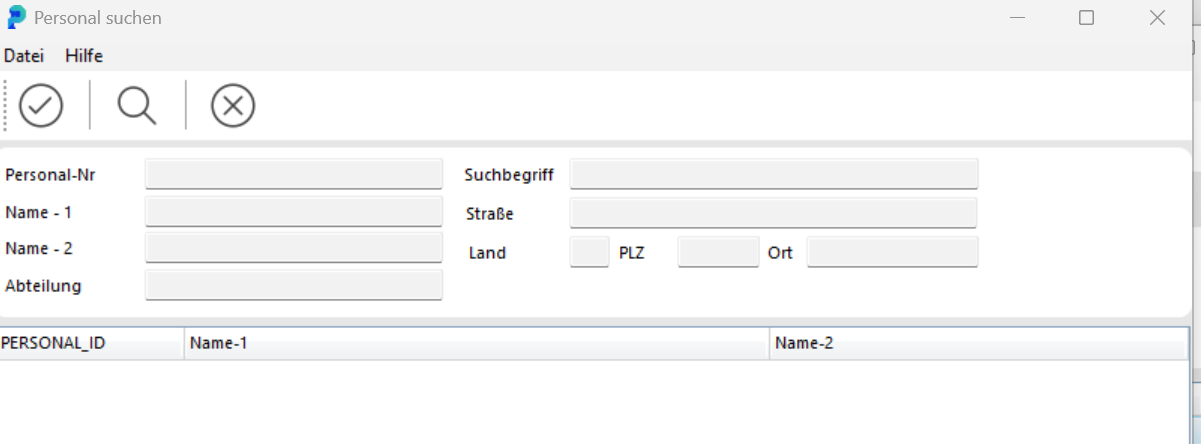
Click the button Magnifying Glass to display all people. This list can become long, so you can also search for specific people.
Select the person you want by clicking on them.

Click the button Accept Search Result. This adds the selected person to the group.

Add keys to the group:
Click the tab Assigned Keys.
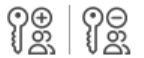
This activates the buttons Assign Key to Group and Remove Key from Group.
Click the button Assign Key to Group. The window Key Search opens.
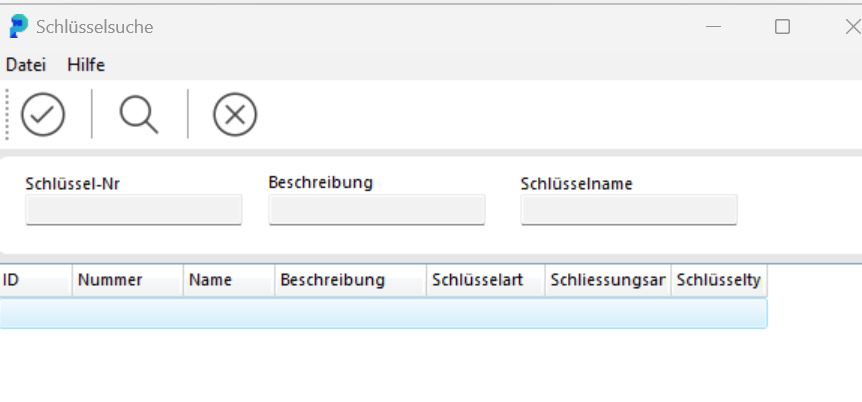
Click the button Search Keys to display all keys. Select the key you want and add it to the group with the button Accept Search Result.
Remove a key from a group:
In the menu Edit, select the command Define Groups, or use Ctrl+G.
Click the button Magnifying Glass to display all groups.
Open the group you want by double-clicking it. In the window Define Groups, switch to the tab Assigned Keys.

Select the key you want and click the button Remove Key from Group.
Confirm the security prompt Remove key xxx from the group?. The key is now detached from the group.