
In the ADMINISTRATION / PERSONNEL module, click START SEARCH to display all recorded persons.
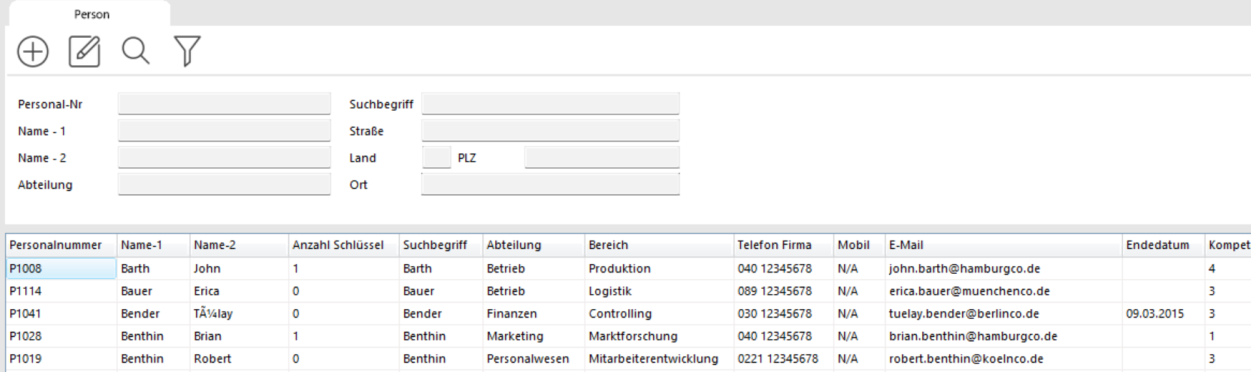
The list can get very long, so you can also search for one person. Enter the first letters of the last name in the NAME - 1 field and click the magnifier button.
You can also press the ENTER key to run the search.
You will see all persons whose last name begins with the letters you entered.
Select the person you want to edit by clicking them, then click the EDIT button. Alternatively, double-click the person directly.
In both cases the PERSONNEL window opens. Click the EDIT button there. You can now edit and change the person's existing data.
Save the changed data by clicking SAVE and leave the PERSONNEL window by clicking BACK.
The changed data is also saved if you leave the PERSONNEL window straight away with BACK. In that case, answer the confirmation prompt with YES.
You can assign a photo in JPG format to the person. Open the record for editing, select the Additional Data tab, then click INSERT PHOTO. Find the photo on your drive and confirm. The photo appears immediately.
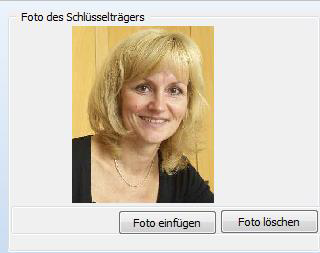
If the buttons are missing, go to System -> Settings and tick Show personnel photos.
Additional information
When you open a key holder for editing or create a new one, you see three tabs in the upper part of the screen. They hold additional information about the key holder.
The Master Data is self-explanatory. The Additional Data tab has room for extra details.
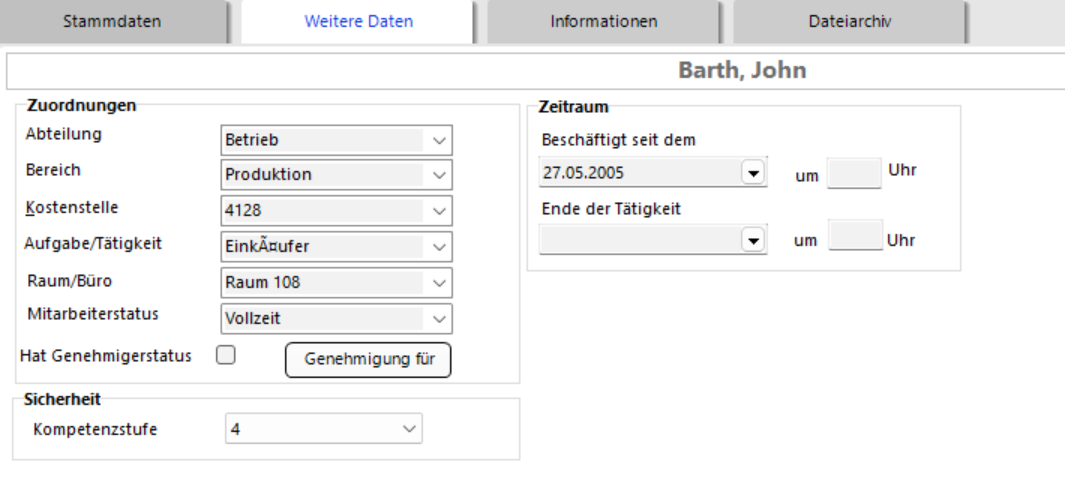
Every field with a small triangle on the right edge can be pre-filled with your own terms. You maintain those terms in the selection lists.
Approver status: this sets whether the person may approve key issues. The approval procedure is explained in detail in a separate article, as are competence and VIP level.
Delete or archive a person
To delete a person, click the DELETE PERSON button in the PERSONNEL window. You are asked to confirm the deletion.
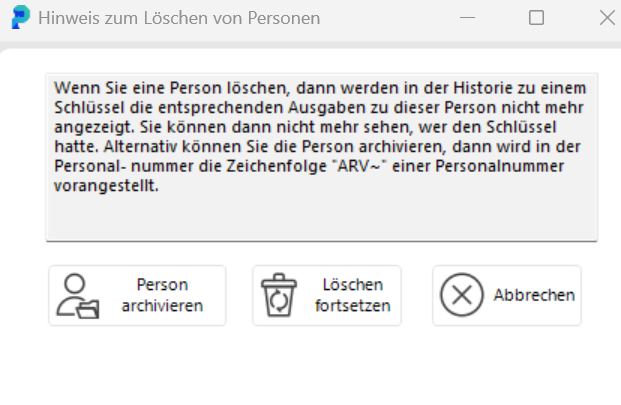
If you delete a person, that person's key issues no longer appear in the history. You can no longer see who held the key. If you need to keep the history, archive the person instead. Archiving puts the character string ARV~ in front of the personnel number.
Imported personnel data
If your personnel data arrives through the portier Vision Companion personnel import, the next import run overwrites manual changes to those fields. A real run also marks every person missing from the source file as departed. An incomplete export therefore marks people as departed who are still with you. Check the file is complete before you run the import.