
In the ADMINISTRATION / PERSONNEL module, click the ADD RECORD button in the toolbar.

The PERSONNEL window opens.
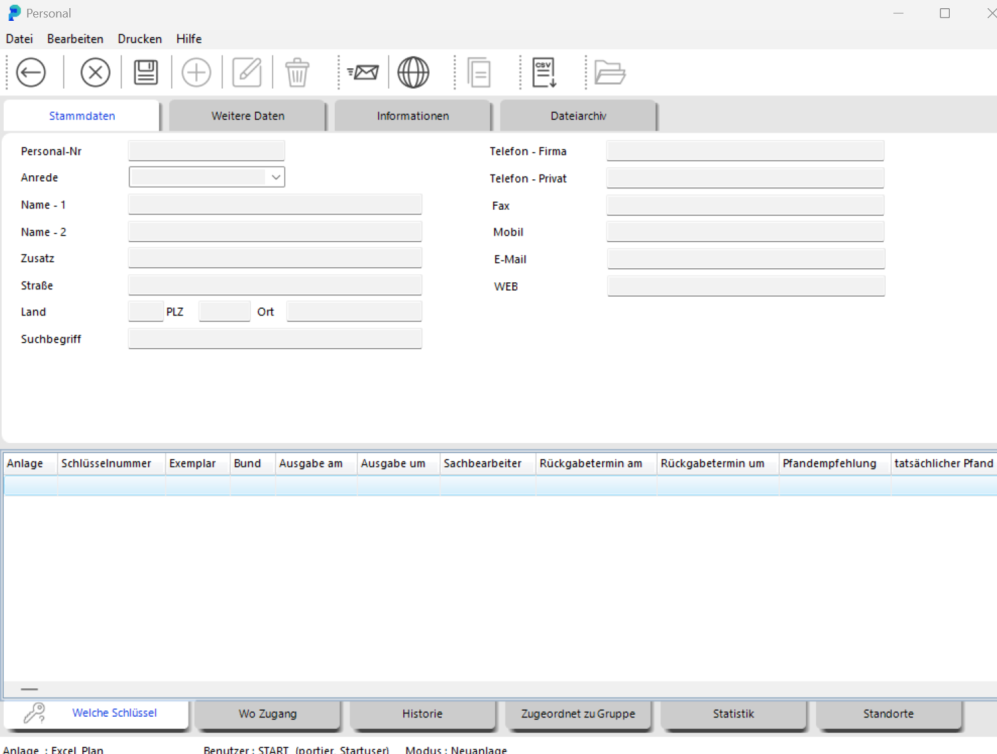
Enter the future key holder's last name in the NAME - 1 field. NAME - 2 is for the first name.
We strongly recommend sticking with the field assignment you choose at the outset.
Save the record by clicking the SAVE button.

Note: you can complete the key holder's details at any time afterwards.
Close the PERSONNEL window with the BACK button.

The new person is now available as a key holder.
TIP
During key issuance you have another opportunity to add a new key holder on the fly. Use the CREATE PERSON button, which opens the same PERSONNEL window described above.