
With the Copy Management feature in portier Vision, you can manage individual key copies. This includes deleting copies or updating their status (e.g., from “lost” back to “in stock”).
1. Open Copy Management
Open the key mask in portier Vision.
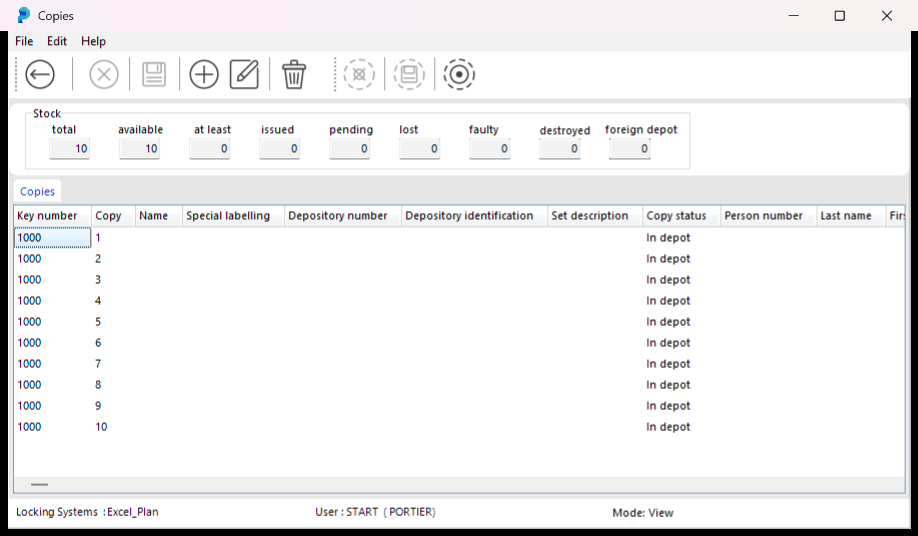
Click Copy Management in the toolbar or press F12.
2. Delete a Copy
In the copy window, select the copy you want to delete.
Click the trash bin icon.
Confirm the prompt that appears. The copy leaves the active stock and its status is set to destroyed or archived. The record and its history are kept for the audit trail.
3. Change the Status of a Copy (e.g., “lost” → “in stock”)
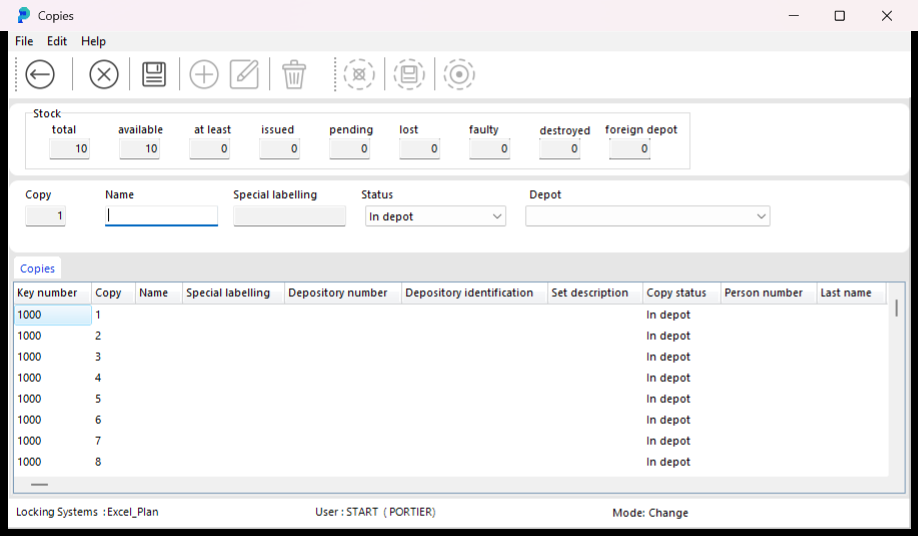
You can also update the status of a key copy in this window.
Click the pencil icon (Edit).
Select the copy you want to update.
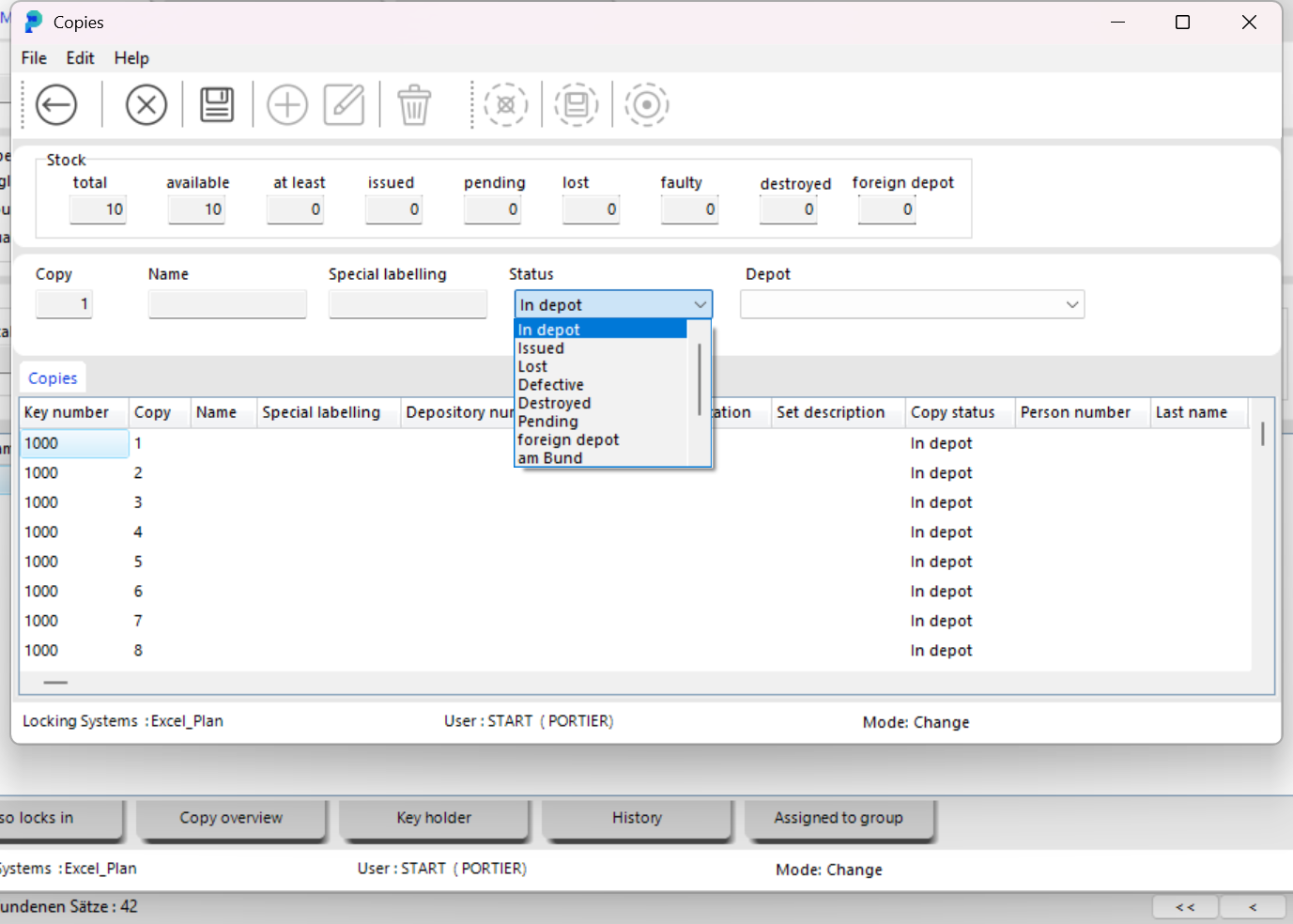
Change the status, for example from lost back to in stock, and save the change.
The status values in detail
A copy can have the following statuses in portier Vision:
Available: in the depot, ready to be issued.
Issued: currently with the key holder, shown in their key list.
Lost: reported as lost, stays in the system but cannot be issued.
Damaged: reported as damaged, stays in the system; repair or disposal happens externally.
Destroyed: taken out of circulation, stays in the journal, cannot be reactivated.
Archived: removed from the active stock, visible only in archive views.
Changing from “lost” or “damaged” back to “available” is possible if the key turns up again. Changing to “destroyed” is final.
Creating several copies at once
If you need to create many copies at once, for example after a delivery, use the bulk mode of copy management. You choose:
the key template the new copies belong to,
the start number, usually the next free copy number,
the quantity,
the status, usually “available”, and the depot.
portier Vision creates the copies with sequential numbering in one step. Each one gets its own record with its own history.
Moving a copy to another depot
If a copy should change depot, for example from the main depot to a branch depot, do not delete it and create it again. Instead, assign it to the new depot via the depot assignment. This keeps the copy number and history, and the journal records the depot change.
What “delete” actually means
Deleting a copy does not remove the record from the database. It sets the status to “destroyed” or “archived”, depending on the case. The record is kept for the audit trail; a complete removal is not provided, for traceability reasons.
Note
Please only delete or modify copies if this is intended in your organization, as changes may affect audit trails and traceability.