This module gives you access to:
Issue a key, or press F5
Return a key, or press F6
Report a lost key, or press F7
Report a damaged key, or press F8
Pending issue of a key, or press F9
In the top bar, select KEY MOVEMENTS and click the ISSUE button, or use the shortcut F5.
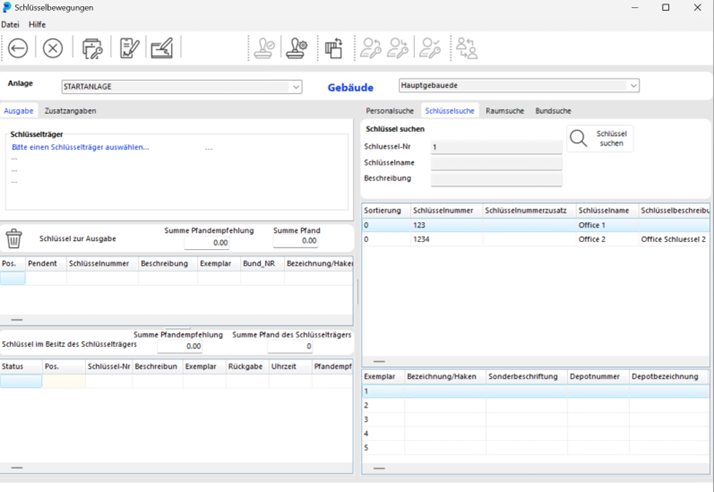
The KEY MOVEMENTS window opens.
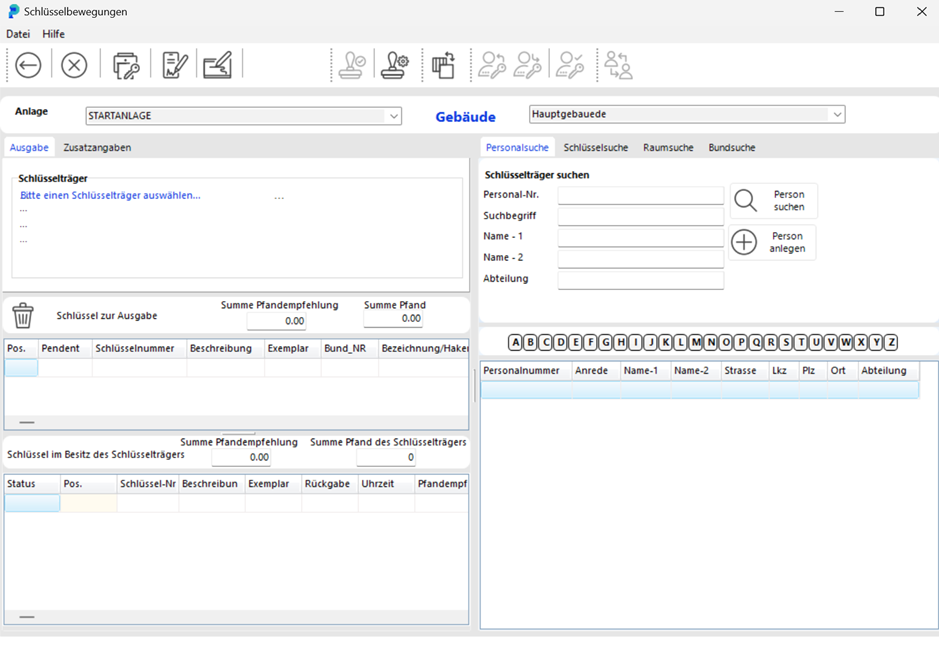
The upper part of the window shows which installation and which building you are currently working in.

In the right part of the window, click the PERSONNEL SEARCH tab if you need to select a key recipient.

Search for the key holder by entering the first characters of their name in the Name - 1 search field, then click the Search person button.

A list of all matching persons is displayed.
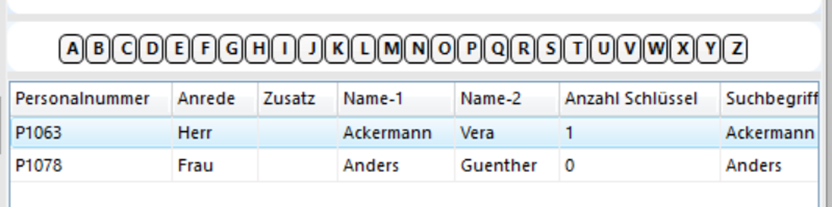
Alternatively, click the letter you want in the selection alphabet. A list of all persons whose surname begins with that letter is displayed.
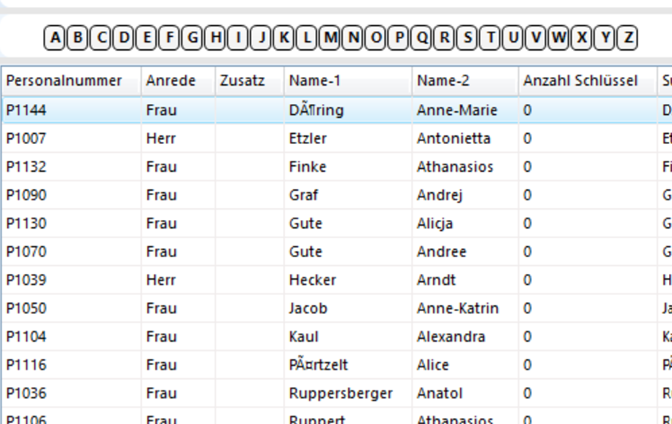
To make a person the key holder, double-click them. The key holder's details are entered in the Key Holder field on the left of the window.
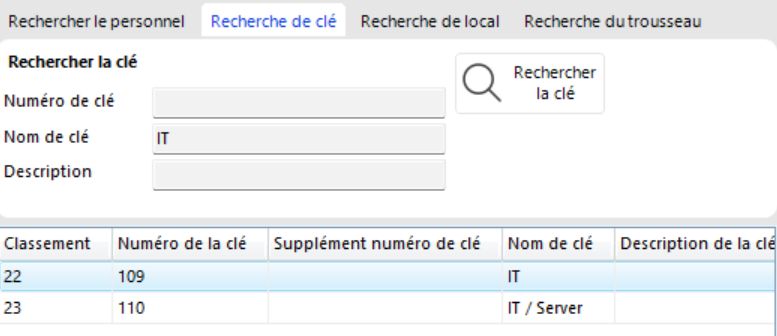
In the KEY SEARCH tab, select the key to be issued.

Enter the first characters of the key number in the Key - No. search field and press Enter to start the search.
A list of all matching keys is displayed.
Alternatively, click the Search keys button to display all keys.
Select the key you want by clicking it. Below the key list you see every copy of that key available to you.
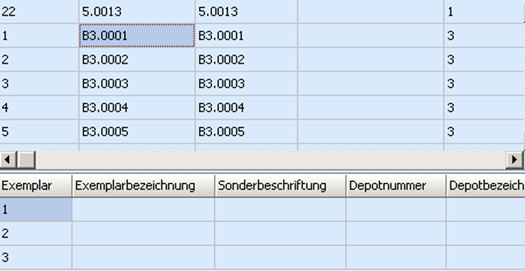
Double-click the copy to be issued. It moves into the KEYS FOR ISSUE section of the window.

Here you can also enter a desired return date and a deposit.

The Keys in Possession of Key Holder field shows whether the key holder currently holds other keys.

Post the key issue by clicking the Book button (floppy disk icon).

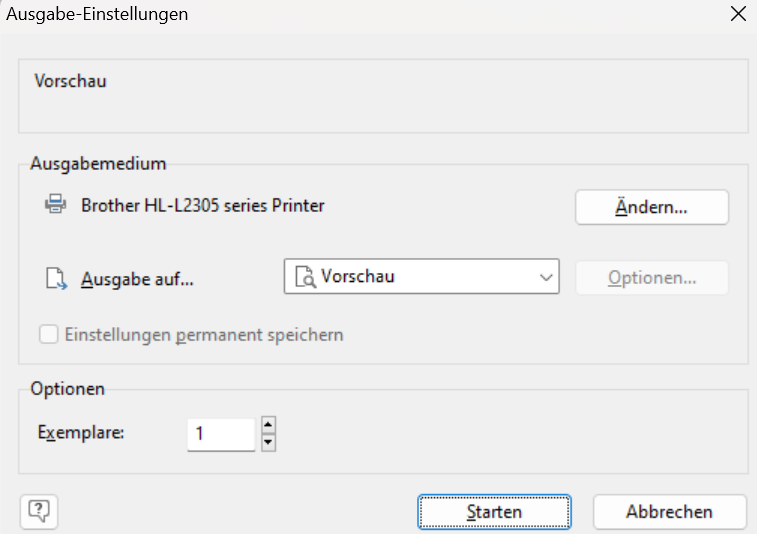
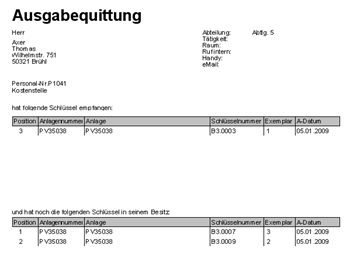
A receipt is printed straight away. If you have configured the relevant setting (see Settings), the ISSUE SETTINGS window opens. Click STARTEN (Start) there to display a preview of the issue slip.
Click the printer icon to print the issue receipt.
In the top bar, select KEY MOVEMENTS and click the RETURN button, or use the shortcut F6.
The KEY MOVEMENTS window opens.
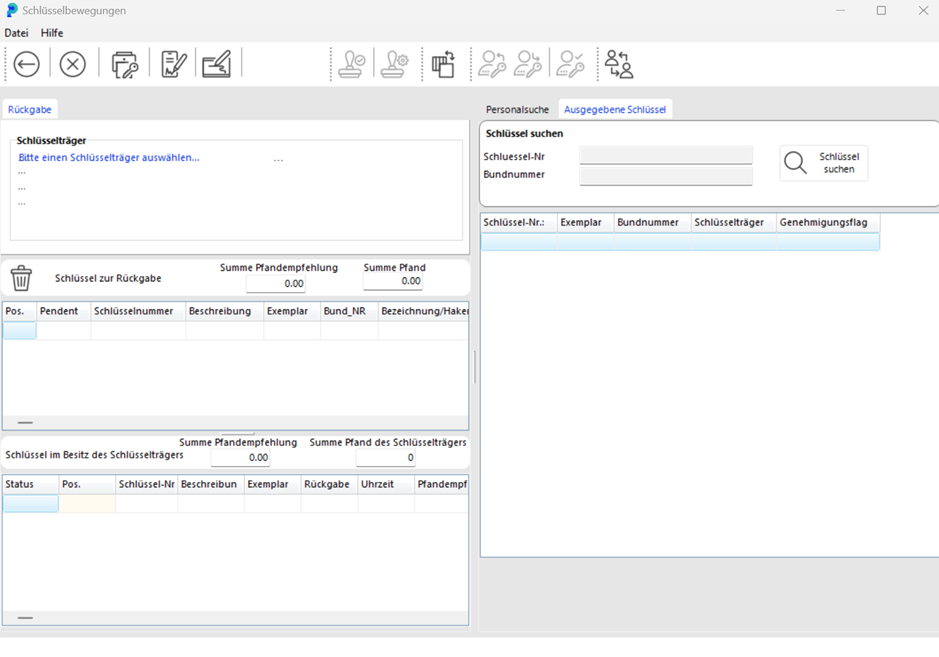
A key return can be done in two ways: by searching for the issued key, or by searching for the key holder.
ISSUED KEYS: Search for the key. The result list shows all issued copies with their key holders. Double-click the copy to be returned, or right-click the key and select Return. The key data and the key holder data are transferred to the Return section.
PERSONNEL SEARCH: Search for the key holder and double-click them in the result list. Their data is transferred to the KEY HOLDER section.
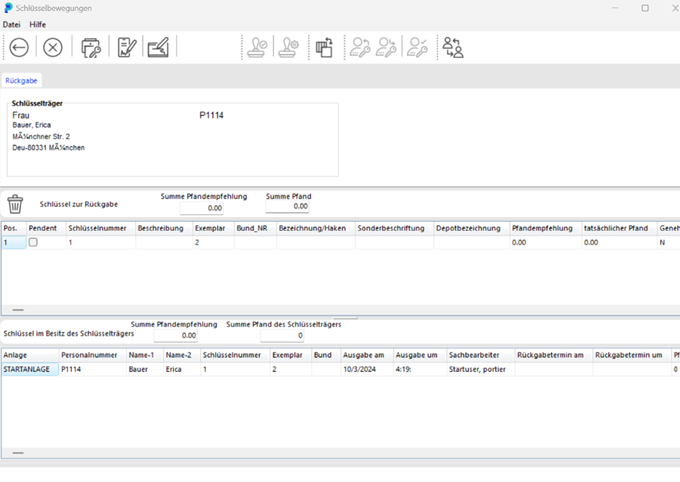
In the Keys in Possession of Key Holder list, double-click the key to be returned. The key data is transferred to the Keys for Return section.
Post the key return by clicking the floppy disk icon. The rest of the procedure is the same as for a key issue.
Note: a key bundle can only be returned as a whole.
In the top bar, select the KEY MOVEMENTS module and click the LOSS REPORT button, or use the shortcut F7.
The KEY MOVEMENTS window opens with the Loss screen. You then go through exactly the same steps as for a key return. This time the copy receives the status Loss.
In the Description of Circumstances field you can explain how the key was lost.
Caution: this description is printed, not saved. Print the slip when you post the movement, otherwise the text is no longer available afterwards.
In the top bar, select the KEY MOVEMENTS module and click the DAMAGE REPORT button, or use the shortcut F8.
The KEY MOVEMENTS window opens.
Follow the same steps again as for a key return. The copy now receives the status DAMAGE REPORT.
In many organisations, employees and contractors are not permitted to take keys out of the building. They receive the keys or key bundles they need each morning and return them in the evening.
The status of these keys is therefore suspended. They are neither in storage nor permanently issued. portier VISION calls this pending.
In portier VISION you manage this situation in the module itself.
When you issue the key or key bundle, define the key movement as PENDENT (pending) with a mouse click.
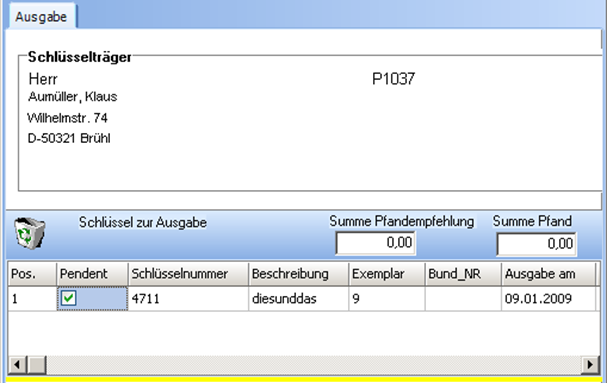
The issue itself proceeds normally. portier VISION remembers the transaction for later, that is the issue of this copy of the key number in connection with this person.
When the key is returned in the evening, click PENDENT in the KEY MOVEMENTS module or press the shortcut key F9.
The issue window you already know opens. Click the letter of the person you are looking for in the alphabet. portier VISION lists all persons with that first letter who have received keys on a pending basis. Find the key holder in this window and transfer their data with a double-click.
Confirm the return by clicking PENDENT ZURÜCK NEHMEN (take pending back). The copy stays reserved and keeps the status PENDENT until the next issue.
To issue the key again the next day, press F9 and follow the steps just described. Once you have found the person, click PENDENT AUSGEBEN (issue pending).
To clear the pending reservation, click PENDENT AUFLÖSEN (clear pending) during the return.
NOTE: only one copy can be held pending at a time. To hold several keys pending for one person, use the key bundle function.
