
To activate your portier Vision 5 software, you will need your customer number and email address. These details are provided in the activation email you receive after purchase. Keep this email safe, as it will be required for any future changes to your license.
Steps for License Activation
Software Installation: Install the portier Vision 5 software on your device following the instructions in the installation guide.
Open the Software: Launch the portier Vision 5 software.
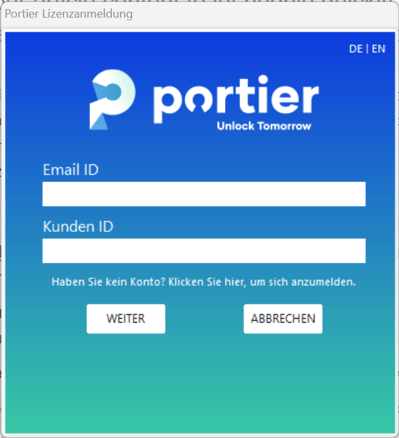
Enter Data: Input your customer number and email address.
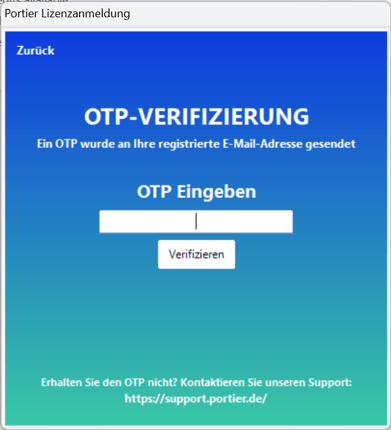
Enter OTP: A one-time password (OTP) will be sent to your email address. Enter the OTP to complete the activation.
Confirm: Follow the on-screen instructions to finalize the activation.
License Management After Initial Activation
Open the Start Screen: Launch the portier Vision 5 software.
Manage License: Select the "Manage License" checkbox at the bottom of the screen.
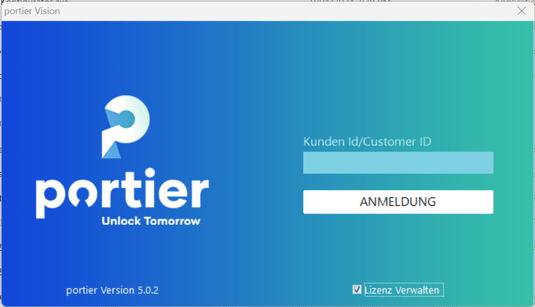
Enter Customer Number: Input your customer number.
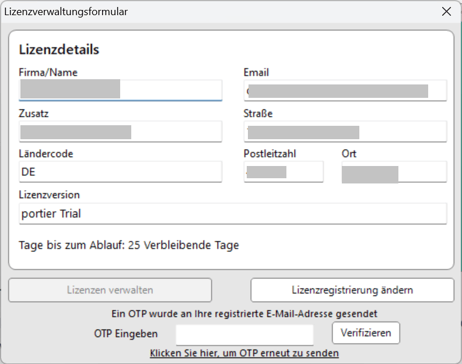
View License Details: Your current license details will be displayed, with options to manage the license or update registration.
Enter OTP: When making changes, a new OTP will be sent to your registered email address. Enter the OTP to confirm the changes.
Offline License Activation
If you have received an offline license file from us, you can activate it directly within portier Vision.
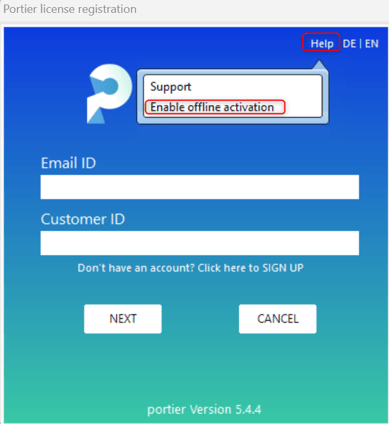
Open the licensing screen and go to Help ("Hilfe"), then select Enable offline activation.
After that, select the provided license file and enter your customer number to complete the activation.
portier Vision Companion
The portier Vision Companion needs no license of its own. It installs together with portier Vision 5 and starts from the Vision menu, already signed in as the Vision user who opened it. You activate Vision 5 only.
Important Notes
Keep your activation email secure.
Your customer number and email address are required for any future license modifications.
Troubleshooting
Ensure you are using portier Vision 5.0.3 or later.
You will need an active internet connection.
The websites portier.chargebee.com and app.eu.chargebee.com on Port 443 must not be blocked during initial registration and annual renewal.
For OTP delivery, smtp.sendgrid.net on Port 587 must be accessible. If issues arise, portier support can provide an OTP after successful manual verification.
Version 5.0.3: Please manually enter your customer number to avoid issues with hidden spaces.
If you need assistance with activation or license management, or if you cannot find your activation email, please contact our support team at [email protected].