
portier Vision 5 manages mechanical locking systems. Which keys exist, who holds them, which cylinders they open. This article shows you how the program is laid out, what to check in your first hour, and what the work looks like after that.
The five areas
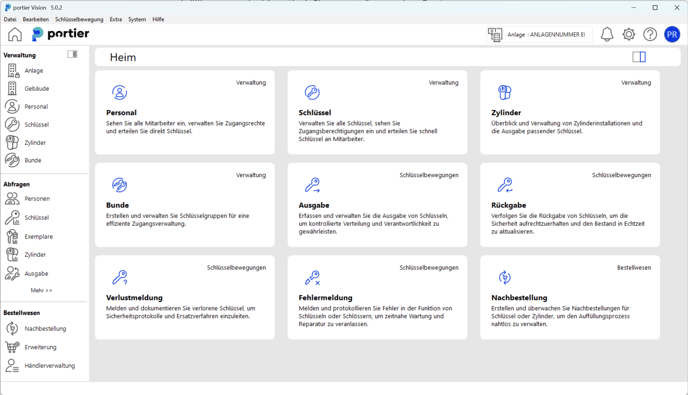
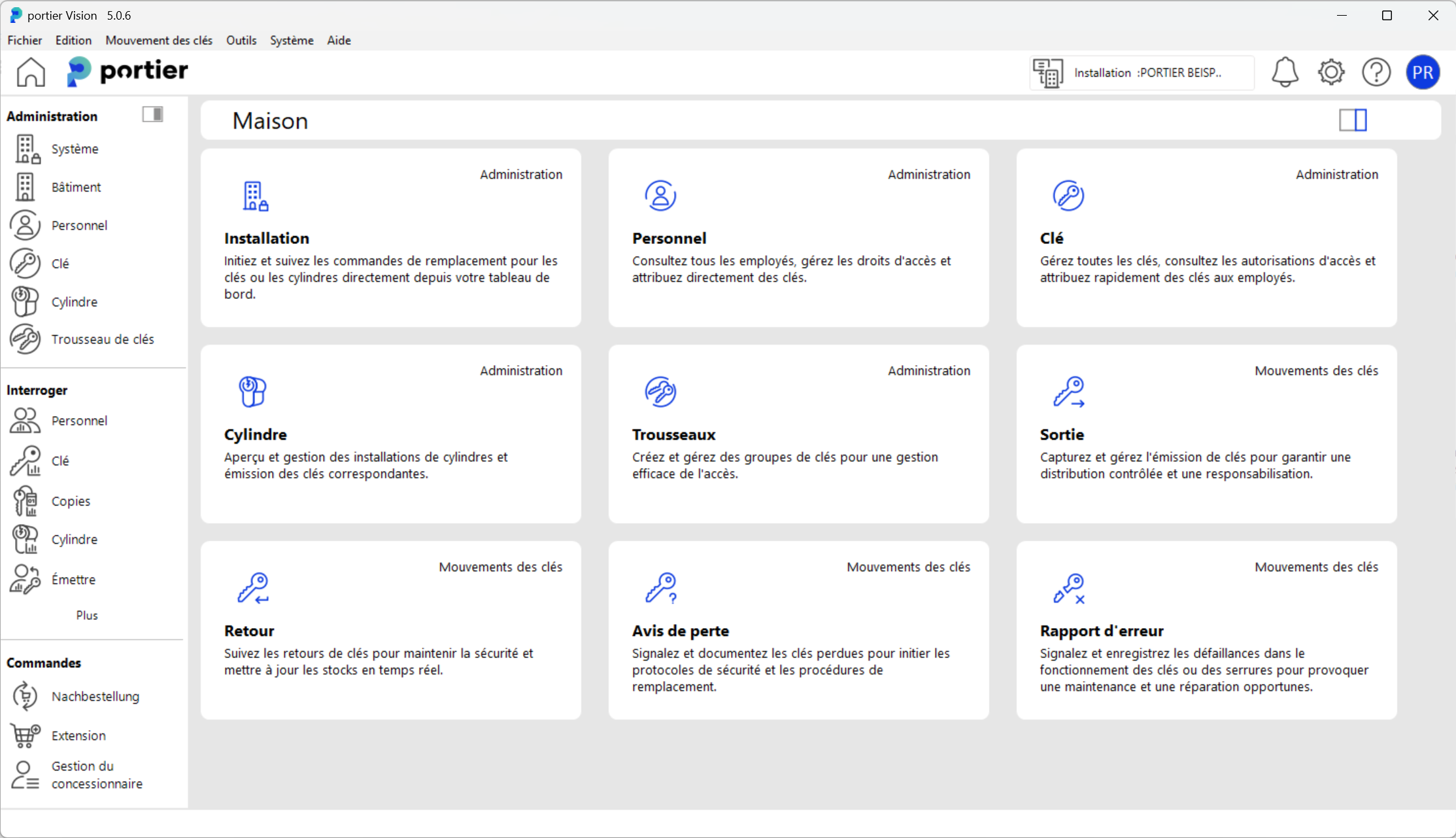
After you sign in you land on the dashboard. It brings together the five areas where all the work happens.
Systems (Anlage): every locking system that is set up, with its figures.
Buildings (Gebäude): which locking system belongs to which site and building.
Personnel (Personal): everyone on the staff list and the keys issued to them.
Keys (Schlüssel): issuing, taking back and tracing keys and their physical copies.
Cylinders (Zylinder): the cylinders that are fitted and the keys that open them.
Which key opens which cylinder is held in the locking plan. Systems, Keys and Cylinders all read the same plan and show it from different directions.
Your first hour
Open Systems. Are all locking systems in the list? If one is missing, its file has not been imported yet. The import runs in the Companion, which you start from Vision under Anlagenimport (XML).
Sort out Buildings. Set up your sites and buildings, then attach the locking systems to them.
Check Personnel. Add staff, remove people who have left. Larger lists come in as a CSV file through Personaldatenimport.
Read Keys and Cylinders against reality. Do the assignments match what is actually fitted in the building and handed out?
Step 4 is the one people skip and regret. A system that looks tidy on screen but does not match the building will mislead every answer you take from it later.
Day to day
Issue and take back keys in the Keys area. Every issue is tied to a person, so it stays traceable who holds which copy.
Queries produces the reports, such as keys in circulation, keys per person, cylinders per building.
Reordering for replacement keys and extensions to the system.
Dealer management for your suppliers and their orders.
What the Companion handles
The portier Vision Companion installs alongside Vision 5 and opens from Vision, already signed in as you. It handles three jobs the Vision desktop no longer does.
Importieren (import): locking system files in portier XML format, dormakaba KWD files, and personnel data as CSV.
Datenbankkonfiguration (database configuration): the connection Vision uses to reach its database.
Scheduled tasks: recurring work such as reminder emails or a regular personnel import keeps running in the background, with nobody holding the program open.
The Vision desktop needs ODBC Driver 18 for SQL Server on the workstation when the database sits on SQL Server. Firebird needs no driver. The Companion connects directly in both cases and works without an ODBC driver and without a DSN.
Limits worth knowing early
A repeat import does not update a locking system or a building that is already there. New records are added, existing ones stay as they are.
Buildings are matched by name. Two buildings with the same name collapse into one.
The upload in the Companion is capped at 5 MB per file. A large estate goes over that.
On a personnel import, anyone missing from the file is marked as departed. A truncated export therefore marks active staff as gone. Check the preview and the dry run before you confirm the import.
If you get stuck
The full walkthrough, step by step, is in the Version 5 quick start article. For questions or technical trouble our support team is reachable through the contact page or straight from the program.