The Companion has no user administration of its own. It signs you in against the same database Vision uses, with your Vision user details. What you can then operate is decided by your role in Vision.
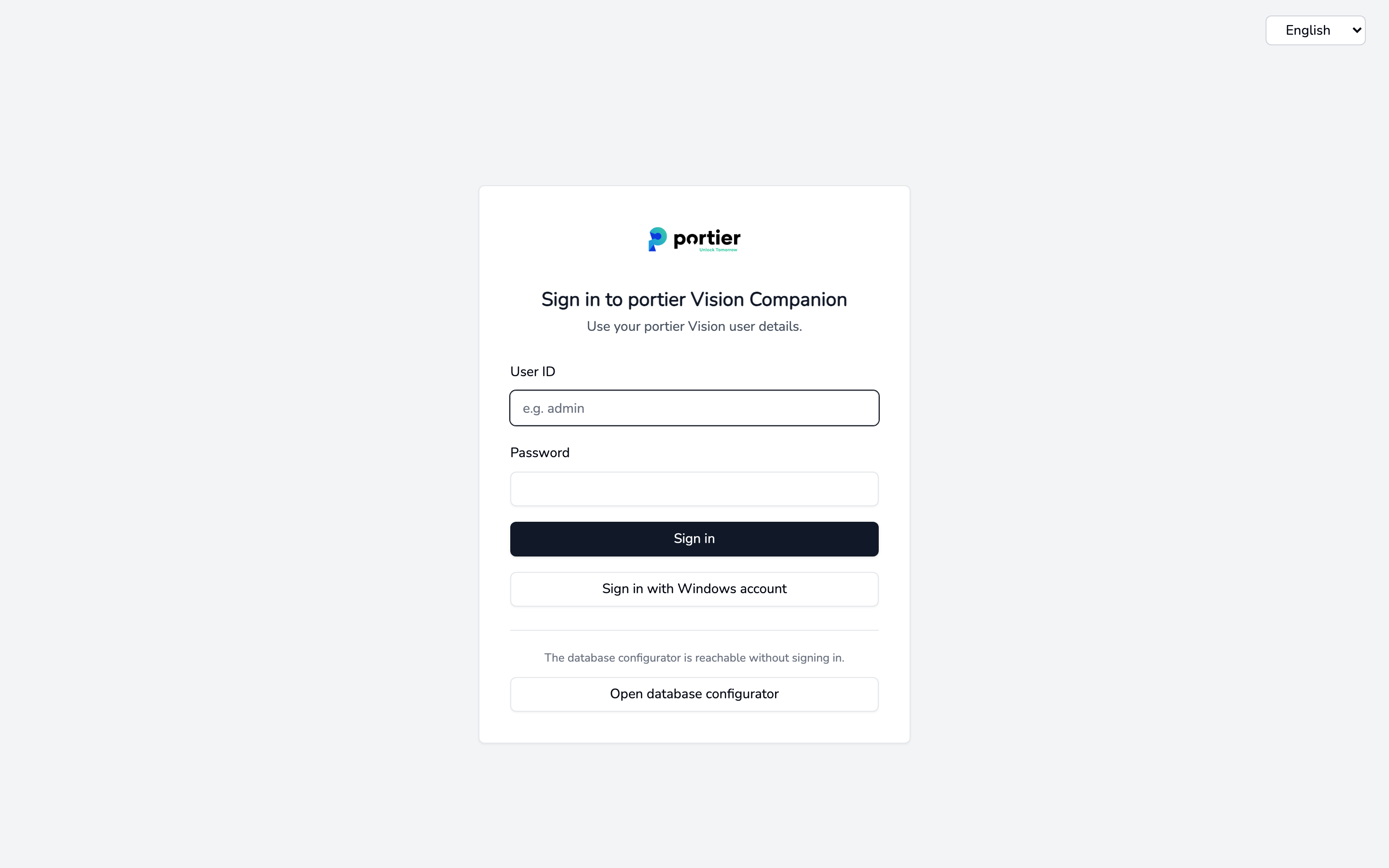
The Companion sign-in screen
Enter the same User ID and Password you use in Vision. The user ID is not case sensitive, the password is. The interface language is set at the top right.
The sign-in lasts for the running session and is not stored. Close the Companion and you sign in again at the next start.
Sign in with Windows account compares your Windows login name with the user ID in Vision. If the two match, the password is skipped.
This attempt runs once automatically as soon as the sign-in screen appears, which is why you sometimes land in the application without typing anything. If it fails, the form simply stays on screen with no message. To see the reason, click the button yourself.
The Companion is stricter here than Vision. An account set to inactive still gets into Vision through the Windows account. Not into the Companion. That is deliberate.
After Sign out the automatic attempt does not run again, otherwise you would be signed straight back in. It runs again the next time you start the program.
When you open Import person data or XML locking system import in Vision, Vision checks your permission first and then starts the Companion with your user ID. The Companion is already signed in and no sign-in screen appears.
This applies to that route only. Start portierVisionCompanion.exe from a shortcut or the Start menu and you get the sign-in screen. The handover also works only when Vision and the Companion are installed in the same directory. If Vision cannot find the Companion, it is not installed on that machine.
You are signed in, and the Companion still shows Insufficient permissions instead of the import page. That is a missing role, not a wrong password.
For each function the Companion requires exactly what Vision requires for the same work.
Function in the Companion | Who may operate it |
|---|---|
Locking system import, portier XML and dormakaba KWD | anyone allowed to open XML locking system import in Vision |
Personnel import from file | anyone allowed to open Import person data in Vision |
Entra ID personnel sync | same as personnel import |
In practice the role Administrator or Sachbearbeiter is enough, assigned to the user on at least one building or locking system. System users have the access anyway. Anyone below that signs in and sees Insufficient permissions on every import page.
So a missing role usually does not block the sign-in at all. It shows up when you open the function.
The role is read at sign-in. Have it assigned in Vision user administration, then sign out of the Companion and back in. A running session does not pick up the change.
Below the sign-in form sits Open database configurator, with the note "The database configurator is reachable without signing in." That is by design. After a fresh installation there is no database yet for a sign-in to run against.
If the sign-in fails with "Sign-in failed. Please try again.", that is usually what has happened. The Companion cannot reach the database. Open the configurator and check the connection.
Once signed in you reach the same screen from the Database Configuration tab.
Message | What to do |
|---|---|
Unknown user. | This user ID does not exist in the connected database. Check the spelling, and check the Companion is pointed at the right database. |
Incorrect password. | The Vision password applies. Mind upper and lower case. |
This account is inactive. Contact your administrator. | The user is set to inactive in Vision. A correct password changes nothing. |
Your account has no role assignments. Contact your administrator. | Have a role assigned in Vision, see the section above. |
No portier Vision account found for your Windows user. | Your Windows login name matches no user ID. Sign in with user ID and password. |
Your Windows account is linked to an inactive portier Vision account. Contact your administrator. | Have the linked account reactivated in Vision. |
Your Windows account has no Vision role assigned. Contact your administrator. | Have a role assigned in Vision, see the section above. |
Windows account sign-in is only available on Windows installs. | The Companion could not determine a Windows account. Use user ID and password. |
Windows sign-in is not available right now. | The attempt never reached the database. Check the database configuration. |
Sign-in failed. Please try again. | Not a sign-in error but a connection error. Check the database configuration. |
Insufficient permissions | Appears after a successful sign-in, on a function your role does not cover. |
