Entra ID personnel sync reads a Microsoft Entra ID group through Microsoft Graph and writes its members into Vision as personnel. After that it runs as a scheduled task, executed by companion-services in the background. Anyone who leaves the group is marked as a departure on the next run. No CSV files.
Setup happens once and carries the largest external dependency in the product. The companion host cannot register the application in Entra and cannot grant admin consent. A Microsoft Entra administrator runs a script for that. The certificate is created in an elevated PowerShell on the companion host.
Plan both sides together. Without the administrator you will not get past step 2.
The Companion runs on Windows. The certificate store is only readable on Windows.
An Entra ID group holding the people who should reach Vision. The setup script can create it, default name Vision Key Holders.
A Microsoft Entra administrator allowed to run entra-app-setup.ps1 after az login.
An elevated PowerShell on the companion host, for the certificate.
The Graph permissions User.Read.All and GroupMember.Read.All with admin consent. The script grants them.
Open Import, card Personnel CSV.
Tab Advanced, section Scheduled imports, button Open scheduled tasks.
On the Tasks page, button Set up Entra sync….
The Set up Entra ID personnel sync dialog runs through six steps: Certificate, Tenant setup, Identifiers, Validate, Create task, First run. Back returns you one step at any time.
In the German and French interface the step bar is wider than the dialog, so the last step is cut off at the edge. It does not affect the sequence.
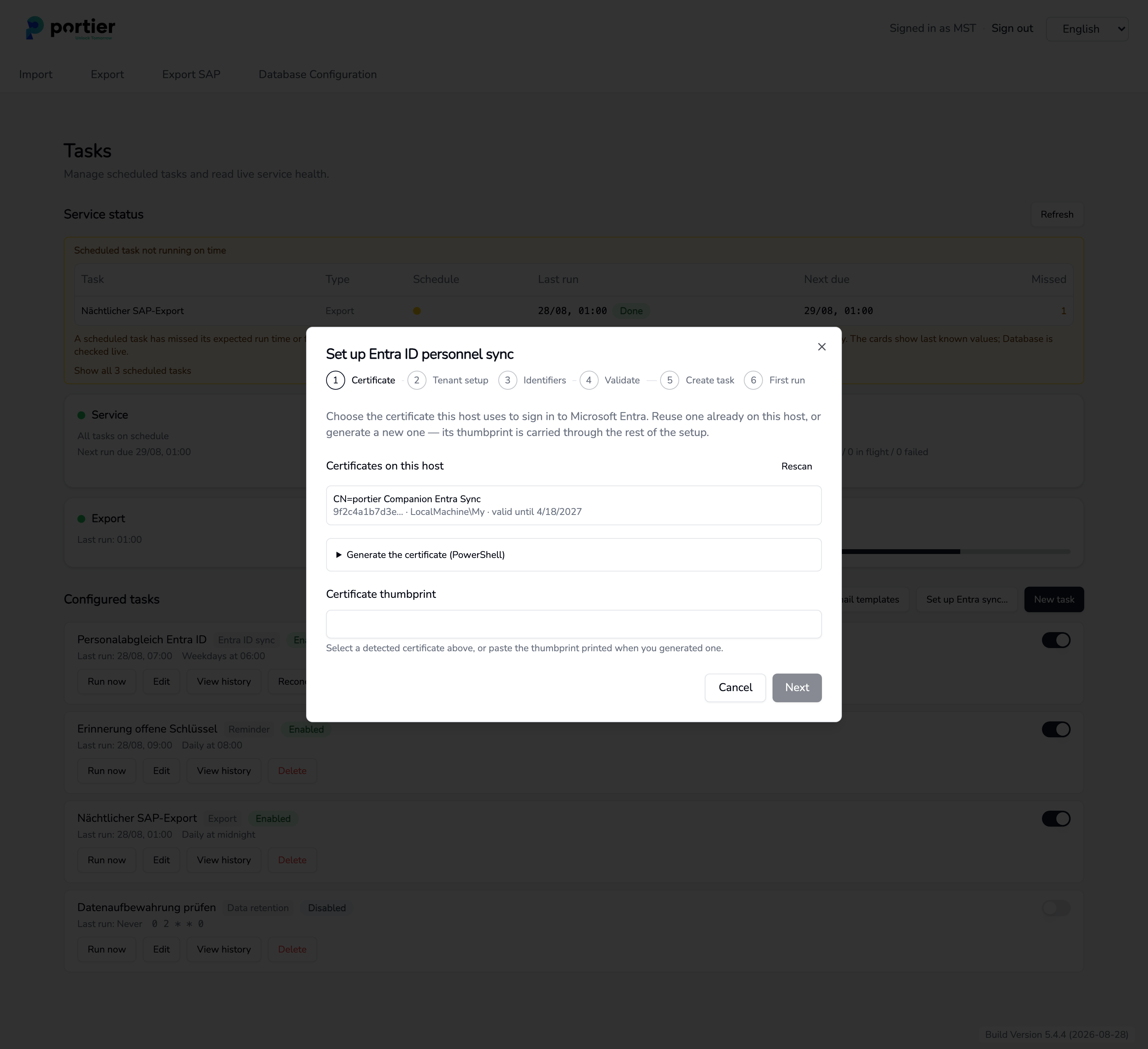
Step 1, the Companion scans the certificate store on this host
The Companion scans the certificate store, CurrentUser first and then LocalMachine, and lists every usable signing certificate under Certificates on this host with its thumbprint, location and expiry. Select one and the step is done.
If there is none:
Expand Generate the certificate (PowerShell) and choose Copy command.
Run the command in an elevated PowerShell on this host. If the Companion runs under a service account, generate the certificate in the LocalMachine store instead.
Paste the printed thumbprint into Certificate thumbprint, or choose Rescan.
The supplied command creates an RSA certificate valid for one year. Service status on the Tasks page warns you before it expires.
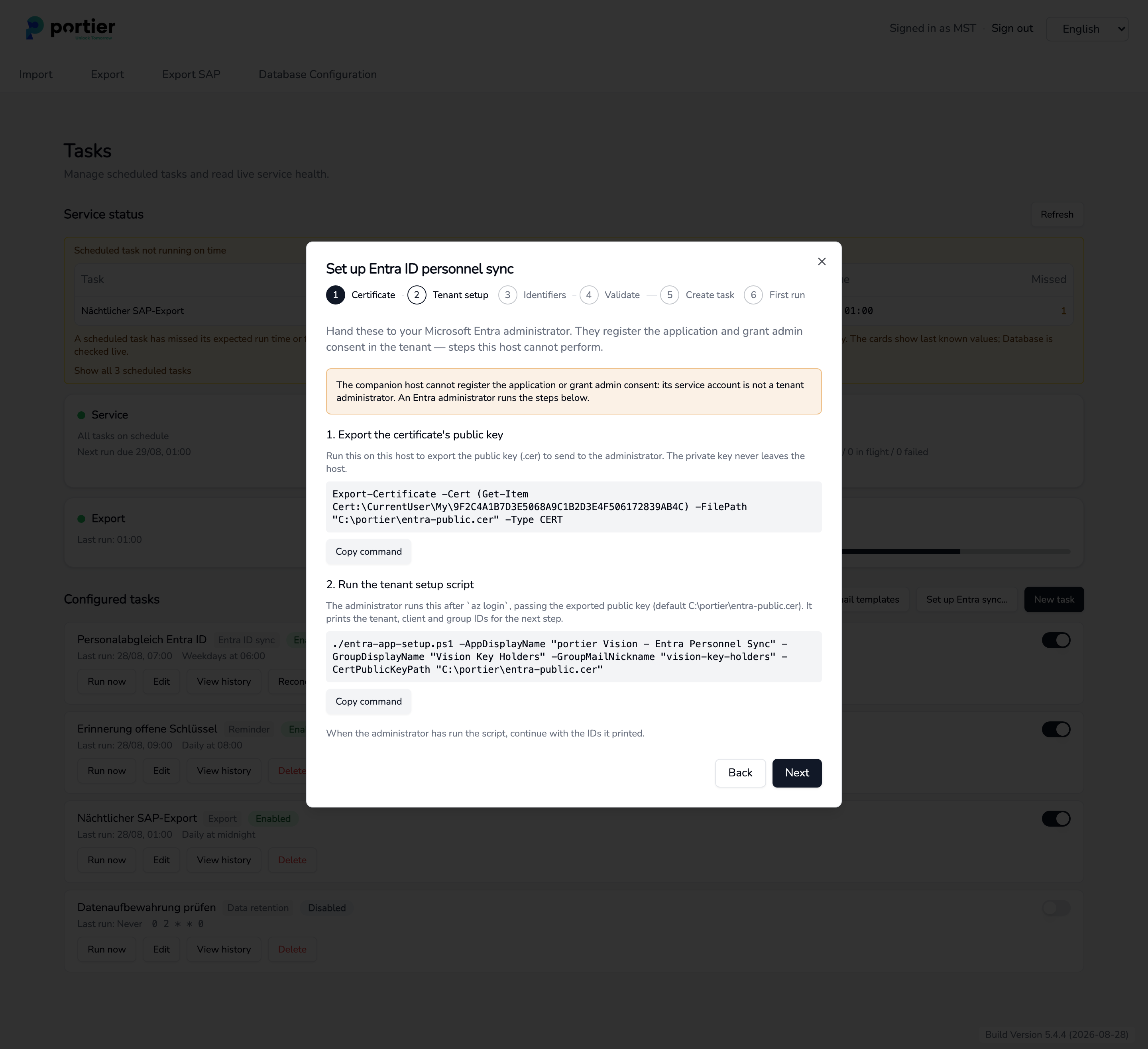
Step 2, the two commands for the Entra administrator, pre-filled
This step leaves the Companion. It shows two pre-filled commands.
Export the certificate's public key. Run this on the companion host. It writes the .cer file to C:\portier\entra-public.cer. The private key stays on the host.
Run the tenant setup script. Give this command to your Entra administrator along with the exported .cer file. They run it after az login. The script registers the application, uploads the certificate, grants admin consent and prints the tenant, client and group IDs.
Wait here. Without those three identifiers you cannot fill in step 3.
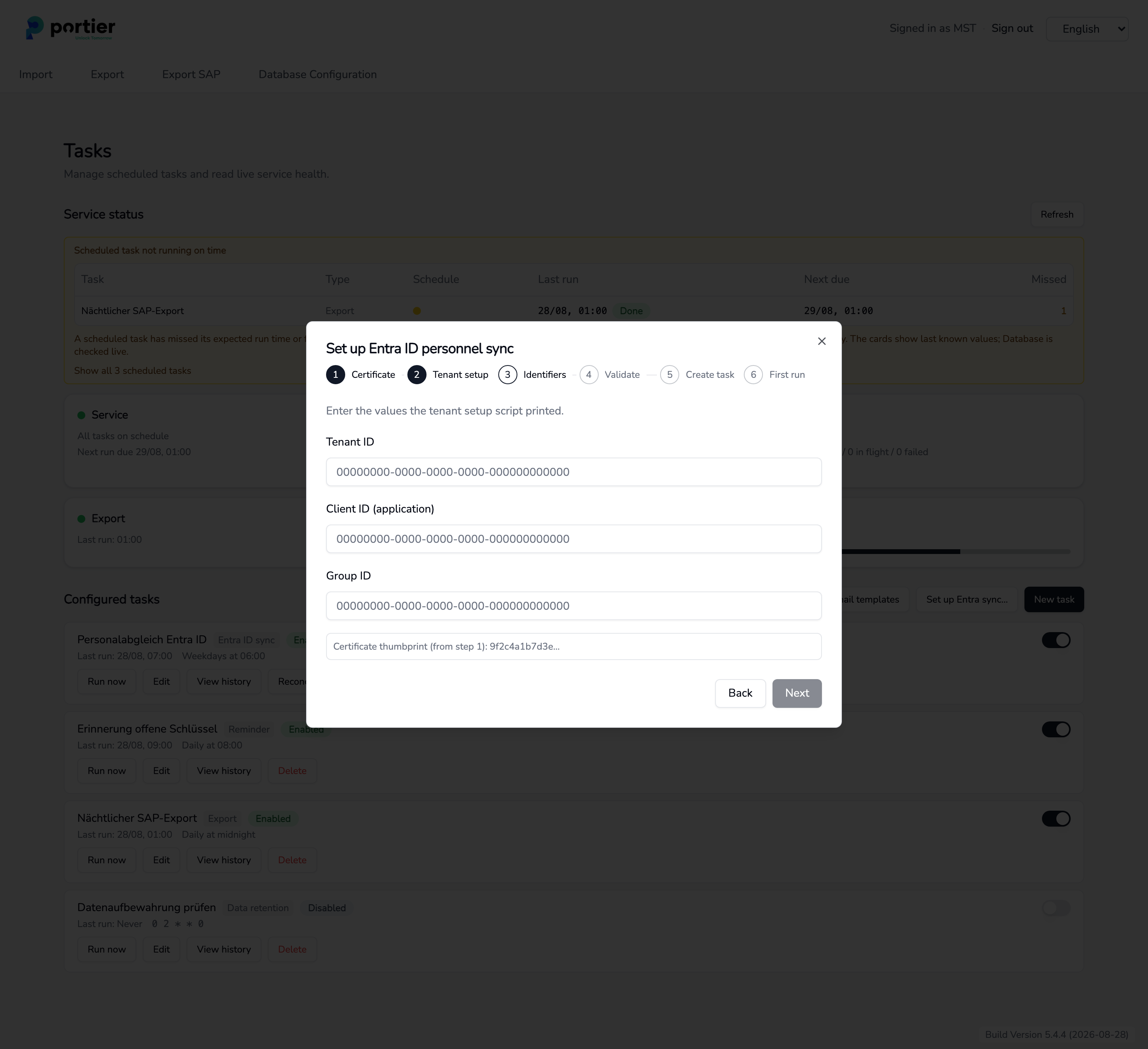
Step 3, the three identifiers printed by the setup script
Enter what the script printed.
Tenant ID
Client ID (application)
Group ID
The thumbprint from step 1 sits below for confirmation. All three fields are required.
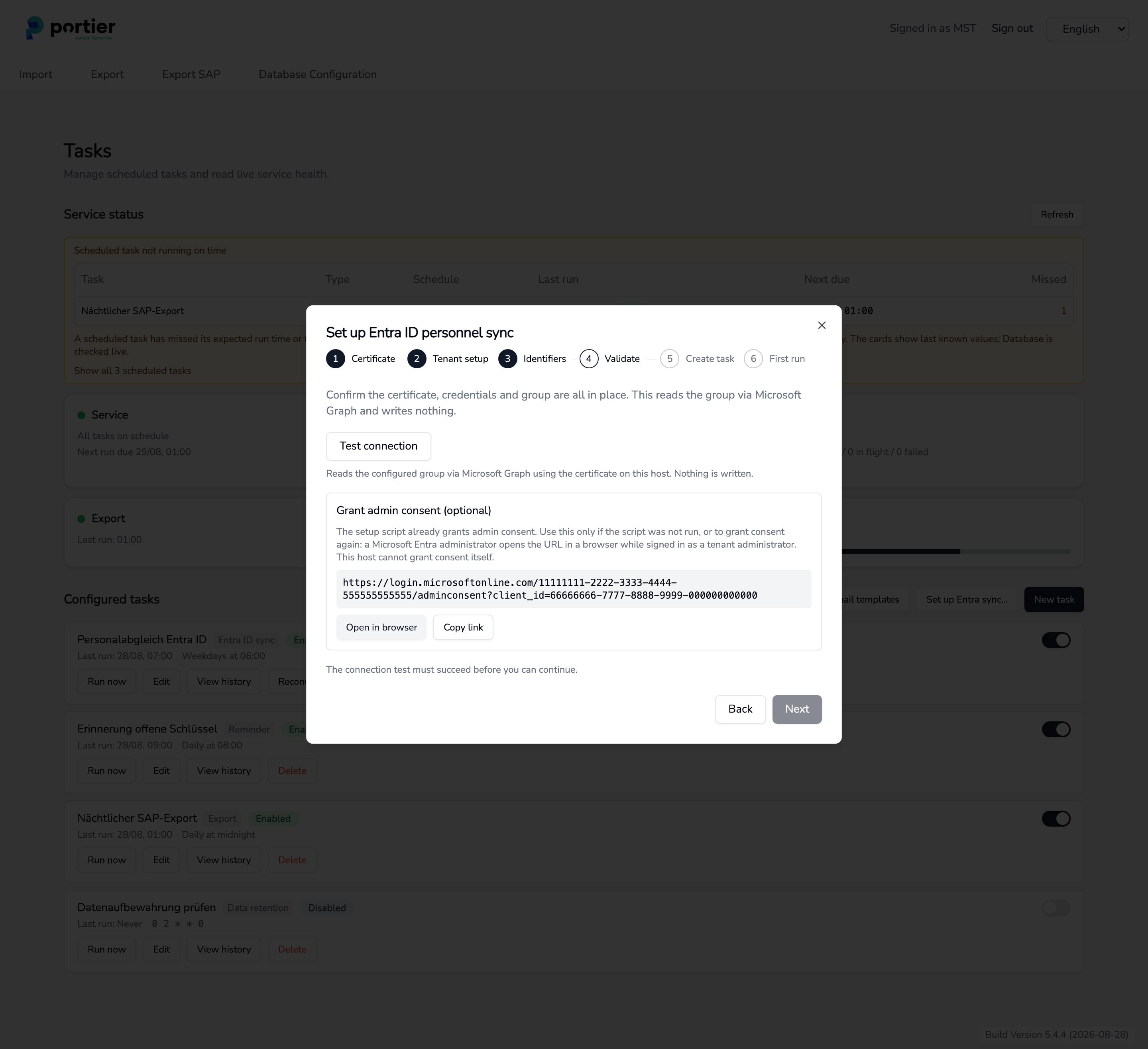
Step 4, the connection test reads the group and writes nothing
Test connection signs in with the certificate and reads the configured group through Microsoft Graph. Nothing is written. On success the message gives the number of members read and how long the certificate is valid.
The test has to succeed or Next stays locked. If it fails, use the error table at the end of this article.
Grant admin consent (optional) holds a consent URL. You only need it if the script was not run, or if consent has to be granted again. An Entra administrator opens it in a browser while signed in as a tenant administrator.
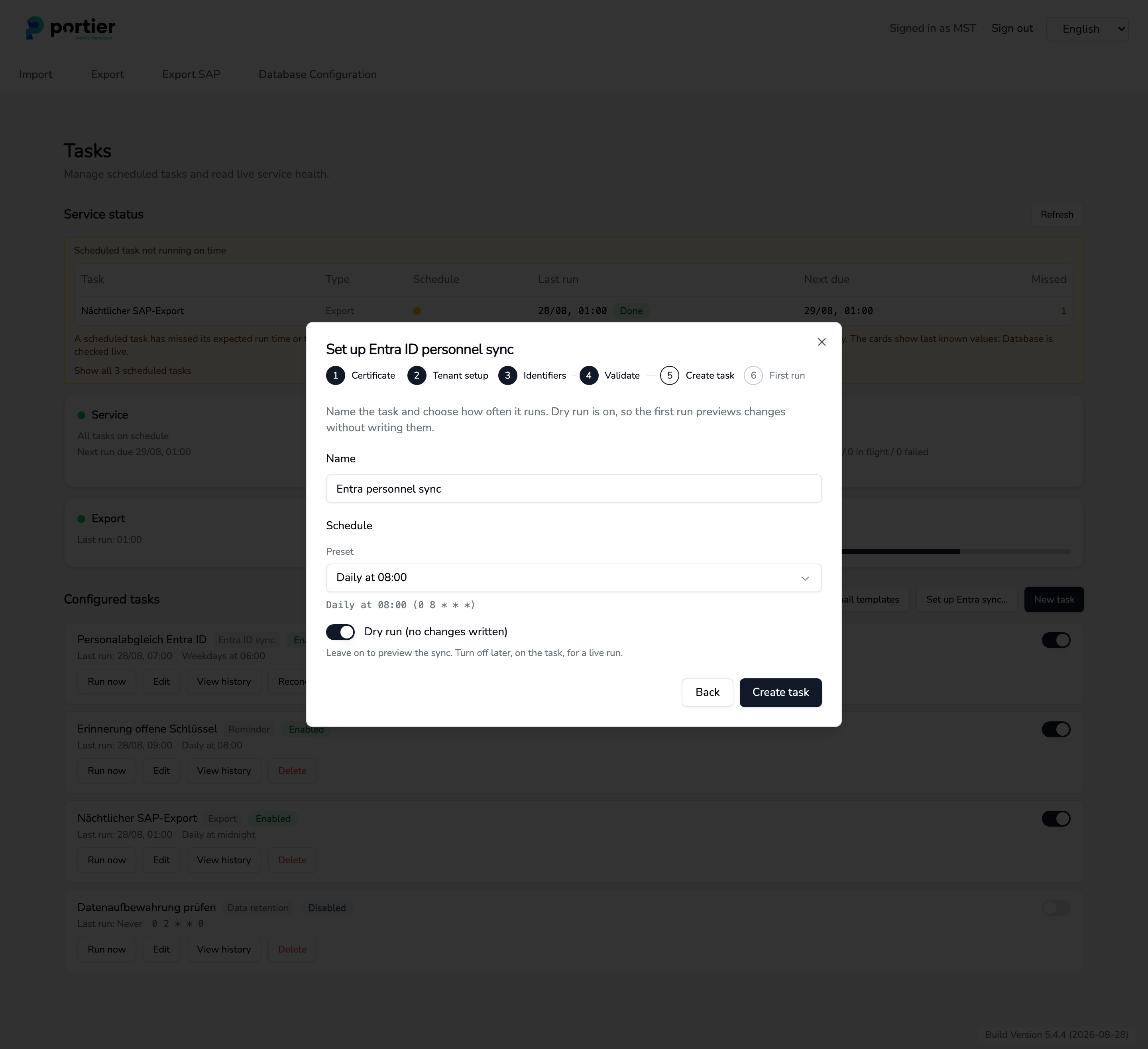
Step 5, name, schedule and dry run left on
Name, pre-filled as Entra personnel sync.
Schedule, either a Preset such as Daily at 08:00 or a custom cron expression.
Dry run (no changes written) is on and stays on. Do not switch it off here.
Create task creates the task.
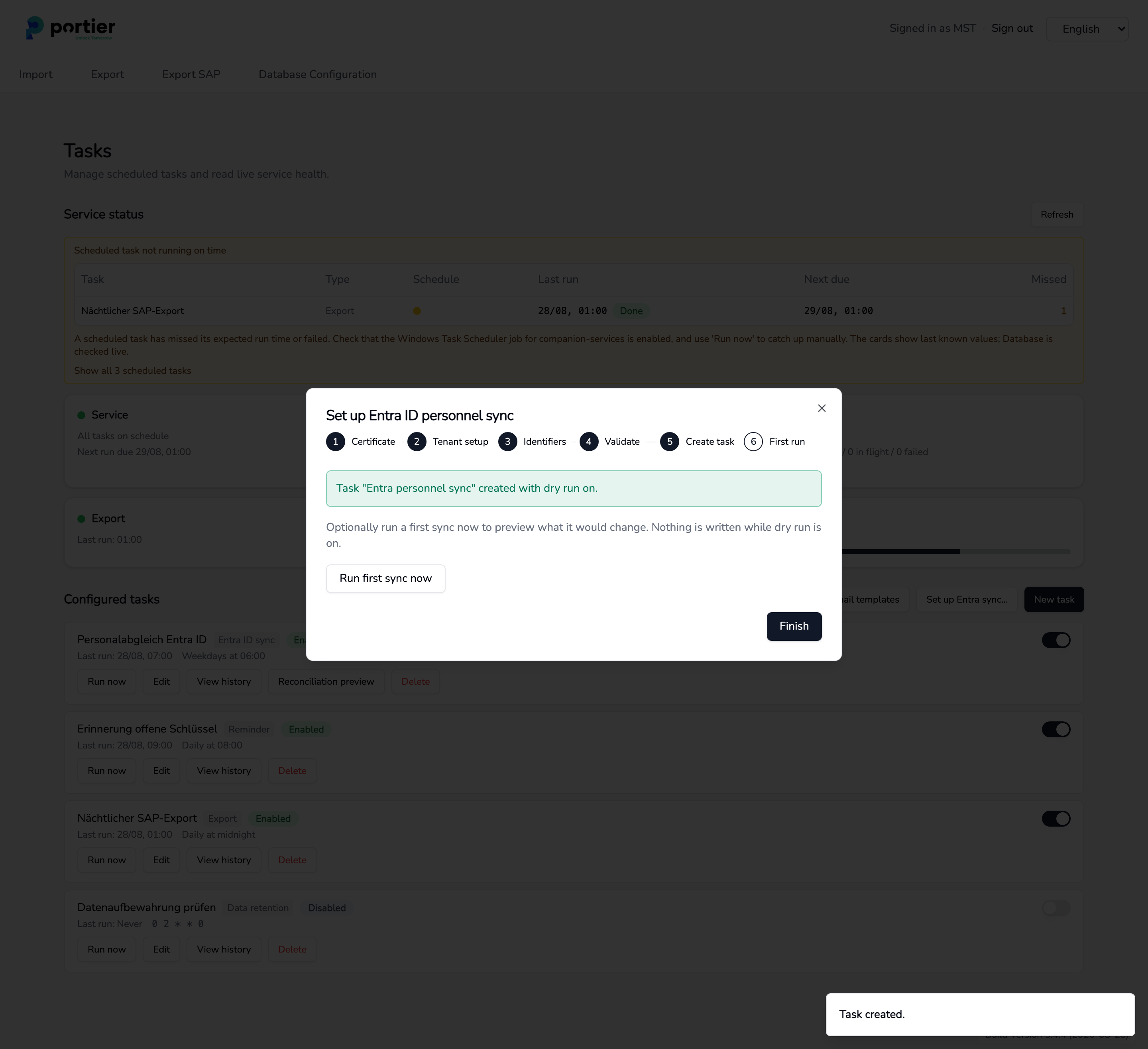
Step 6, the first run is optional and writes nothing while dry run is on
The task exists. Run first sync now runs it immediately instead of waiting for the schedule. With dry run on, nothing is written, the run only collects what it would change. The result appears below, with an exit code if the run does not finish cleanly.
Finish closes the wizard.
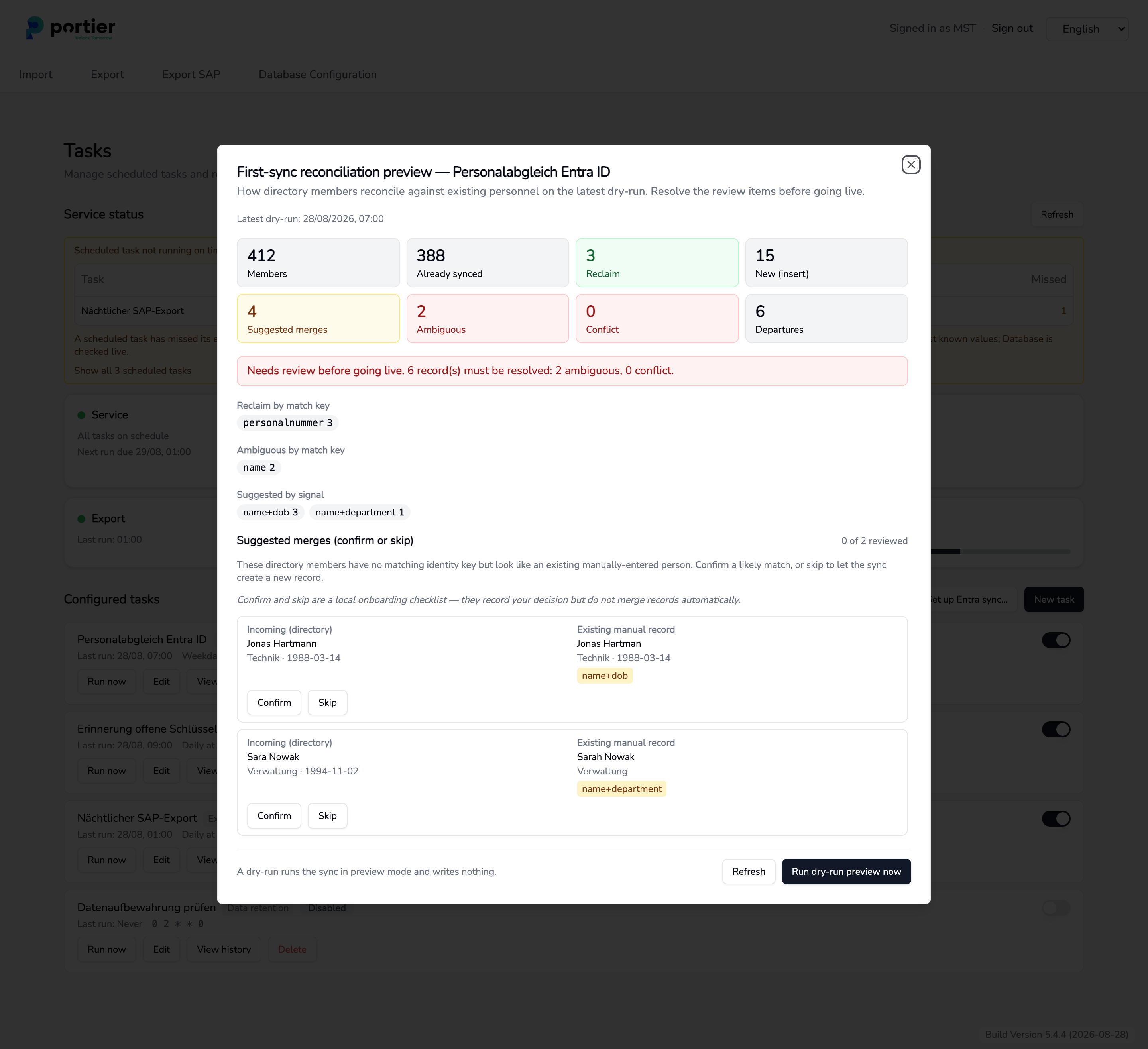
The reconciliation preview after a dry run, with the review items and the suggested merges
On the Tasks page only the Entra task carries a Reconciliation preview button. It shows the latest dry run. Until one has run it stays empty, and Run dry-run preview now fills it.
Field | Meaning |
|---|---|
Members | members read from the group |
Already synced | records the sync already owns |
Reclaim | existing records a match key will adopt |
New (insert) | members with no counterpart, created fresh |
Suggested merges | likely but not certain matches |
Ambiguous | one key hits several records |
Conflict | contradictory match |
Departures | records the run would mark as departed |
Ambiguous and Conflict have to be zero. Until they are, the red Needs review before going live notice sits above them with the count of open records. Reclaim by match key and Ambiguous by match key show which key is responsible, usually personalnummer or name.
These directory members have no matching identity key but look like an existing manually entered person. The suggestion rests on one signal, Name + date of birth or Name + department. Each suggestion puts the incoming directory record next to the existing manual record.
Confirm and Skip are an onboarding checklist. They record your decision and do not merge records. Where you do want two records joined, add the directory personnel number to the existing Vision record first. On the next run the personalnummer match key then applies, and the person is reclaimed rather than created twice.
Only once Ambiguous and Conflict are zero and the suggestions are resolved, switch dry run off.
On the Tasks page, choose Edit on the task.
Switch off Dry run (no changes written) and save.
Choose Run now, then check View history.
From then on the task follows its schedule. Service status at the top of the page reports a missed or failed run.
The personnel number is read from employeeId, falling back to userPrincipalName. Edit lets you change and extend that. Under Extension-attribute mapping (optional) you map Entra attributes to the KOSTENSTELLE, BEREICH and BEMERKUNG_1 to BEMERKUNG_3 columns. A blank field leaves its column untouched.
Message | Cause and fix |
|---|---|
Fill in all required fields before testing. | The thumbprint or one of the three identifiers is missing. Complete step 1 and step 3. |
No certificate thumbprint is configured. | Step 1 was left without a selection. Select a certificate or paste a thumbprint. |
Certificate not found in the Windows store on this host. | The thumbprint matches no certificate on this host, or the private key is missing. Confirm the certificate and its private key are installed, and use the LocalMachine store for a service account. |
Reading the certificate store is only supported on Windows. | The test is not running on the Vision host. Run it on the Windows host. |
The certificate could not be loaded. | Expand Technical details, the cause is there. |
The certificate cannot be used for sign-in. It must be an RSA certificate. | A certificate with a different key algorithm was selected. Generate an RSA certificate with the supplied command. |
Authentication failed. | Check the tenant ID and client ID, and that this exact certificate is uploaded to the app registration. |
Microsoft Graph denied access. | User.Read.All and GroupMember.Read.All are missing or lack admin consent. Give the consent URL from step 4 to the administrator. |
Group not found. | Check the group object ID, not the group name. |
Could not read the group from Microsoft Graph. | Graph was unreachable. Expand Technical details and check the network connection. |
Scheduled tasks and service status
Import personnel data
Data security and GDPR
