The Tasks page manages everything that is meant to run without an operator. Reminder emails, scheduled personnel imports, exports, the Microsoft Entra ID sync and data retention all sit there as individual tasks with their own schedule.
The Companion does not do this work itself. A second program does, companion-services.exe, started by Windows Task Scheduler. The Companion shows what that program did last, and lets you catch up a run by hand.
That difference decides every fault hunt. When one task stops, the task is usually at fault. When all of them stop, the Windows Task Scheduler job almost always is.
The page has no entry of its own in the navigation bar. The route runs through the personnel import.
Import
The Personnel CSV card, then Open personnel import
The Advanced tab
The Scheduled imports section, then Open scheduled tasks
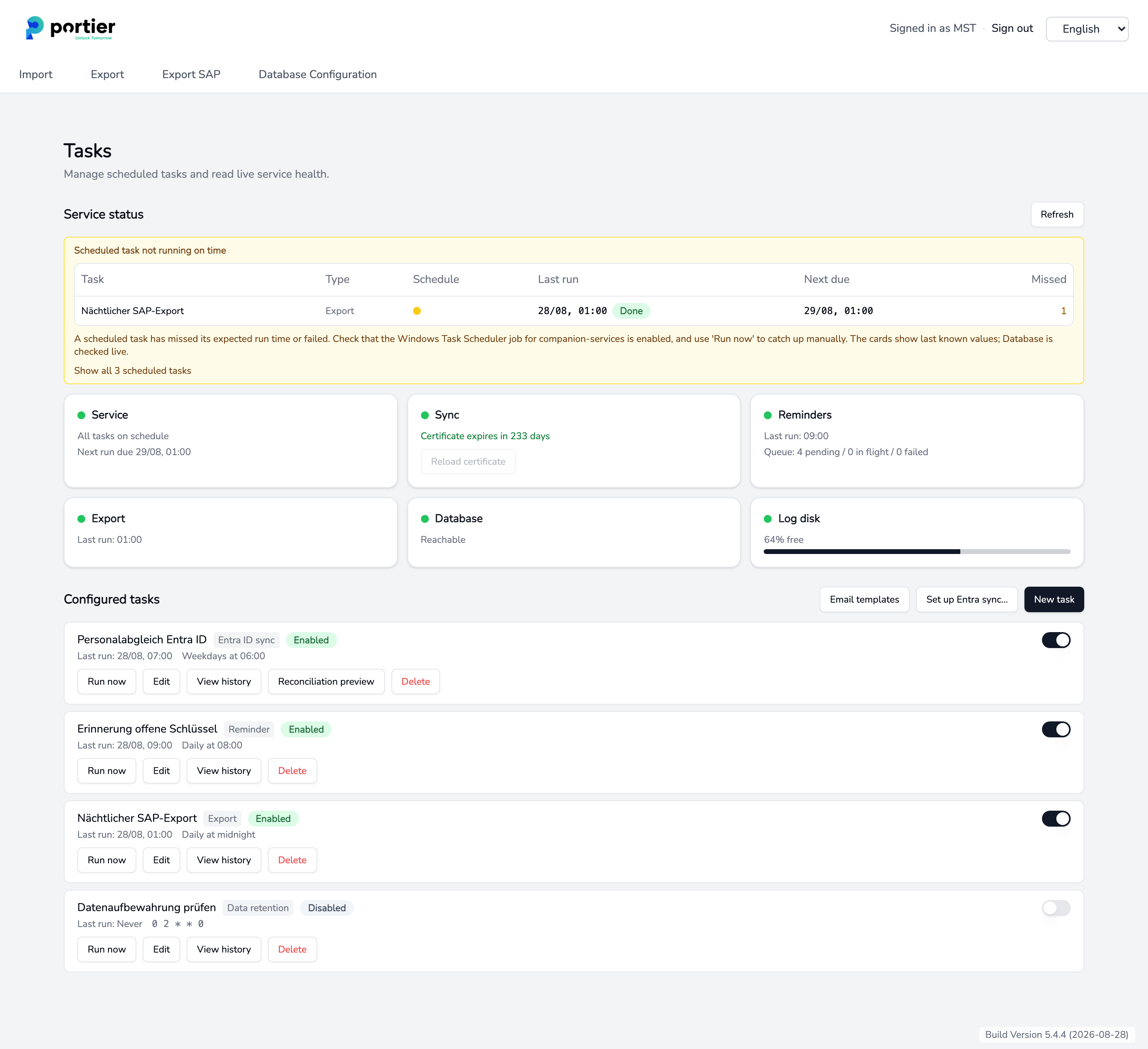
The Tasks page, service status at the top, configured tasks below.
Service status carries six cards.
Service, the overall verdict. Normally it reads All tasks on schedule with the next run below it. When something is behind, the card names one task. It cannot name more than one, which is what the banner above it is for.
Sync, the remaining lifetime of the certificate the sync tasks use.
Reminders, the last run and the queue, in the form Queue: 4 pending / 0 in flight / 0 failed. A growing pending figure means mail is being generated but not delivered.
Export, the last run of the export tasks.
Database, Reachable or Not reachable.
Log disk, free space on the drive that is written to.
The cards show last known values, the database is checked live. The display refreshes on its own, and Refresh fetches the current state at once.
While everything runs on schedule, nothing sits above the cards. As soon as a task needs attention, a yellow banner appears with a table of Task, Type, Schedule, Last run, Next due and Missed.
The Schedule column carries the verdict per task. It reads On schedule, Not run yet, Missed one run, Missing repeatedly or Last run failed. When a run failed, the program's own message sits directly underneath.
Scheduled task not running on time is the title when single tasks are affected and the others keep running. Check that task, its schedule, its configuration and its last error message.
Scheduled tasks are not running is the title when not a single task is firing. The banner then also states since when. In that case the cause is the Windows Task Scheduler job, not the tasks.
Show all 3 scheduled tasks adds the healthy tasks to the same table, Show only the tasks needing attention hides them again.
The Missed column counts up to a cap. 3+ means at least three, and often far more.
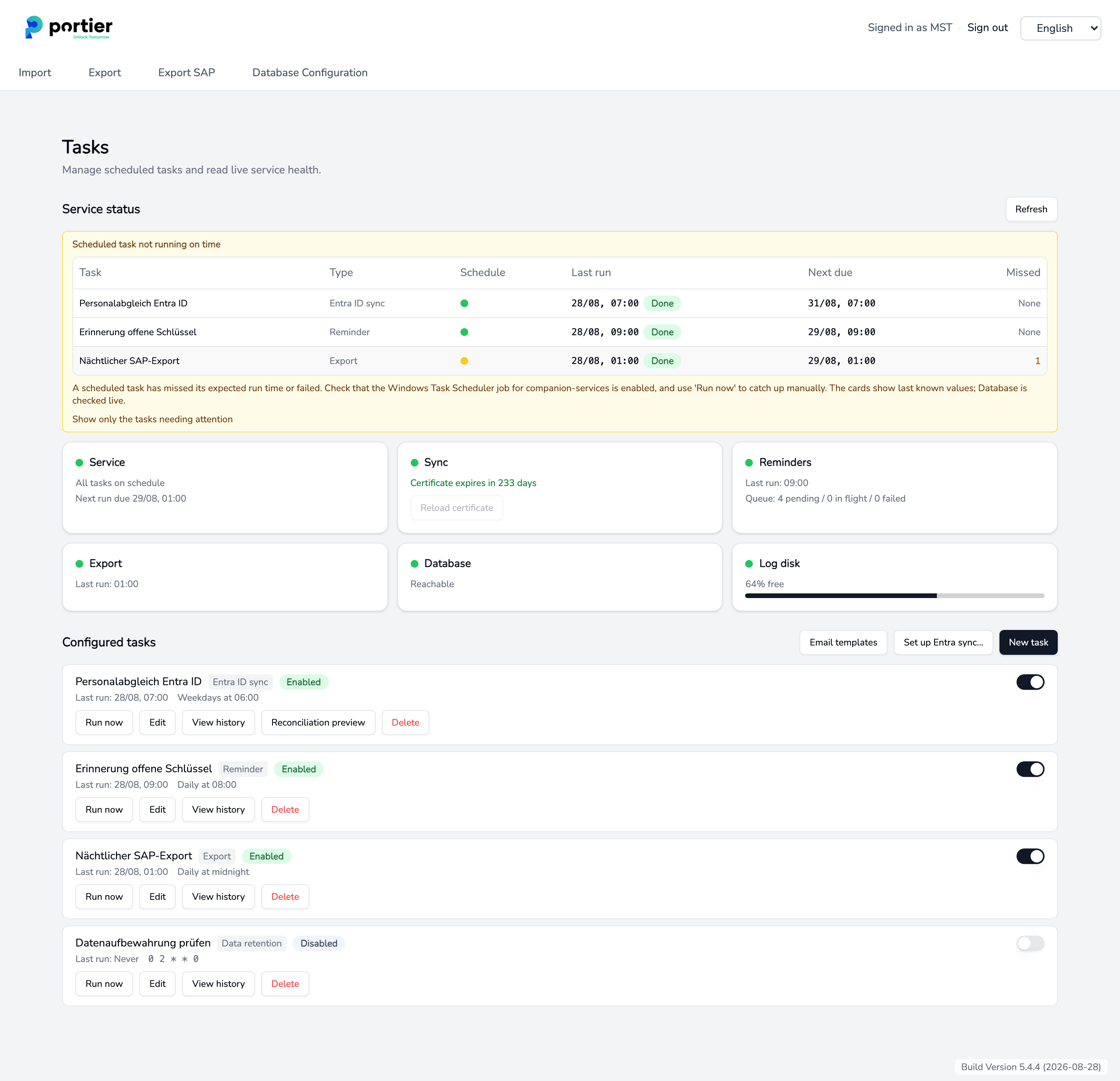
Every scheduled task with its last run, next run and missed runs.
Under Configured tasks, each task shows its name, type, an Enabled or Disabled badge, the last run and the schedule in plain words. A switch on the right turns the task on and off.
A task set to Disabled is skipped and reports nothing. That is the first thing to look at when work stops.
Every task carries Run now, Edit, View history and Delete. An Entra task adds Reconciliation preview.
Reminder sends reminder emails about overdue keys. Stages, recipients and delivery are set in the task itself.
Export produces an export from a template and writes it to a fixed folder. Expected fields are template_id and destination_dir.
Sync reconciles personnel data with an external provisioning service. Required fields are endpoint, app_id and cert_thumbprint. dry_run is on by default, and only "dry_run": false starts a live run.
Data retention clears personnel records according to the periods in rules[]. Unless told otherwise this is a dry run too, and at most 500 records are touched per run.
No-op does nothing and reports success. Use it to test whether Windows Task Scheduler starts companion-services.exe at all.
Heartbeat reports operating values from the machine to portier. With no endpoint configured, the run is skipped and recorded.
Entra ID sync takes personnel from a Microsoft Entra ID group through Microsoft Graph. The Set up Entra sync… wizard creates the task with all its identifiers.
Personnel file import imports personnel from a CSV file on a schedule, driven by a saved import preset.
New task opens a dialog with four entries.
Name, yours to choose. It appears in the list, in the banner and in the history.
Type, one of the eight above.
Schedule, either a Preset from Every minute through Weekdays at 06:00 to Daily at midnight, or Custom cron expression… with five fields.
Configuration (JSON), the fields of that type. Reminder, Entra ID sync and Personnel file import do not show this box, because those types carry their own input fields.
The Enabled switch decides whether the task starts running once saved.
The schedule sets when a task falls due, not when it starts. It starts on the next pass of companion-services.exe. A schedule tighter than that pass therefore runs less often than configured.
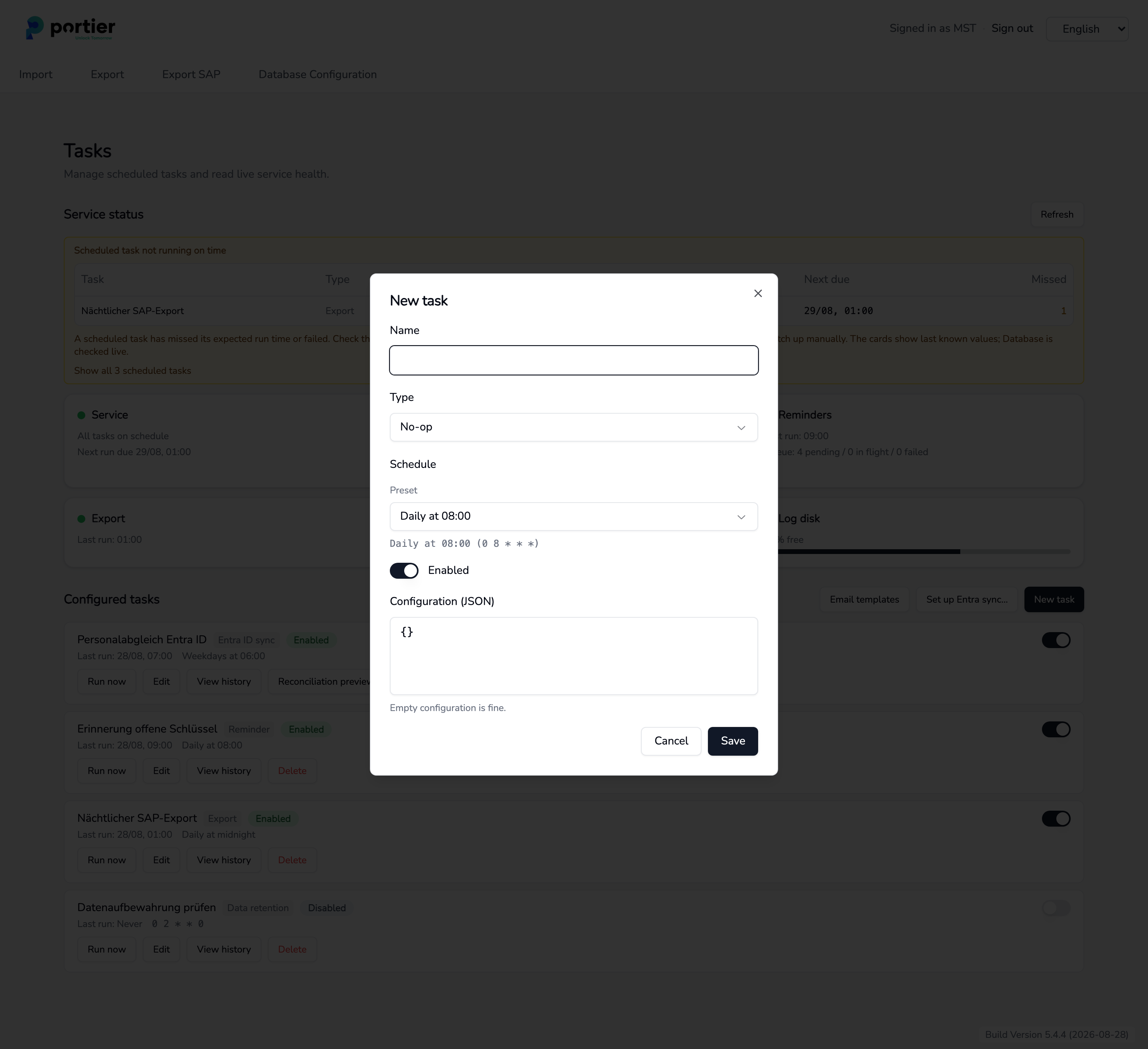
New task, with name, type, a schedule preset and the configuration.
Run now starts the task immediately, regardless of its schedule. The Run result dialog then states whether the run succeeded and how long it took. Technical details holds the full output.
A failure names an exit code. 1 means the task itself failed. 2 means startup diagnostics failed, usually on the database connection.
If the task runs cleanly through Run now, nothing is wrong with the task. What is missing is the trigger from outside.
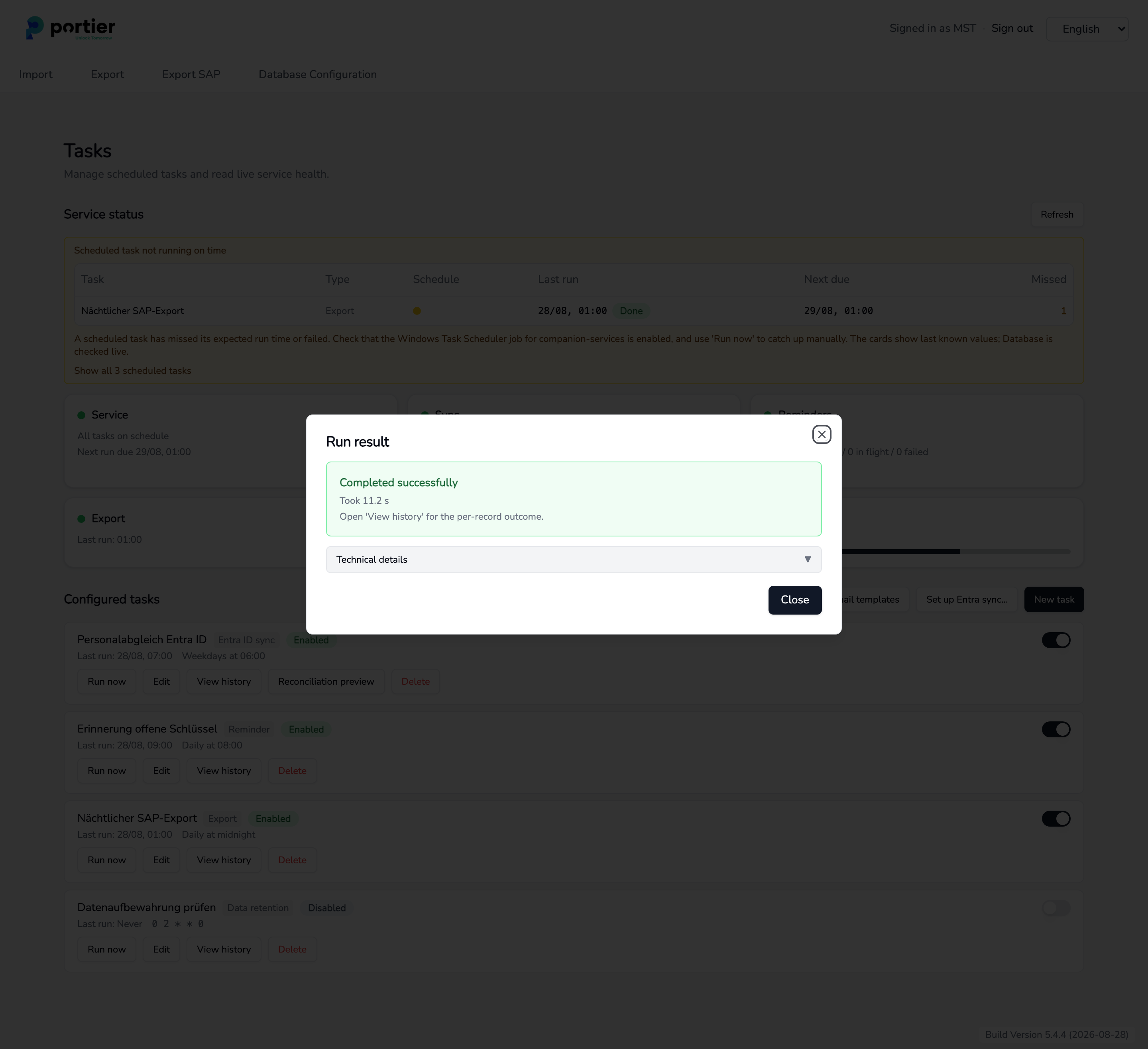
The run result, with the duration and expandable technical details.
View history opens the task's Execution history, one entry per run with Started, Finished, Status, Candidates, Attempted, Succeeded, Failed and Error. Long messages expand with Show full message.
Candidates are the records that qualified, Attempted the ones actually processed. A run with 0 candidates did run and had nothing to do. That is not a fault.
When a night has no entry at all, the task did not simply find nothing. It never started.
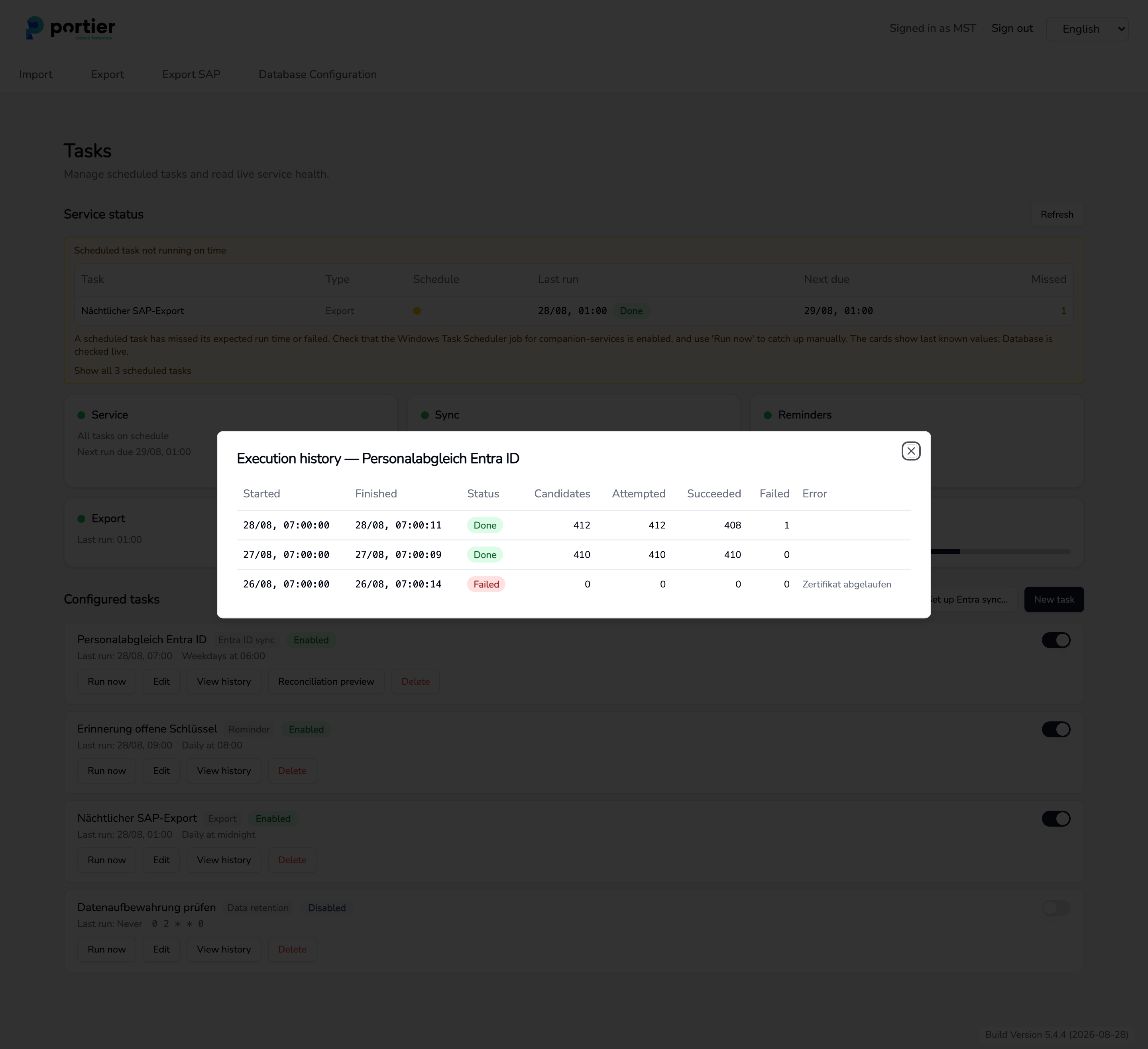
A task's execution history, per run with candidates, outcome and error message.
If Windows Task Scheduler stops starting companion-services.exe, every task goes quiet at once. Work through these points on the machine the Companion is installed on.
Open Windows Task Scheduler. In a standard install the job is named PortierCompanionServices.
Is the job enabled, and what do Last Run Time and Last Run Result say?
Is the password of the stored account still valid? An expired password stops the job with no further notice.
Was the machine switched on at the scheduled times?
If Config Encryption in Database Configuration is set to DPAPI, the configuration file is locked to one user and one machine. The job must then run under the same Windows account that saved the database connection. Otherwise every run stops at startup diagnostics and writes nothing. Sign in as that account and save the connection again in Database Configuration.
Automatic personnel data import for a task of type Personnel file import
Set up reminder emails for stages, recipients and delivery
Sync personnel from Microsoft Entra ID for the wizard and the first sync
Importing personnel data for import presets and the preset library
