This guide covers portier Vision 5 with Firebird 4. The database sits on a server and every workstation connects to it. Firebird 4 is free of charge.
Firebird 4 is installed on the server and running as a service.
Port 3050 is open in the server firewall.
You know the path under which the server sees the database file.
Firebird needs no ODBC driver. That driver is only for Microsoft SQL Server.
Run the setup. It installs every component, there is no component selection.
The install page carries the checkbox Install Microsoft ODBC Driver 18 for SQL Server (recommended). On a Firebird-only site you can clear it. When in doubt leave it ticked, an unused driver does no harm. Your choice is remembered and also applies to later automatic updates.
The database file PORTIERVISION.GDB sits in the program directory. Move it to the server.
Put the file in a local folder on the server and do not share that folder on the network. Workstations connect through the Firebird service, not through a file share.
You set the database connection in portier Vision Companion. You will find it as portierVisionCompanion.exe in the Vision program directory.
The first start shows the welcome screen with the language picker. After Continue comes the sign-in screen. It carries the note The database configurator is reachable without signing in and below it the button Open database configurator. Take that route. Sign-in reads its user records from the very database you are about to configure. Later, in day to day use, the same screen sits on the Database Configuration tab.
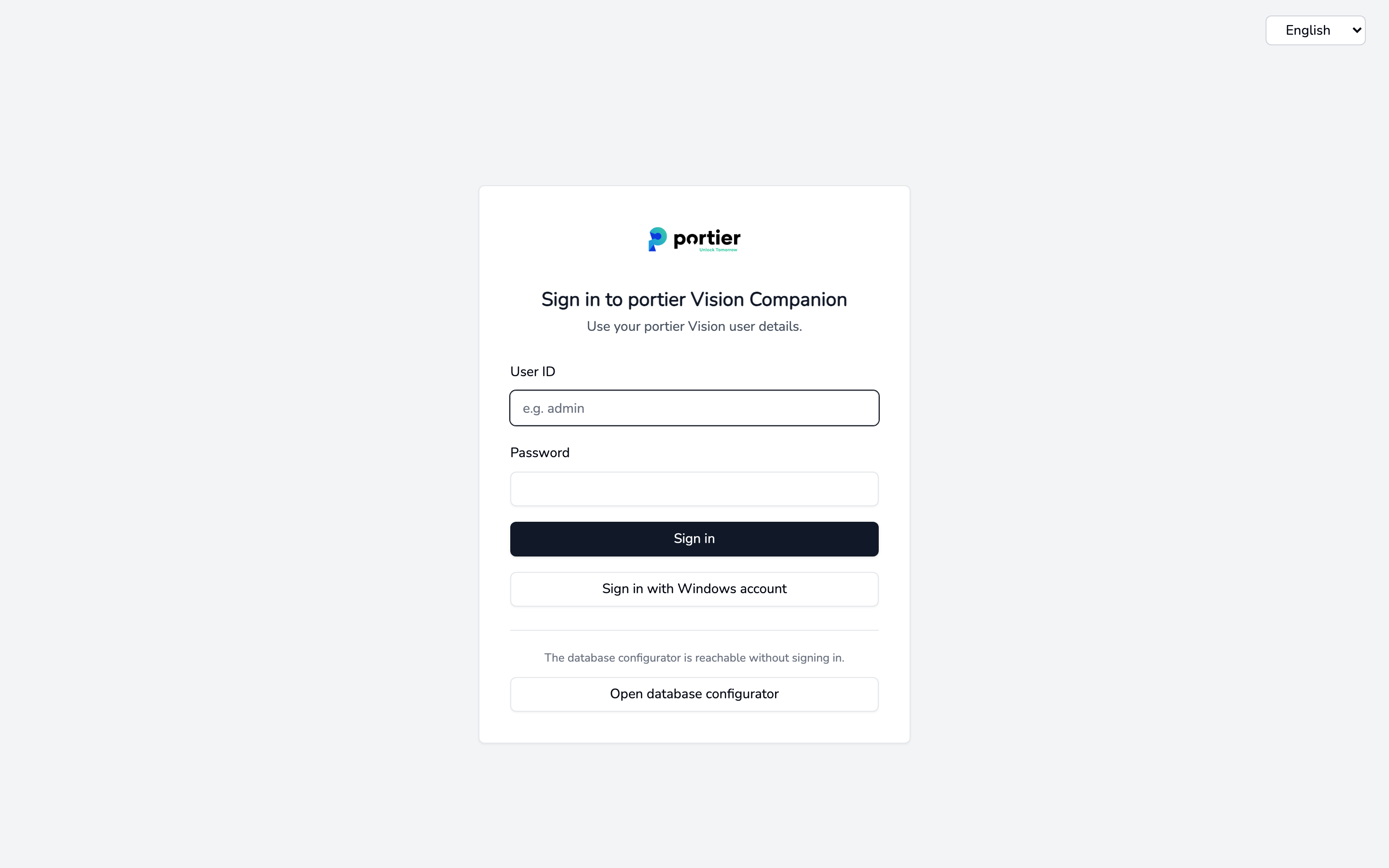
Companion sign-in screen with the Open database configurator button
Under Database Type choose Firebird, then fill in:
Host, the server name or IP address
Port, 3050 for Firebird
Database Path, the path to the GDB file as the server sees it, for example C:\portier\PORTIERVISION.GDB. Browse only helps when you are working on the server itself.
Username and Password of the Firebird login
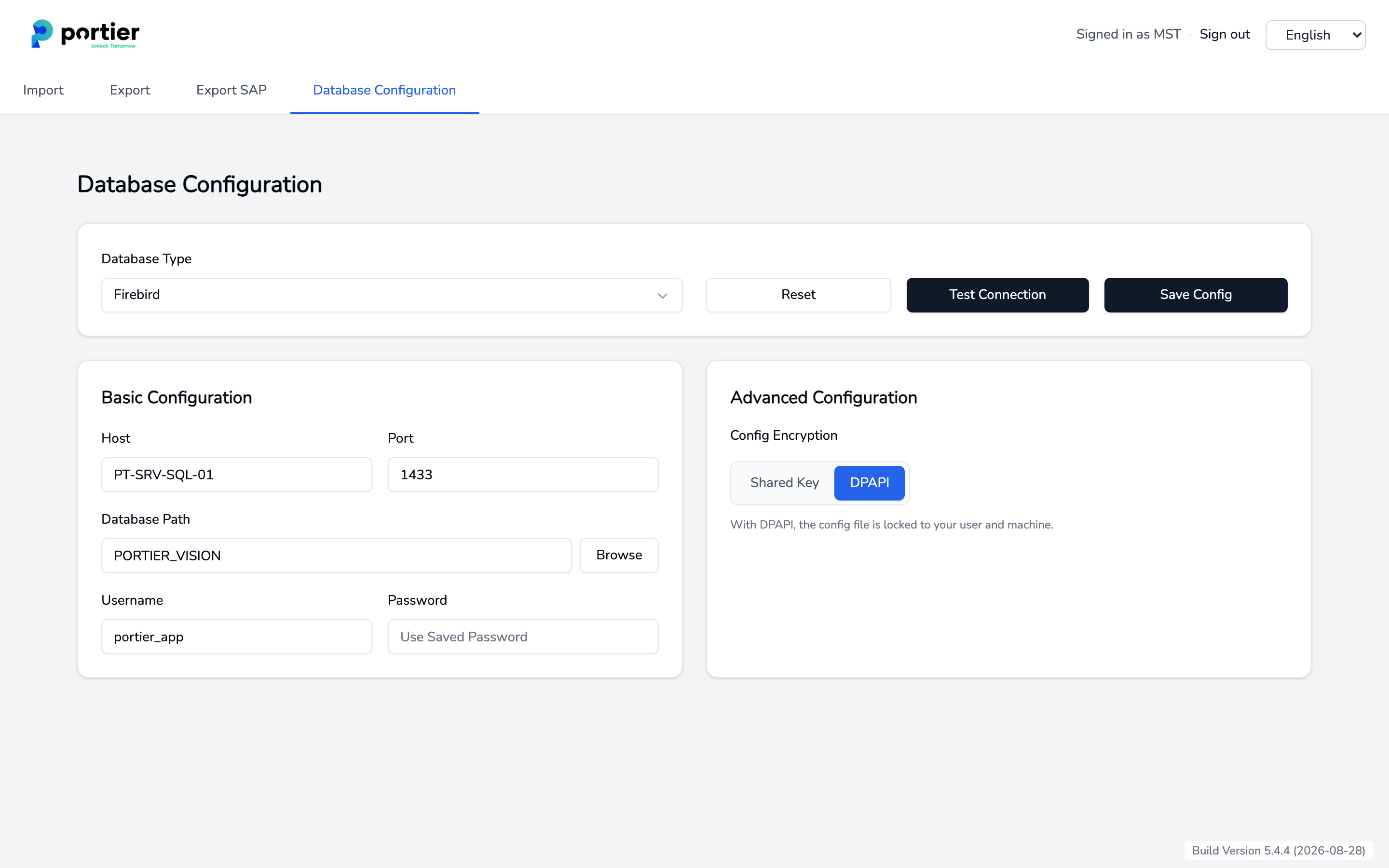
Database configuration with database type Firebird
Click Test Connection. On success Companion reports Connection successful, please save the configuration. The test on its own saves nothing.
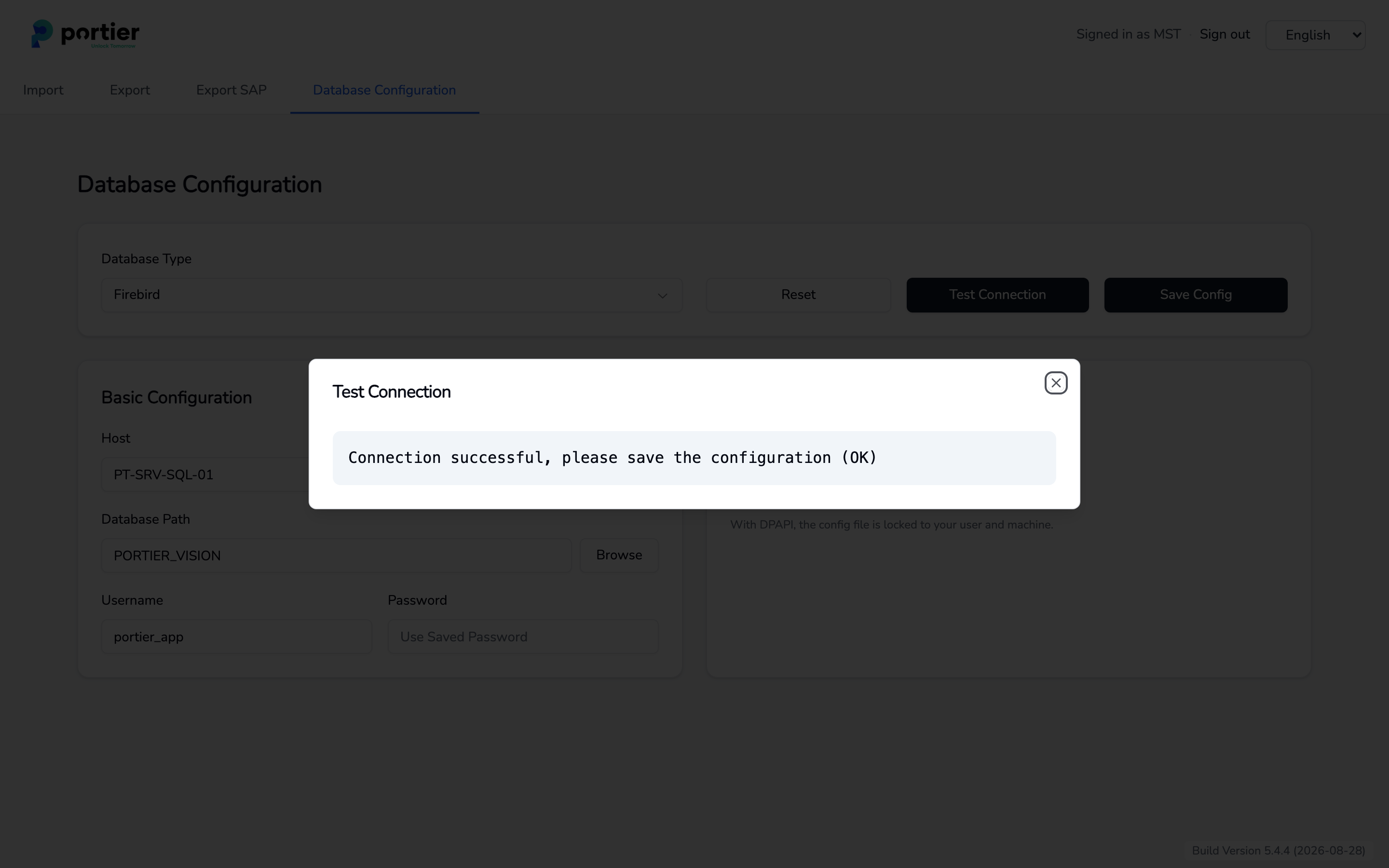
A successful connection test
Click Save Config. Without a prior test Companion asks Save without testing? first.
If you were signed in while saving, Companion signs you out. The session belonged to the previous database. Simply sign in again.
Vision and Companion read the same portiervision.ini in the program directory. What you save here applies to both.
Install Vision on every other workstation. Whether you can then copy the finished portiervision.ini across is decided by Config Encryption on the same screen.
DPAPI is the default. With DPAPI, the config file is locked to your user and machine. Copying it achieves nothing, so configure each workstation separately in Companion.
Shared Key. With Shared Key, you can share the config file with others. Copy the file into the program directory of every other workstation.
After switching method, save the configuration again. Otherwise the old encryption stays in place.
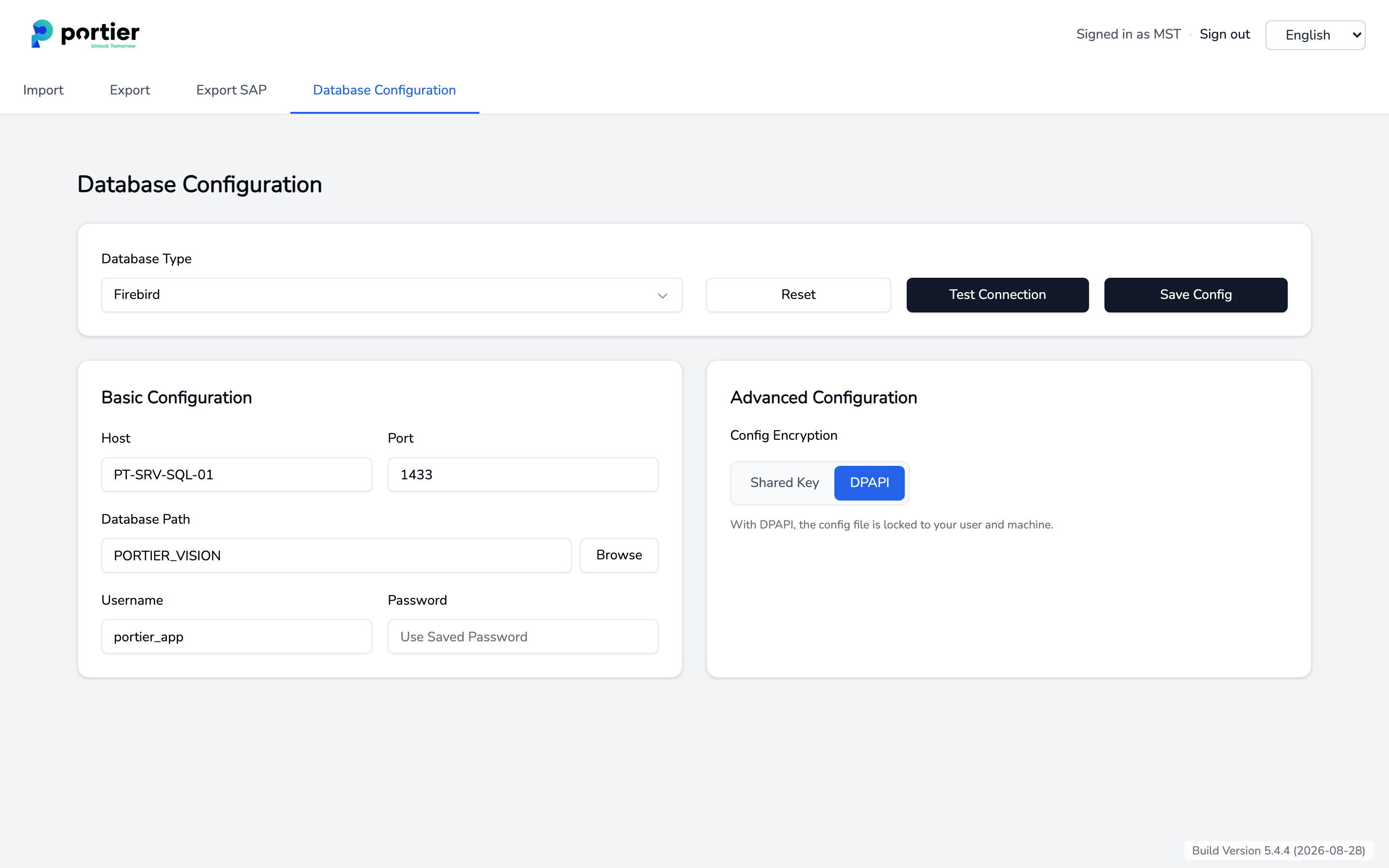
Config Encryption with the choice between Shared Key and DPAPI
The database path is the path as the server sees it. Not a mapped drive, not a path from the workstation.
Is the Firebird service running on the server?
Is port 3050 open?
Are the Firebird user and password correct?
How many workstations a Firebird site carries, and when Microsoft SQL Server is the better choice, is covered in the system requirements.
