This guide runs from the downloaded setup file to your first sign-in. It describes a first installation on a workstation.
Have these ready
* Administrator rights on the machine.
* The roles db_datareader, db_datawriter and db_ddladmin on the database. db_owner is not required.
* Your licence data from our email.
portier Vision full version for a fresh installation
portier Vision update for an existing installation
Unpack the archive and run the setup file as administrator.
From version 5.5.0 Vision ships as a signed MSI package. The setup shows a single page with the licence terms, the checkbox I agree to the license terms and conditions and the checkbox Install Microsoft ODBC Driver 18 for SQL Server (recommended). Then click Install.
The driver is ticked because the Vision desktop needs it to reach Microsoft SQL Server. On a Firebird site, untick it. Your choice is remembered and also applies to later automatic updates. If an equal or newer driver is already on the machine, the setup skips this step.
There is no component selection any more. The MSI installs every component per machine into C:\Program Files (x86)\portier\Vision. The setup no longer asks for an installation folder either. On an update, Vision stays in the folder it already uses, even when that folder comes from an older installation.
Vision starts by itself once the setup finishes. On a new machine the database connection is not set yet, so Vision cannot do any work. Close the window and set the connection up in the next section.
For an unattended rollout through GPO, Intune or SCCM, read MSI Silent Installation, Update and Uninstallation.
Older setups are NSIS installers and behave differently. After the licence they show a component window where you pick the program, Firebird and the reports. You then choose the installation folder, usually C:\Portier\Vision5 or D:\Portier\Vision5. For a fresh installation, use 5.5.0 or newer.
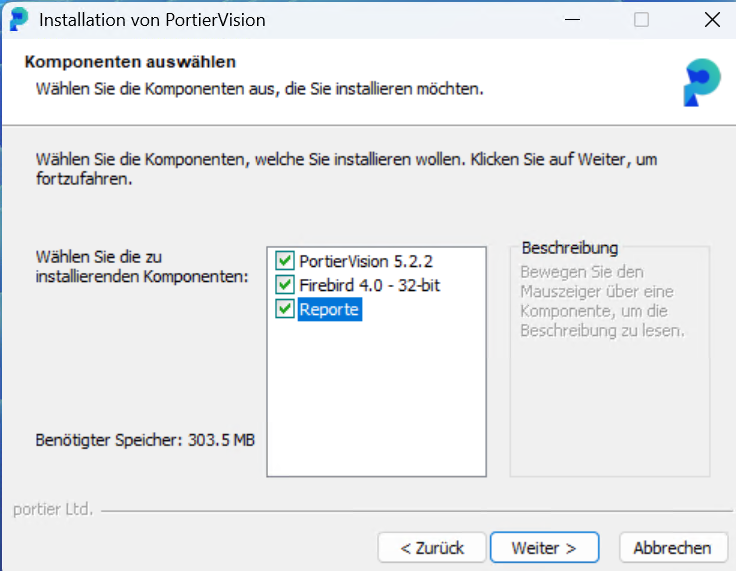
The component window in the old NSIS setup, with the program, Firebird 4.0 and the reports.
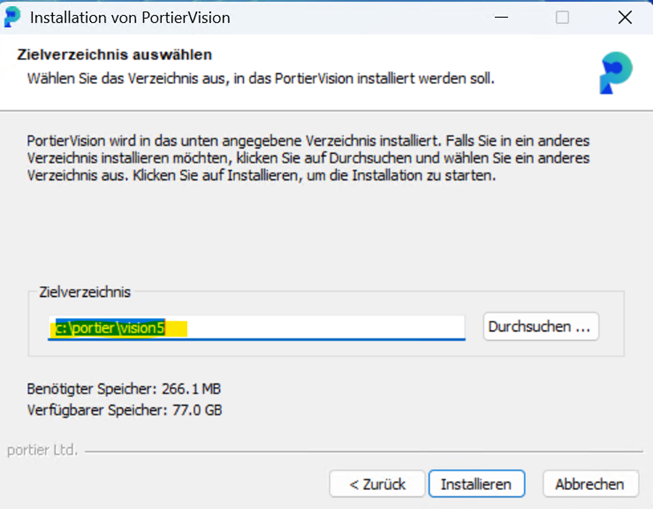
The old setup asking for the target folder, here c:\portier\vision5.
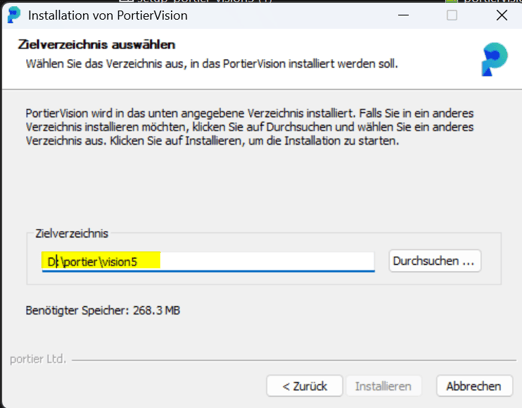
The same window with the target folder on drive D.
The database connection is configured in portier Vision Companion, not in Vision itself. Open the installation folder and start portierVisionCompanion.exe.
On first start the Companion welcomes you. Pick the language and click Continue.
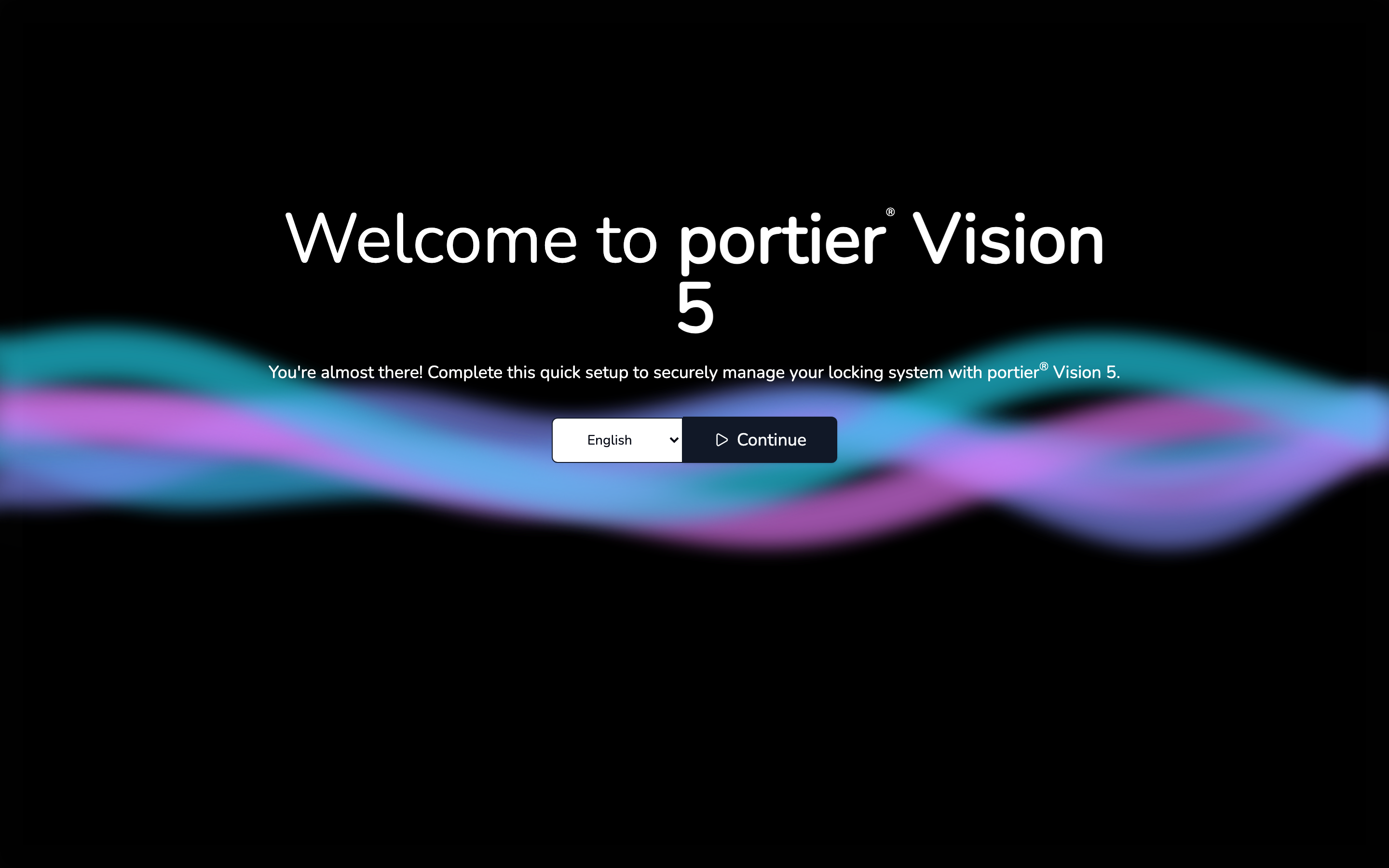
The Companion welcome screen with the language picker.
The sign-in screen comes next. It asks for the User ID and Password you use in Vision. Those users live in the database, and the database is not connected yet. That is why Open database configurator sits at the bottom and works before you sign in. Click it.
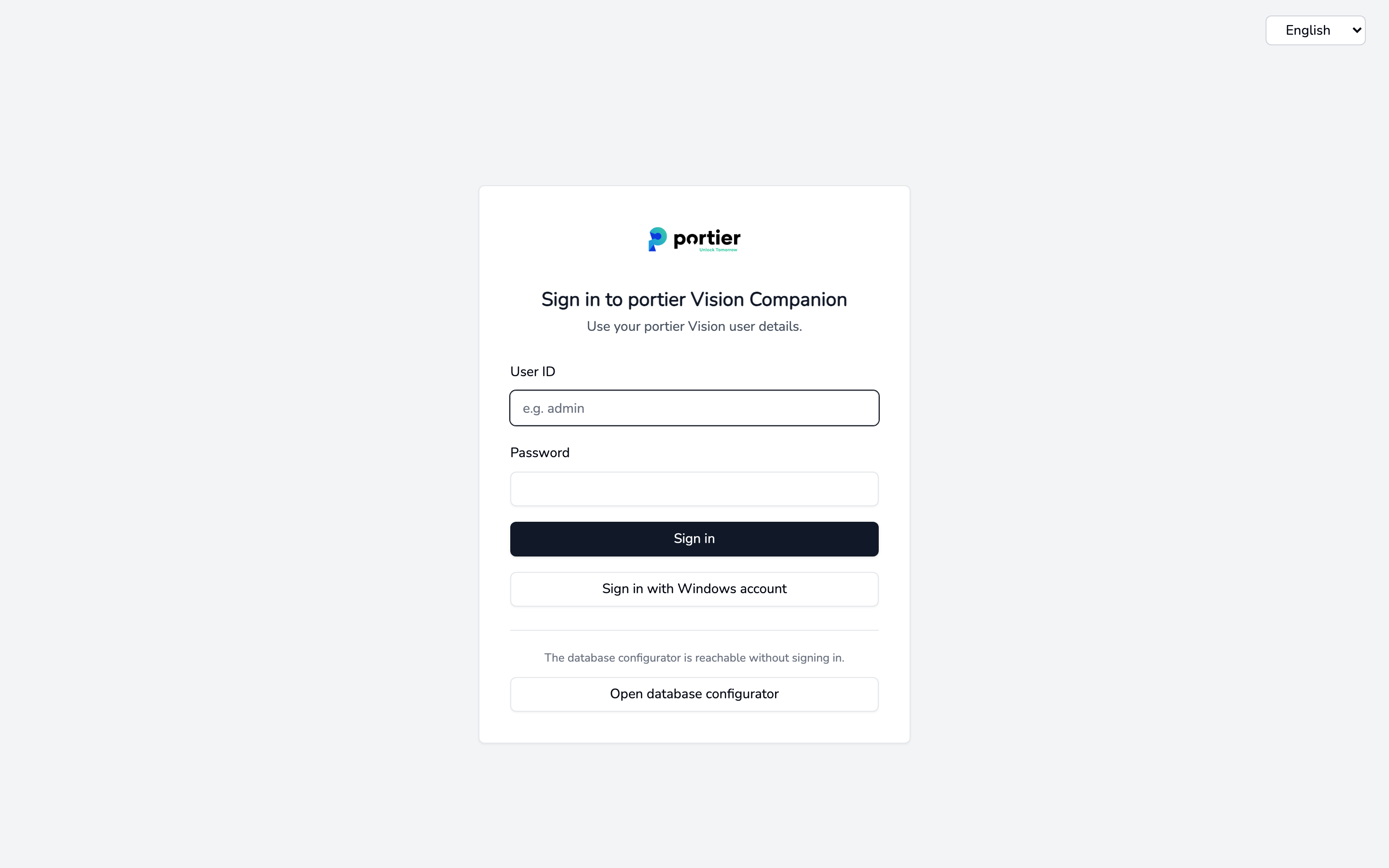
The sign-in screen. Open database configurator at the bottom works without signing in.
The Database Configuration tab opens. Database Type offers three options.
Choose Microsoft SQL Server - Normal Auth and fill in Basic Configuration:
Host: name or IP address of the database server. Append a non-default port after a comma, for example PT-SRV-SQL-01, 1433.
Database Name: usually portier.
Schema: dbo.
Username and Password of the SQL Server login.
Turn on SSL/TLS Connection under Advanced Configuration only if a valid certificate is installed on the SQL Server.
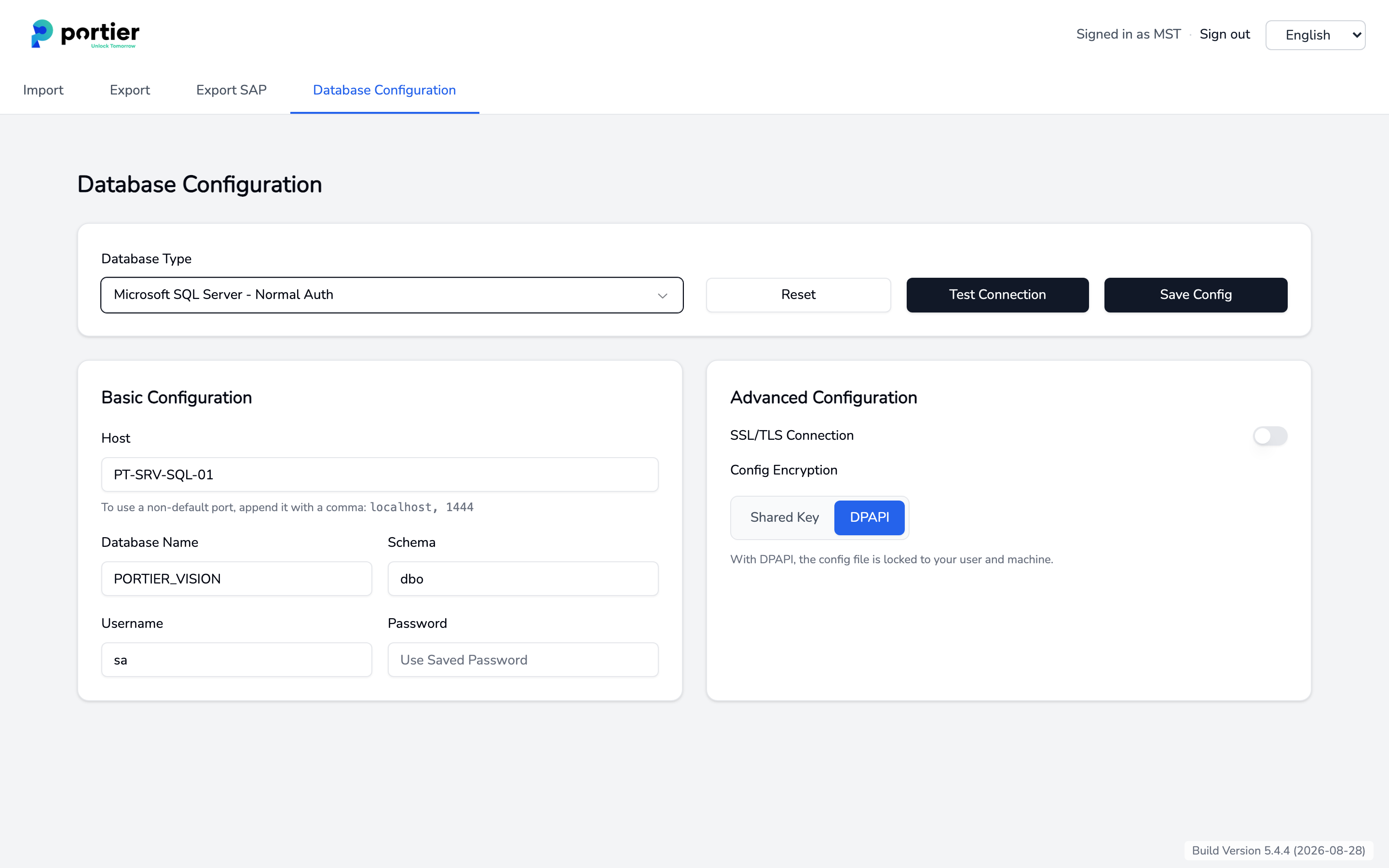
Database configuration for Microsoft SQL Server with normal authentication.
Microsoft SQL Server - Windows Login needs no username and password. The setup is described in Database sign-in without a stored password.
The Companion connects to SQL Server directly. It needs no ODBC driver and no DSN. ODBC Driver 18 from the setup belongs to the Vision desktop.
For Firebird the fields are prefilled. Host reads localhost. If the database sits on a network server, enter its name or IP address. Pick the Database Path with Browse. Firebird needs no ODBC driver on either side.
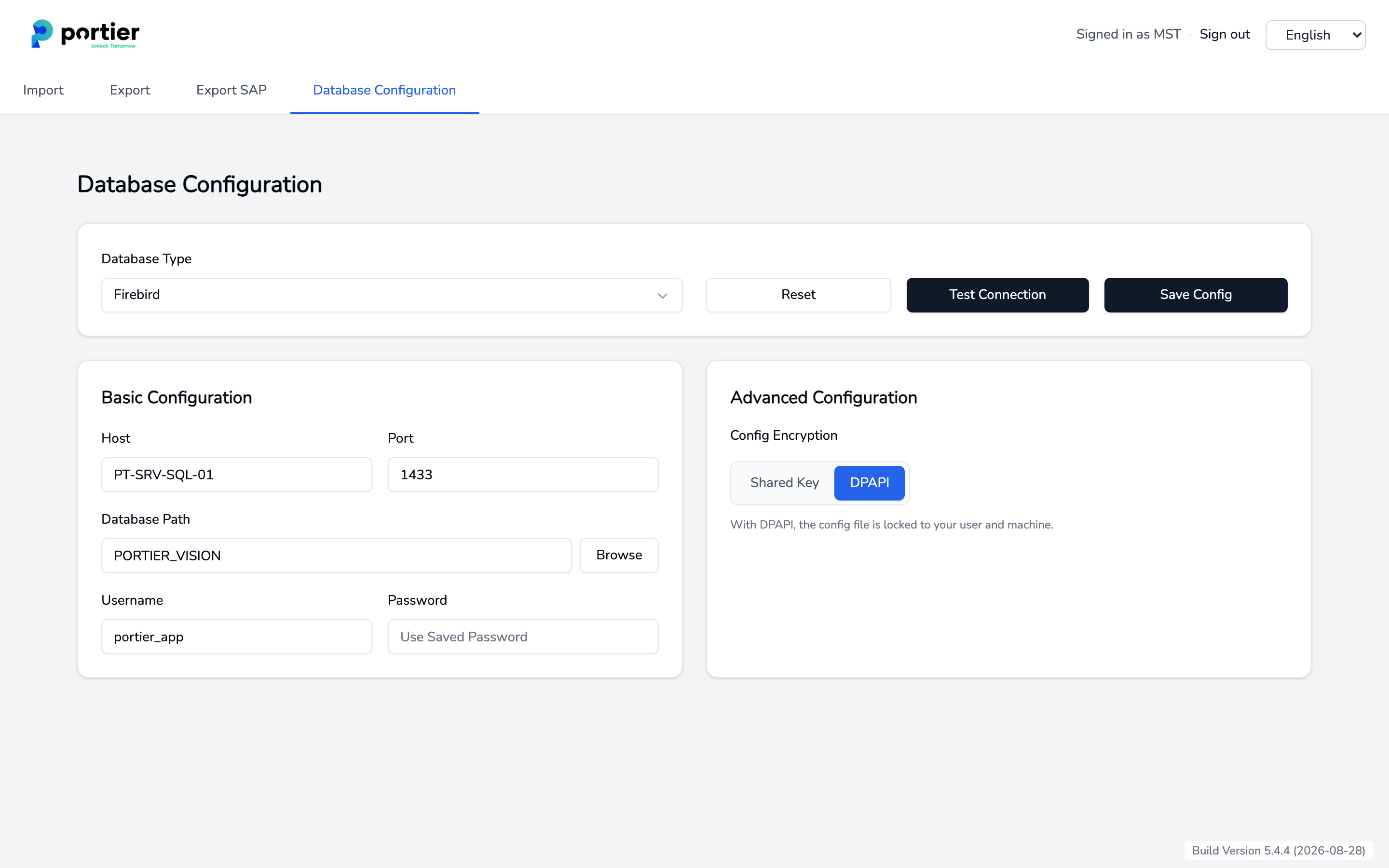
Database configuration for Firebird, with config encryption on the right.
Under Advanced Configuration on the right you decide how the credentials are stored in the portiervision.ini file.
DPAPI is the default. Windows locks the file to your user and your machine. On another client it is worthless.
Shared Key encrypts with AES-GCM. That file can be distributed to further clients.
Click Test Connection. Once the Companion reports success, store the entries with Save Config. If you were signed in, the Companion signs you out so it can restart against the new database.
Start portier Vision from the Start menu shortcut.
If Vision asks on first start whether to import the supplied reports into the database, answer Yes. If you use your own reports, back them up first. Reports with the same name are overwritten.
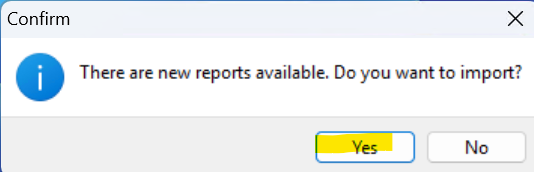
Vision asking on first start whether the new reports should be imported.
Then enter your licence data. A one-time passcode (OTP) goes to the email address you registered with, and you confirm it.
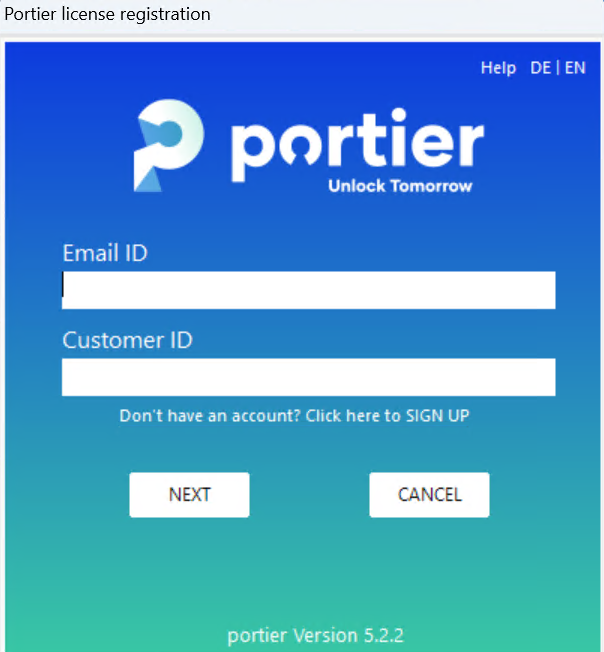
The Vision licence registration window with Email ID and Customer ID.
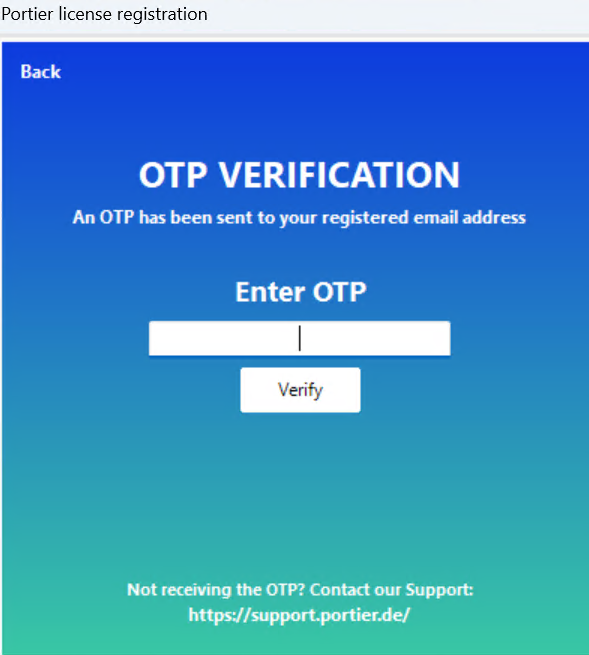
The OTP window where you enter the code from the email and confirm with Verify.
So Vision can reach the licence server, allow these domains over port 443:
portier.chargebee.com
app.eu.chargebee.com
api.sendgrid.com
Behind a proxy, or with no connection to the outside at all, our team can issue an offline licence. It has to be renewed every year.
Then sign in for the first time:
Username: START
Password: START (case-sensitive)
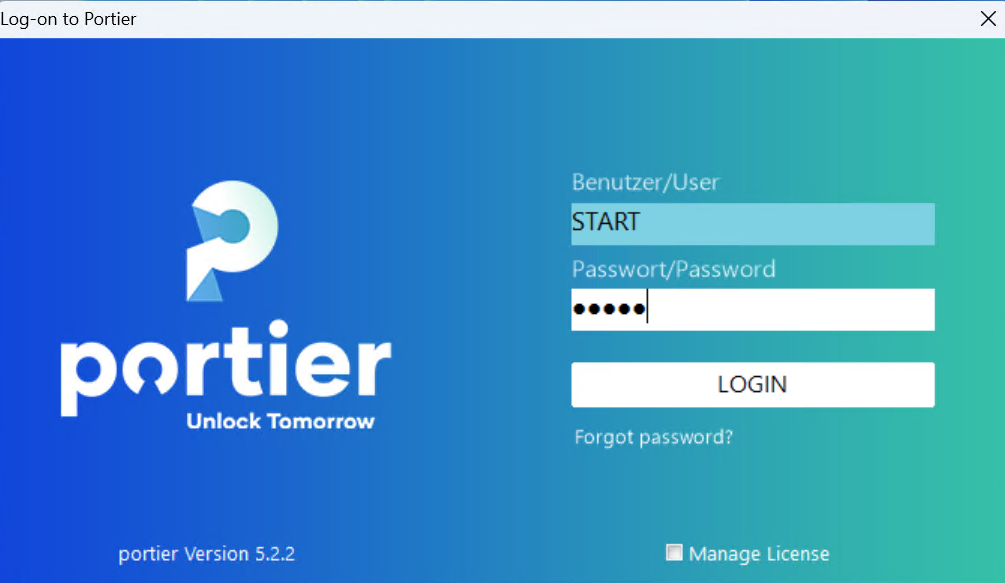
The Vision sign-in screen with the START user.
Who installs it?
* Standard and Plus with Firebird: you can run the installation yourself.
* Plus with SQL Server and Professional: these include the Business Package, so our team handles the installation and the SQL database setup.
