If you want to not only search for records but also modify them as part of a query, click in the menu EXTRA on the entry Search and Replace.
Here you have several options:
Facilities: Search facilities and modify facility data
Buildings: Search buildings and modify building data
Personnel: Search personnel and modify personnel data
Keys: Search keys and modify key data
Copies: Search copies and modify copy data
Cylinders: Search cylinders and modify cylinder data
Bunches: Search bunches and modify bunch data
Users: Search users and modify user data
The general procedure is as follows:
In the tab Search you define conditions
In the tab Result the found records are displayed
You select the records that should be changed
In the tab Change you define which data should be changed and how
An example:
The department "Verkauf" changes its name and is now called "Sales". The personnel data (who belongs to which department) should be updated accordingly.
The task is now to find the people whose data needs to be changed.
To do this, click in the menu EXTRA on Search and Replace and select the entry Personnel.
The window Search and Replace: Personnel opens.
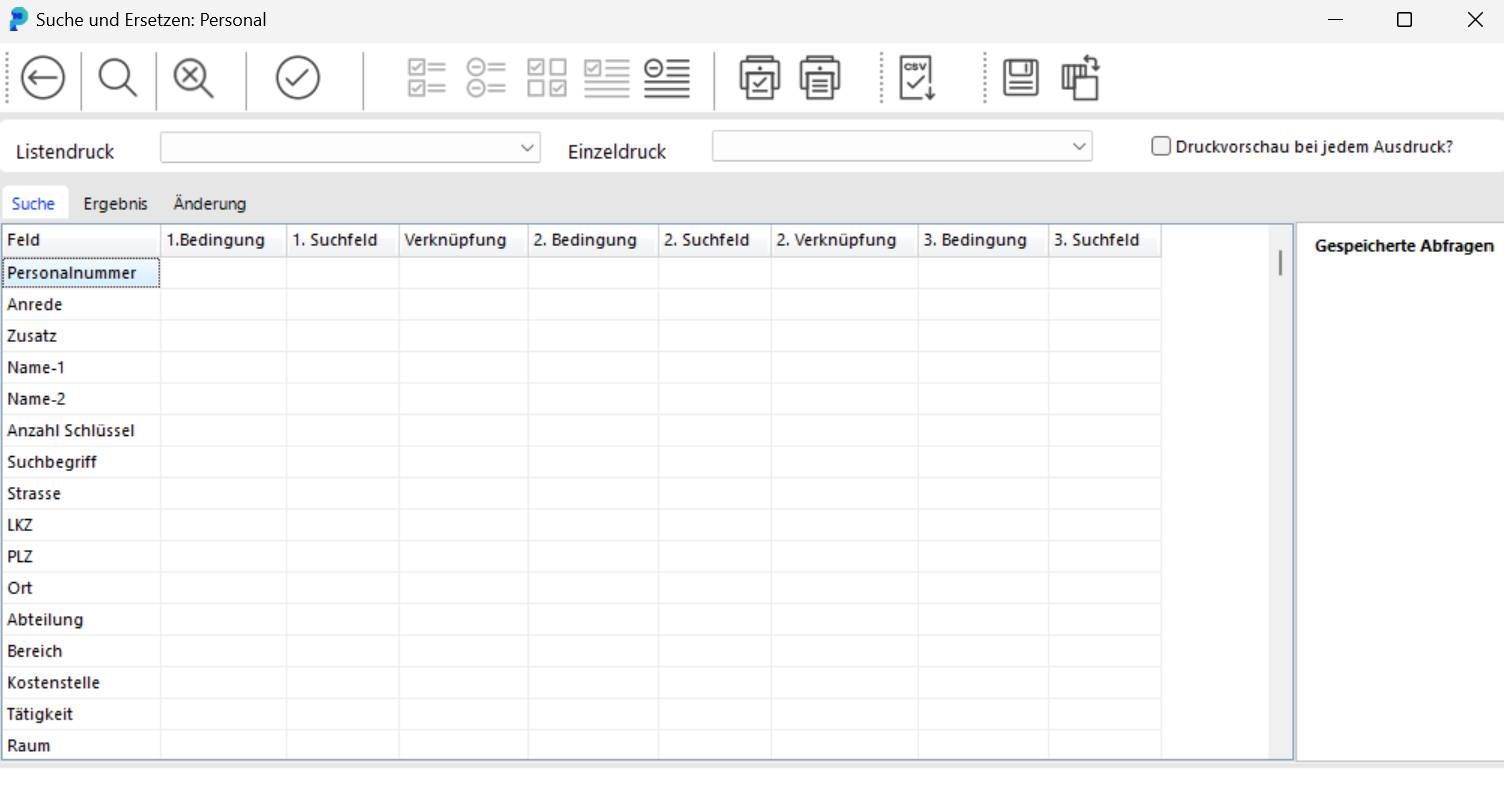
In the row Department select in the column 1st Condition the entry equal to. In the row Department enter in column 1. Search Field "Verkauf". Start the search by clicking the button Start Selection. In the tab Result, the people assigned to the department "Verkauf" are displayed.

By clicking the button Check All, you select all found people.

If you only want to select individual people, click on these people in the column Change.
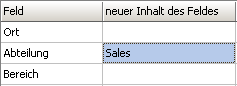
In the tab Change enter in the row Department the new field content (in this case "Sales").
Please note: Only perform the change when you are absolutely sure. The data is written straight into the database. There is no undo. The only way back is a database backup. So check the hit list in the tab Result first. When in doubt, change a small selection first.

The data is changed by clicking the button Apply Changes.
Following the same procedure, you can modify facilities and buildings, keys and copies, cylinders and bunches, as well as users.
Search and Replace is the tool you use to catch up on what an import in the portier Vision Companion does not do itself. Four cases come up regularly.
An existing facility or building was not updated. A re-import does not update a facility or a building that is already in Vision. Changed master data from the file therefore never reaches the record. Enter it through Facilities or Buildings.
Key type and locking type are wrong. These two fields are not rewritten on a re-import. Correct them in bulk through Keys.
Two buildings have become one. The import matches a building by its name alone. Two buildings with the same name therefore collapse into a single record, even when the description differs. Give them unique names through Buildings before you import again.
People are wrongly marked as departed. The personnel import marks every person missing from the file as departed. If the file was truncated, that hits people who are still with the company. There is no threshold that stops the run in this case. Search for the affected people through Personnel and reset the marking in the tab Change.
