Whenever you print something during daily work with portier®VISION, for example an issue receipt, a loss report or a query result, you are working with predefined reports.
To see which reports portier®VISION provides, go to the menu System and select Report Designer (German menu: System → Berichtsdesigner).
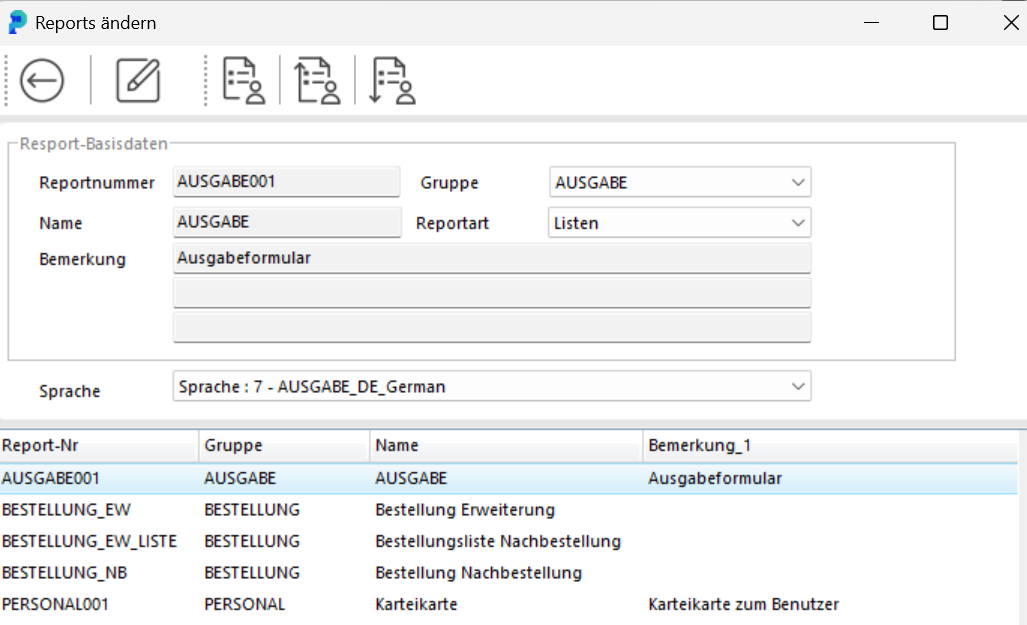
A list of all report names is at the end of this article. The screenshots in this article show the German interface.
Depending on your licence, you can also design these reports yourself. portier support can tell you whether the Report Design function is enabled in your installation.
If you would like to adapt reports to your company-specific needs, we are happy to put you in touch with an external service provider.
You can also keep several forms available for one process. For example, your company has a branch in Germany and one in the UK. You duplicate the issue form and keep one version in German and one in English.
Select Print → Edit Reports (German menu: Drucken → Reports bearbeiten).
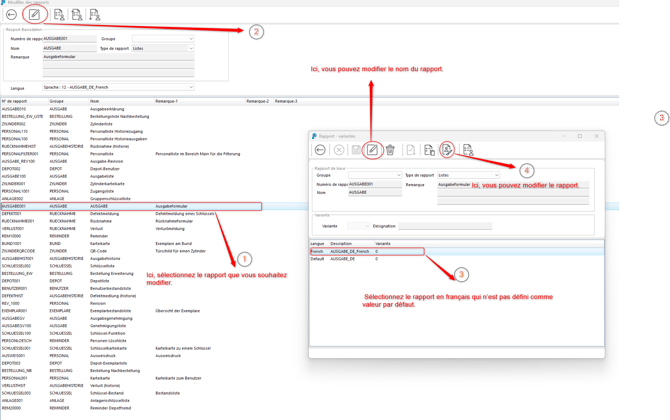
Select the report you want to change.
Edit the report.
Select a variant other than the one set as the default.
Change the layout of the report.
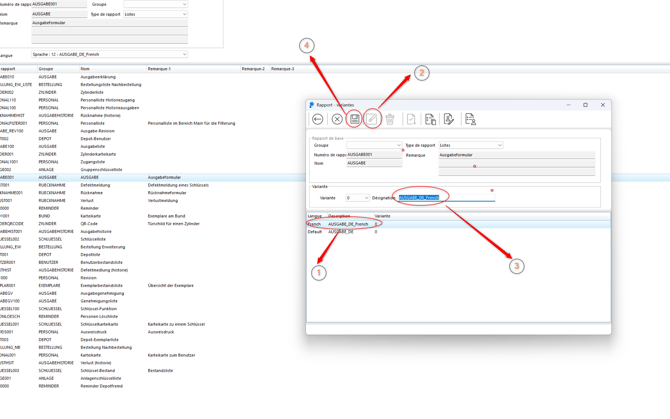
Search for the issue form:
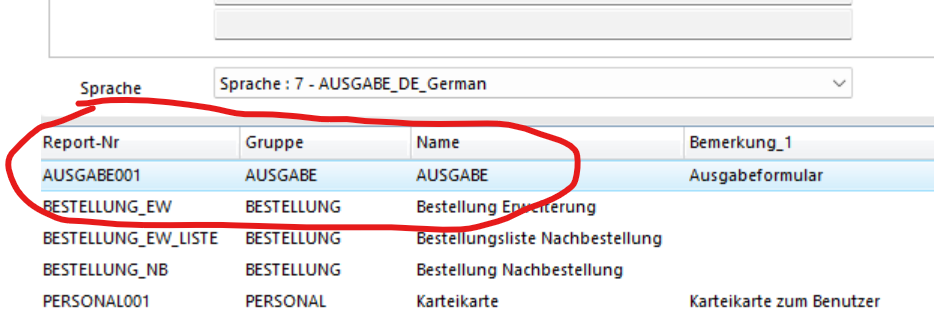
Then select Edit (Bearbeiten).
You go straight to the window with the report variants:
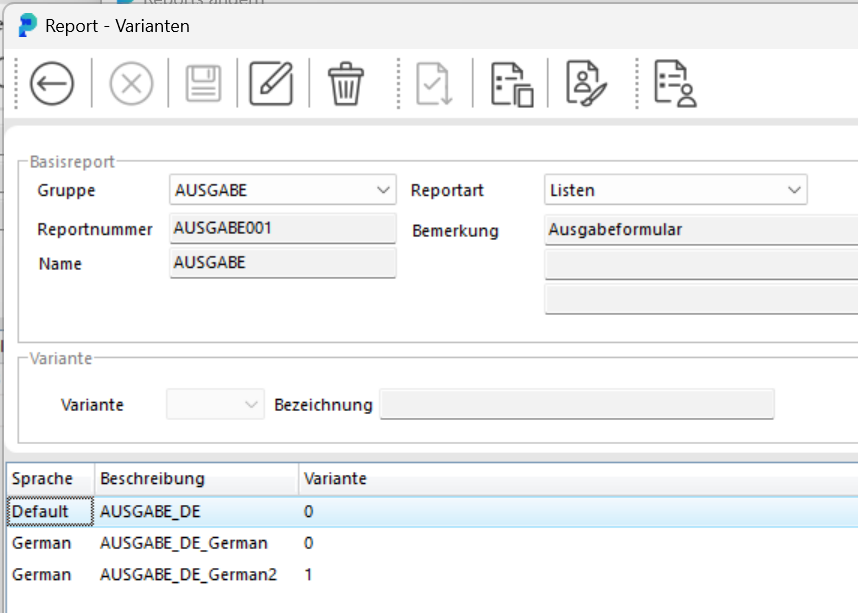
Click the German form to select it.
There are three icons at the top centre:
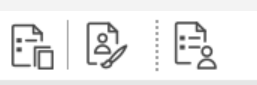
The first icon duplicates the German form. Give the duplicate a name, for example "Issue-MANUAL". Confirm with the checkmark. The duplicate appears in the list straight away:
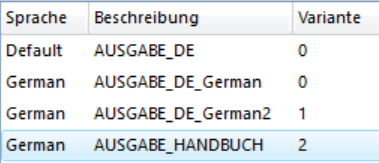
Select the new form and choose the second icon with the paintbrush: Report Design. The List & Label list designer opens.
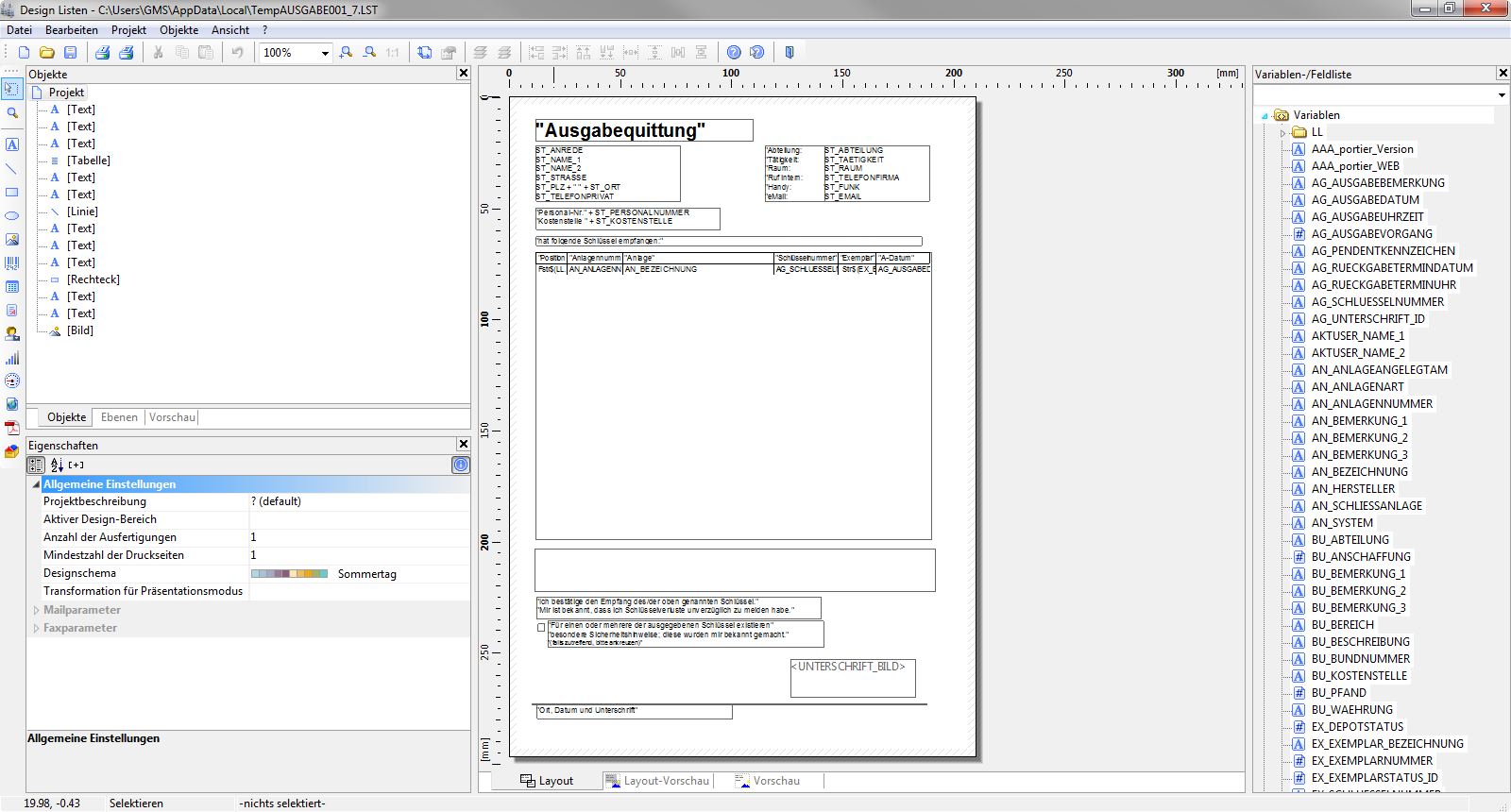
List & Label list designer
The manual describes how to work with the list designer. Open it through the Help icon in the Report Designer.
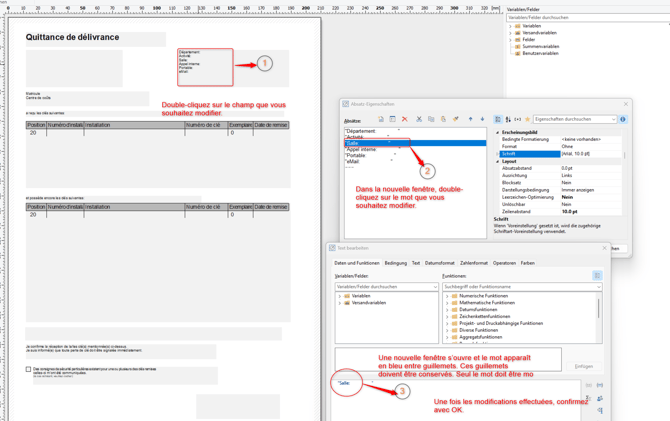
To change text:
In the new window, double-click the word you want to change.
Another window opens. The word appears in blue and in quotation marks. Keep the quotation marks. Change only the word.
Confirm with OK.
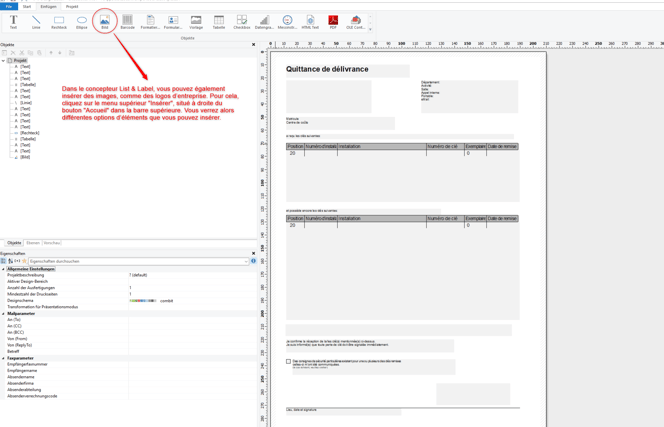
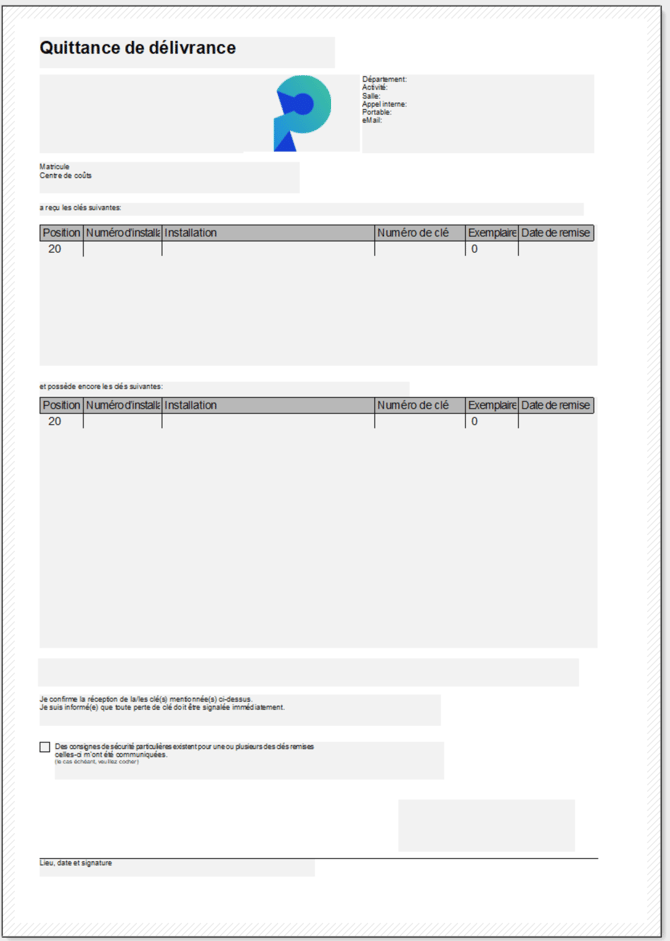
In the List & Label designer you can also insert images, for example your company logo. Click the menu Insert in the top bar, to the right of Home. You then see the elements you can insert.
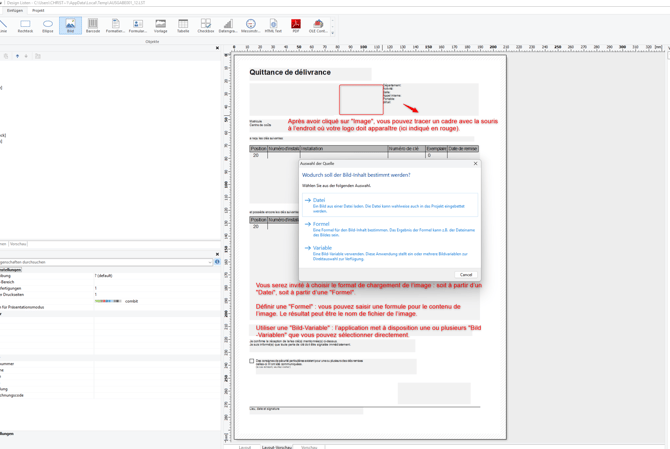
You are asked how the image should be loaded, from a file ("Datei") or from a formula ("Formel").
Formel: you enter a formula for the image content. The result can be the file name of the image.
Bild-Variable: the application provides one or more image variables that you can select directly.
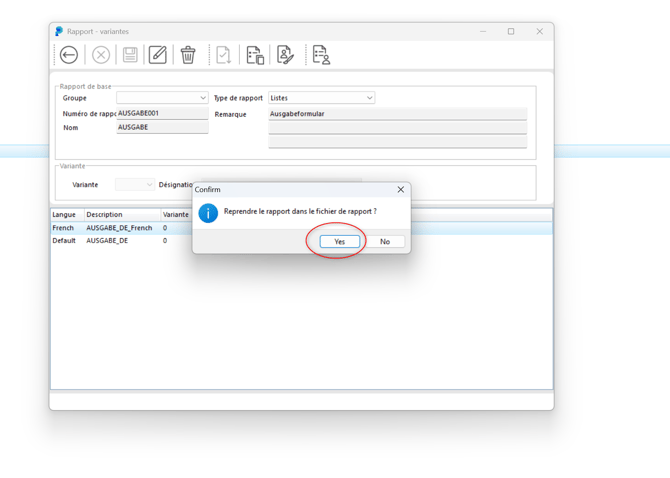
Once you have changed the report, click File at the top left, then Speichern to save the file. Close the window with the X at the top right. A window asks whether the changes should be applied to the report. Confirm with Yes.
For a further copy, click the report you want to change, then the pencil icon to change the name. The disk icon saves a copy of the file. You then edit the copy as described above.
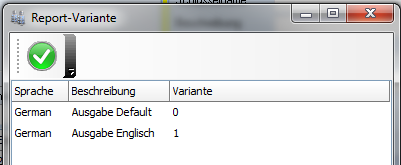
The form for English-speaking recipients is now ready. From now on, each issue shows a dialog offering you all available issue forms for printing.
These are the reports portier®VISION provides. The names appear in German in the program, with the English meaning in brackets.
Ausgabeklärung (Issue clarification)
Bestellungsliste Nachbestellung (Order list, reorder)
Zylinderliste (Cylinder list)
Personalliste Historiezugang (Personnel list, access history)
Personalliste Historieausgaben (Personnel list, issue history)
Personaldaten (historie) (Personnel data, history)
Personalliste (Personnel list)
Ausgabe-Revision (Issue audit)
Depot-Benutzer (Depot users)
Ausgabestatistik (Issue statistics)
Zylinderkarte (Cylinder card)
Personalliste (Personnel list)
Gruppenschlüsselliste (Group key list)
Ausgabeformular (Issue form)
Defektmeldung eines Schlüssels (Defect report for a key)
Rücknahmeformular (Return form)
Verlustmeldung (Loss report)
Karteikarte (Index card)
Exemplare am Bund (Copies on the key ring)
QR-Code (QR code)
Türschild für einen Zylinder (Door sign for a cylinder)
Defektmeldung (historie) (Defect report, history)
Schlüsselliste (Key list)
Schlüsselliste Erweiterung (Key list, extension)
Depotliste (Depot list)
Benutzerstandsliste (User status list)
Benutzerstandliste (historie) (User status list, history)
Exemplarliste (Copy list)
Übersicht der Exemplare (Copy overview)
Genehmigungsliste (Approval list)
Genehmigungsfunktion (Approval function)
Schlüsselliste (Key list)
Karteikarte zu einem Schlüssel (Index card for a key)
Ausweisdruck (Badge printing)
Benutzerkarte (User card)
Karteikarte zum Benutzer (Index card for a user)
Verlust (historie) (Loss, history)
Schlüssel-Bestand (Key stock)
Bestandsliste (Stock list)
Schlüsselbestandsliste (Key stock list)
Reminder Depotfremd (Reminder, held outside the depot)
