In the Navigator, select the QUERIES module and click the PERSONS button.

The Queries: Personnel window opens.
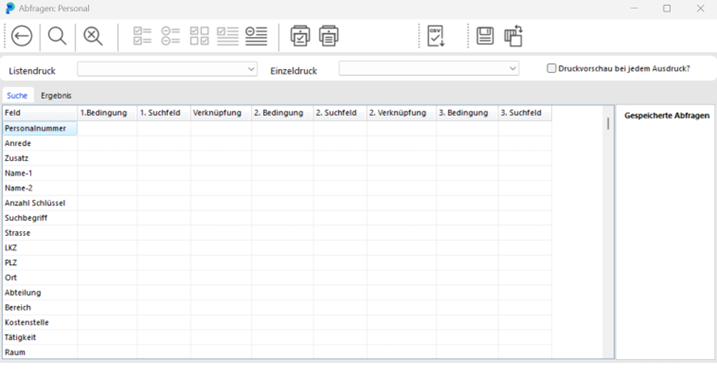
The left side of the window shows the fields you can use for searching. You can search in any of these fields, enter any number of search criteria, combine them as needed, and retrieve exactly the information you need. You can use the search results for list printouts and for individual printouts.
The general query procedure is as follows:
You define the conditions the persons you are looking for must meet, then start the search with the START SEARCH button.

portier VISION displays the persons matching your conditions in the RESULT tab.
Example: you want to find all persons in a specific department who have two or more keys in their possession.
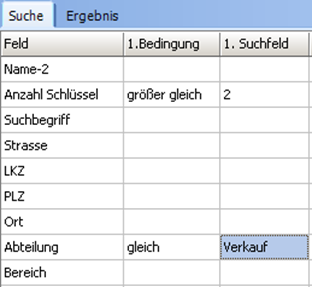
As the first condition, in the NUMBER OF KEYS row, select GREATER THAN OR EQUAL TO from the dropdown.
Enter "2" in the first search field of the same row.
As the second condition, in the DEPARTMENT row, select EQUALS from the dropdown.
Enter "Sales" in the first search field of the same row.
Click START SEARCH.

In the RESULT tab, portier VISION displays the persons matching your conditions: all persons in the Sales department who have at least two keys.
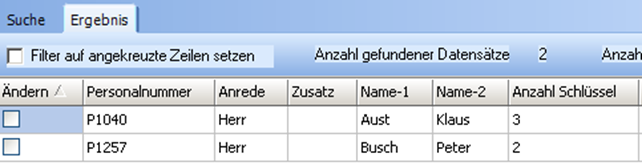
To process the found person records, the relevant records must be selected. Individual records are selected by clicking in the CHANGE column. Additional options are available via the buttons:

Ticks every record found.

Clears every tick.

Inverts the ticks. Rows that were ticked lose their tick, rows that were not ticked gain one.

Ticks the current row.

Clears the tick on the current row.
You want to find all key copies that have been recorded as lost or defective.
In the Navigator, select the QUERIES module and click the COPIES button.

The Queries: Copies window opens.
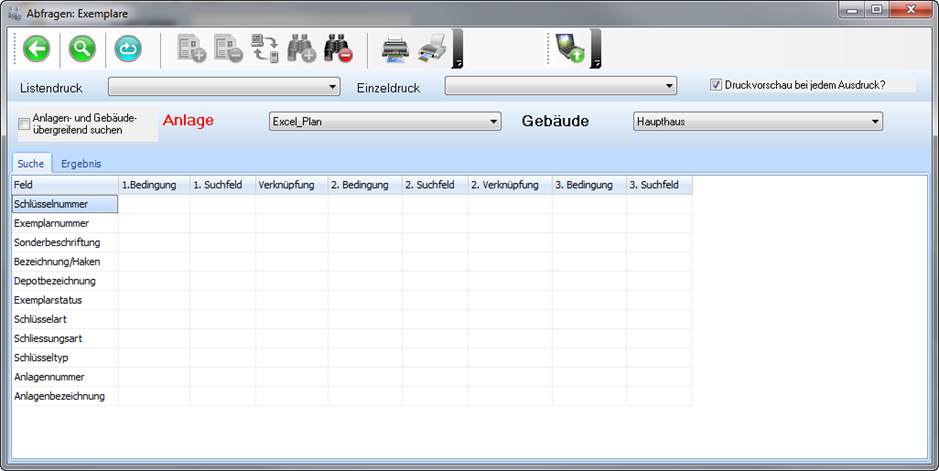
In the upper part of the window, specify whether to search across all installations and buildings. The current installation is shown in the INSTALLATION field.
In the COPY STATUS row, select EQUALS as the first condition. In the first search field, select LOST. Set the connector to OR. Select EQUALS as the second condition.
In the second search field, select DEFECTIVE. Click START SEARCH. In the RESULT tab, portier VISION displays the key copies matching your conditions:
All key copies recorded as either lost or defective.
You need a list of all keys currently issued and not yet returned.
In the Navigator, select the QUERIES module and click the ISSUE button.

The Queries: Issue window opens.
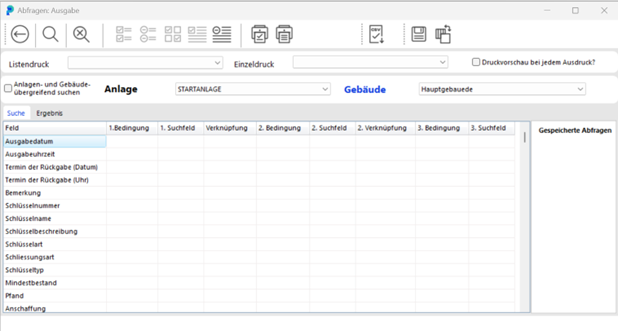
In the ISSUE DATE row, select LESS THAN OR EQUAL TO as the first condition. In the first search field, select the CURRENT DATE.
Click START SEARCH.
In the RESULT tab, portier VISION displays the key copies matching your conditions:
all key copies that were issued on or before today and have not yet been returned.
You need a list of all keys that were issued and returned during your holiday.
In the Navigator, select the QUERIES module, click More>> and then HISTORY.
The Queries: History window opens.
In the upper part of the window, specify whether to search across all installations and buildings. The current installation is shown in the INSTALLATION field.
In the ISSUE DATE row, select GREATER THAN OR EQUAL TO as the first condition and enter the first day of your holiday. Set the connector to AND. Select LESS THAN OR EQUAL TO as the second condition.
Enter the last day of your holiday in the second search field.
Click START SEARCH.
In the RESULT tab, portier VISION displays the key copies matching your conditions:
all key copies that were issued and returned during your holiday.
